How to Customize Your Linkme Profile: Colors, Video, Links and More
A step-by-step walkthrough of every way to customize your Linkme profile, from colors, fonts and video profiles to link sizes, carousels, section order and Pro extras.
On this page
You can customize your Linkme profile well beyond the default look: set your own background color, text color and font, put a video behind or in place of your profile photo, choose a size and thumbnail for each link, group links into carousels and headers, and decide the order of every section. On Pro, links can animate and your own logo replaces the Linkme mark.
This walkthrough goes through each option in the order most people set them, with notes on when each one is worth using.
Before you start
Gather a few things so the setup goes quickly:
- Your brand colors as hex codes, or two or three colors from your existing posts
- A profile photo, and a short video if you plan to use a video profile
- Thumbnail images for your most important links, cropped to the same shape
- A list of your links in order of importance
Open Edit Profile in your Linkme dashboard, where you add links and sections, and keep the Pages & QR overview open for the full set of blocks a page can hold.
Step 1: Colors and font
Your background color, text color and font set the tone of the whole page, so choose them first.
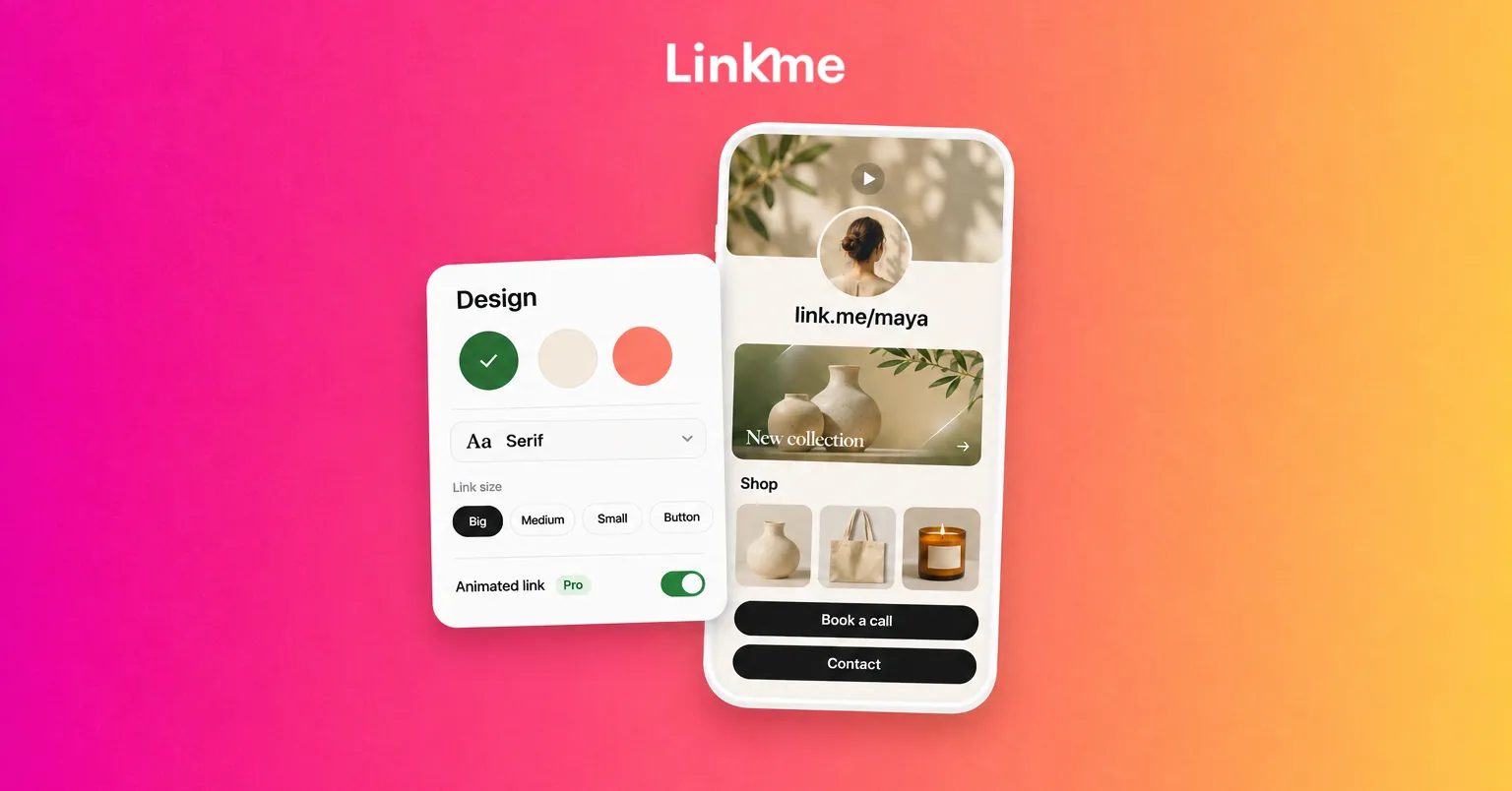
- Background and text color. Pick a pair with strong contrast. Dark text on a light background, or light text on a dark one, keeps every label readable on a phone in daylight.
- Font. Choose one that matches your brand and stays readable at small sizes. Display fonts work for a name but can be hard to read in long link labels.
- Consistency. Use the same colors as your social profiles and posts, so a visitor arriving from Instagram or TikTok recognizes they are in the right place.
If you use your own brand font, check that its license covers use on a web page.
Step 2: Profile photo or video profile
The top of the page is the first thing visitors see. You can use a profile photo, or put a video behind or in place of it.
Video profile styles include Cinematic Blur and Dynamic Frame. Preview both on your phone before choosing, then follow a few practical rules:
- Keep the clip short and calm. When it plays behind your name, fast cuts compete with your links.
- Make sure it still reads with the sound off.
- Choose footage that works when cropped to a phone screen.
- Check that your name and bio stay readable over it.
A strong profile photo still matters on its own: it appears small in search, shares and previews.
Step 3: Link sizes and thumbnails
Every featured link can be one of four sizes: Big, Medium, Small or Button. Size tells visitors what matters most before they read anything.
| Size | Use it for |
|---|---|
| Big | The one thing you want most people to tap this week: a launch, tickets, a new video |
| Medium | Important evergreen links: your shop, booking page or newsletter |
| Small | Supporting links people look for: press, past projects, FAQs |
| Button | Simple actions with short labels: “Book a table”, “Contact” |
Each link can also have its own icon or thumbnail. Thumbnails do the most work on Big and Medium links, where the image is large enough to recognize. Keep them consistent in style and cropping, so the page looks designed rather than assembled.
You can also add a YouTube video link and set it to autoplay on your profile, which works well as a Big link for a new release. The links and websites guide covers adding, labeling and reordering links in detail.
Step 4: Headers and carousels
Once you have more than a handful of links, structure keeps the page scannable.
- Headers label groups of links, such as “Shop”, “Watch” or “Events”. Visitors skip to the group they want.
- Carousels show links side by side in a horizontal row. They save space for sets of similar items, such as several products, episodes or locations.
A simple pattern: one Big link at the top, a header and a carousel for your products or content, then a header for contact and booking links.
Step 5: Order and sections
Beyond links, a Linkme page can hold sections you switch on or off: your social accounts, a bio, a photo and video gallery, contact info, a form, events, a smart music link, your Instagram and TikTok videos, courses, merch and products, and Google Reviews.
Turn on only what you will keep current, then drag sections into the order your visitors need. A musician might lead with the smart music link and events. A restaurant might lead with the menu and reservations. A creator might put an email sign-up first, then brands, channels, latest videos and the shop.
Step 6: The Pro extras
Two customization options come with Pro.
Animated links
Animated links add motion to featured links, with styles including Shine, Jello, Bounce, Pulse and Wiggle. Use animation on one link at a time, the one you most want tapped. When every link moves, none of them stands out.
Your logo instead of the Linkme mark
On the free plan, your page carries a Powered by Linkme badge. Pro swaps the Linkme mark for your own logo, which matters for brands that want the page to look fully their own. The pricing page lists what each plan includes.
Let Link make the changes
If you would rather describe the look than click through settings, Link, the AI Social Media Manager on Pro, can change the theme, font and style, reorder links, set featured links and update the header, gallery and video profile. It lines up the changes for your approval, and nothing changes until you press Approve. See Link for what it can edit.
A quick customization checklist
- Background color, text color and font match your brand
- Profile photo or video profile is set, and the name and bio stay readable over it
- One Big link for this week’s priority
- Thumbnails cropped and styled consistently
- Headers and carousels group related links
- Only the sections you keep current are switched on, in the order visitors need
- On Pro: one animated link and your logo in place of the Linkme mark
Frequently asked questions
How do I customize my Linkme profile?
Start in Edit Profile in your Linkme dashboard, where you add links and sections. Then set the background color, text color and font, add a profile photo or video profile, choose a size and thumbnail for each link, add headers and carousels, and switch sections on or off and drag them into order.
Can I use a video as my profile picture on Linkme?
Yes. You can put a video behind or in place of your profile photo, with styles such as Cinematic Blur and Dynamic Frame. Keep the clip short and check that your name and bio stay readable over it.
Which customization options need Pro?
Animated links and replacing the Linkme mark with your own logo come with Pro, along with Link, the AI Social Media Manager that can make design changes for your approval. The pricing page lists everything each plan includes.
Can I remove the Linkme branding from my page?
On Pro, your own logo replaces the Linkme mark. The free plan shows a Powered by Linkme badge on your page.