Dynamic Link in Bio Content: Scheduled Links, Countdowns and Video Feeds
Keep your link page in step with every campaign using scheduled links, countdowns, video feeds, events and a weekly priority link, with a launch plan you can copy.
On this page
Dynamic link in bio content is anything on your link page that changes with what you are promoting: links that go live and come off on a schedule, a countdown to a drop, video feeds that update when you post, upcoming events and a priority link that moves to the top each week. A page that changes with each campaign matches what your latest post promised, so visitors find the thing they came for. A static page leaves them hunting through last month’s links.
This guide covers the dynamic elements you can use on a link page, how to plan them around a campaign and a weekly routine that keeps the page current.
Why a changing page gets more clicks than a static one
People rarely visit a link in bio page to browse. They arrive because a post, story or video told them to, and they expect to see that thing first. When the page leads with the same links it had three months ago, visitors have to search, and many give up.
A dynamic page fixes three problems:
- Relevance. The top of the page matches the current post, so the path from post to action is one tap.
- Freshness for repeat visitors. Fans who check your page often see something new, which gives them a reason to keep checking.
- Clean endings. Expired offers and sold-out events disappear on time instead of frustrating people who tap them late.
The dynamic elements, and when to use each
Scheduled links
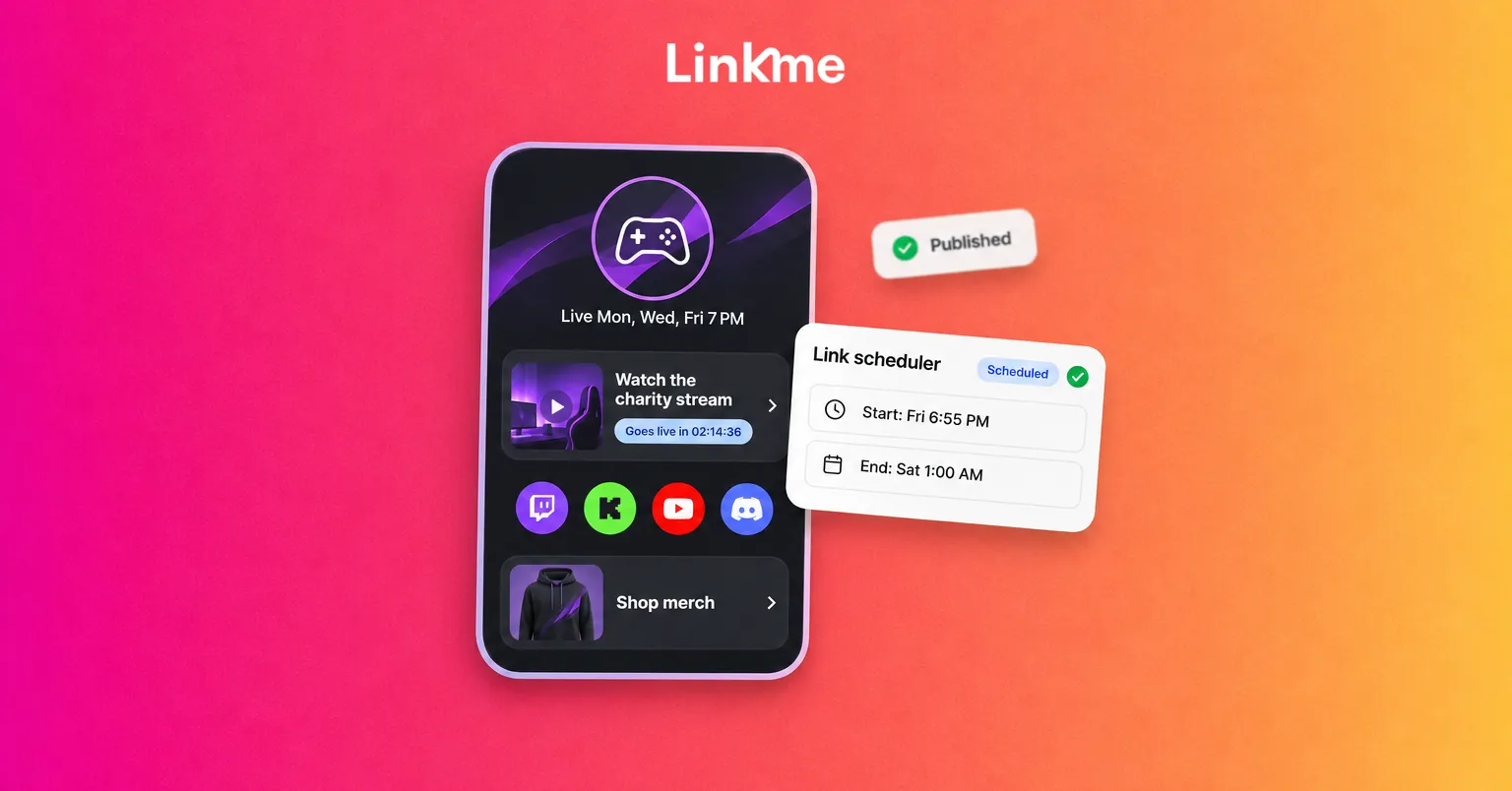
A scheduled link has a start date and time and an end date and time. It goes live on its own at the start and comes off at the end, so nobody has to swap links at midnight. Use them for:
- Product drops and merch releases
- Ticket on-sales and presales
- Limited-time offers and seasonal menus
- Contest or registration windows that close on a fixed date
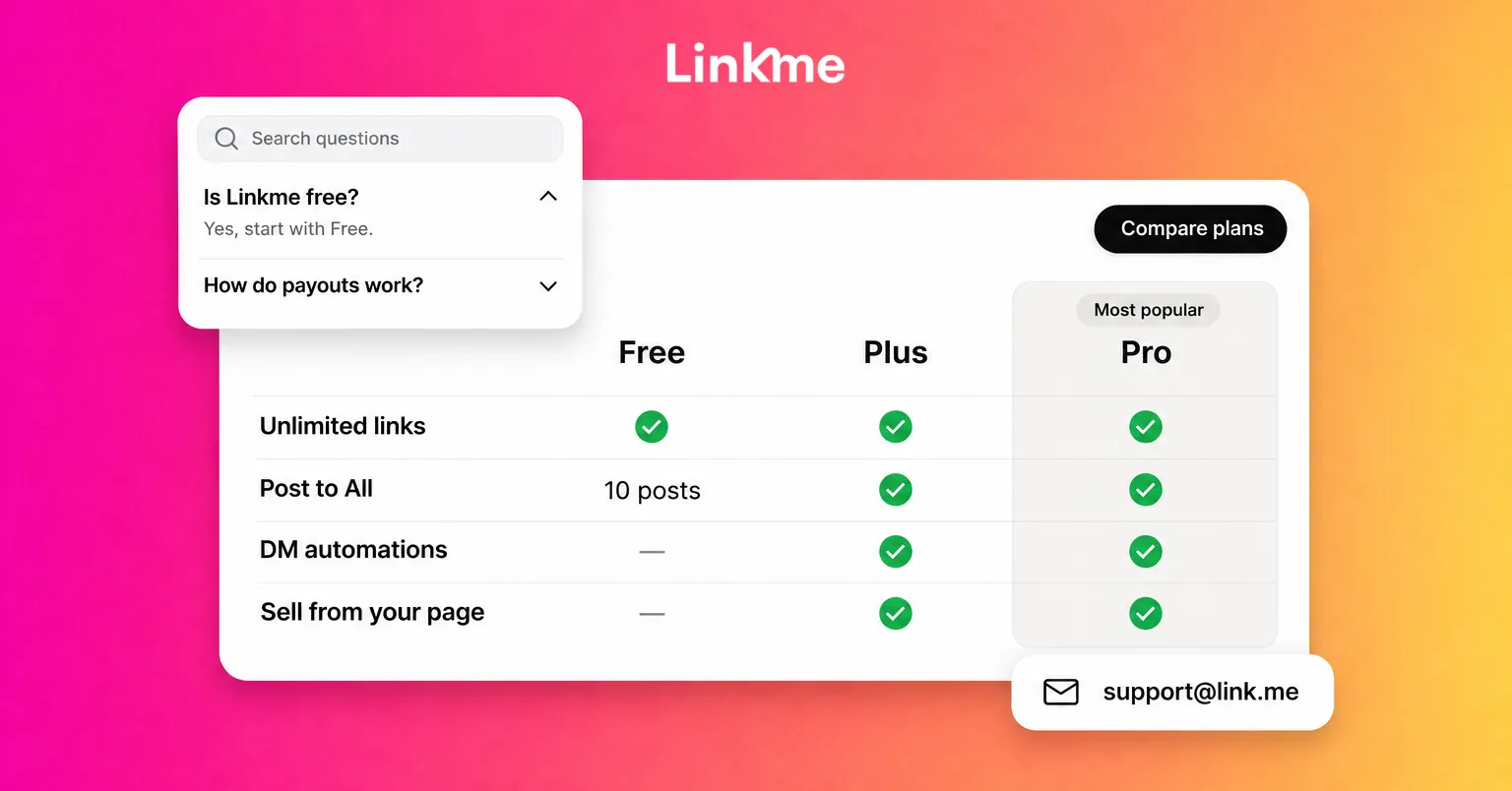
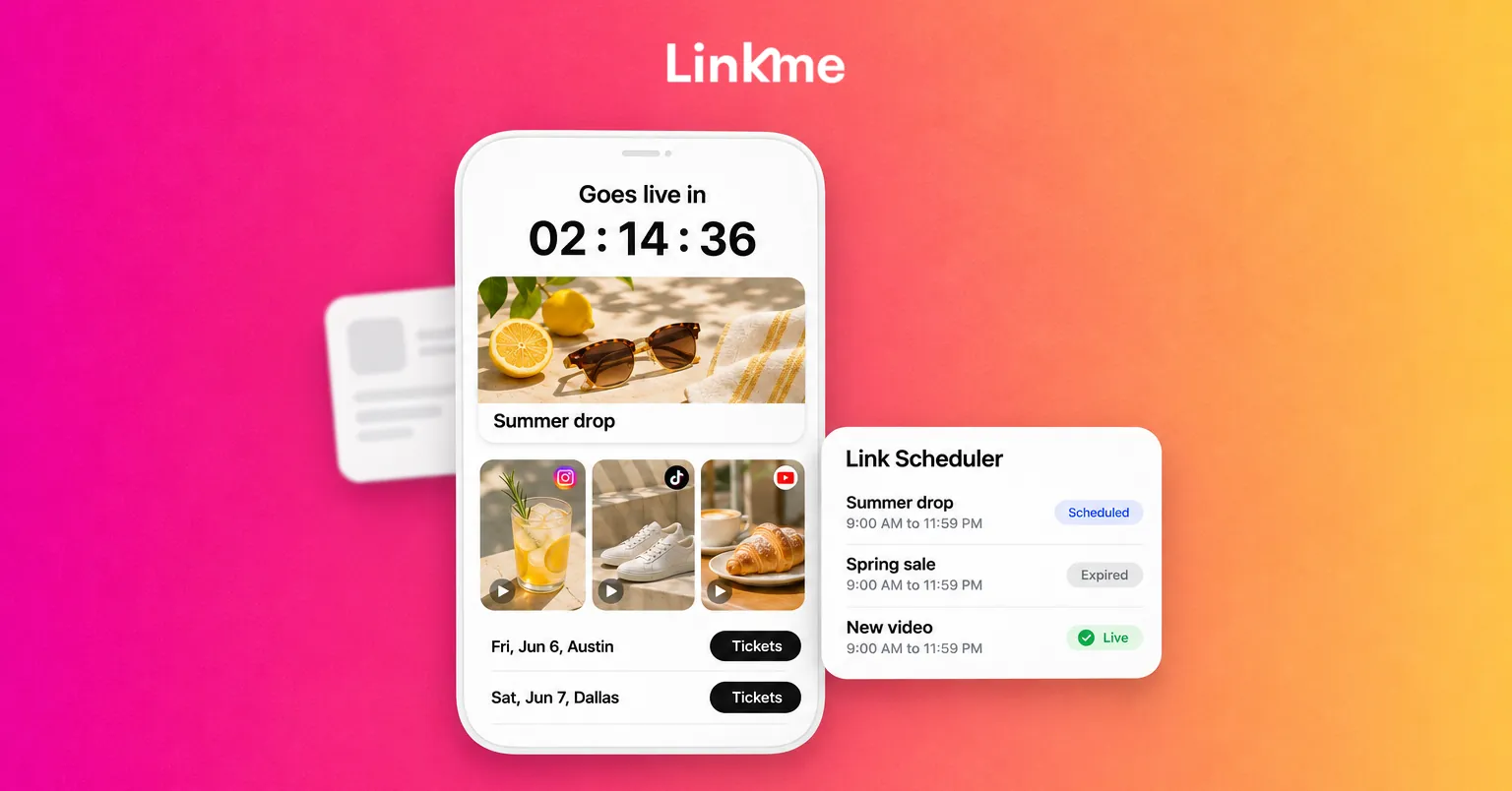
On Linkme, the link scheduler is in Edit Profile. Pick any link, set its start and end, and schedule as many links as you need, each with its own timing. Your links appear in one list as Live, Scheduled, Draft or Expired, so you can see what is coming up. Link scheduling is on Plus and Pro, and on every Business seat.
A countdown on the page
While a scheduled link is waiting, the page shows a countdown with the message that the link is scheduled to go live. A countdown turns an announcement into an event: people know when to come back, and the link is in place the moment it opens.
Pair it with your posts. Announce the drop, point to the page, and let the countdown hold attention until launch.
Video feeds
A Linkme page can show video feeds from Instagram, TikTok and YouTube, so your recent videos sit on the page next to your links. You can also add a YouTube video as a link and set it to autoplay on your profile, which works well for a new release or trailer.
Video feeds suit creators and brands who post often. The page shows recent work, and visitors who arrive from one network can see what you post on the others.
Events
Events show in date order with their ticket links, from any ticketing platform. Add each show, game or appearance once, and the page keeps them in order. The tickets and events guide covers the setup. For a fixed on-sale time, schedule the ticket link as well, so it appears exactly when sales open.
The weekly priority link
The simplest dynamic content is a decision you make every week: which link matters most right now? Move it to the top, make it a Big link and give it a clear thumbnail. On Pro, an animated style such as Shine can draw the eye to that one link.
Plan the page around a campaign
Dynamic content works best when you plan it alongside your posts. Here is an example for a product launch:
| When | Posts | Page |
|---|---|---|
| One week before | Teaser video | Launch link scheduled, countdown showing; teaser in the video feed |
| Launch day | Launch post on every network | Launch link goes live as a Big link at the top |
| Launch week | Behind-the-scenes, reviews | Launch link stays on top; video feed shows new posts |
| Offer ends | Last-chance post | Launch-price link comes off on its own; full-price product link stays in the shop section |
| Week after | Next topic | New priority link moves to the top |
The same pattern works for a tour (events plus ticket links scheduled to on-sale times), a restaurant (seasonal menu links that switch on and off) or a sports team (game-day links that go live before each match).
If you publish across several networks, point every post to the same page. A post on any network then lands on the same current link.
A weekly page refresh
Set aside fifteen minutes once a week, ideally the day you plan the week’s posts:
- Check what is coming. Review your scheduled links for the next two weeks and confirm the times.
- Pick the priority link. Match it to the main thing your posts will mention this week.
- Move it to the top. Set it as a Big link with a strong thumbnail.
- Clean up. Remove links that no longer earn clicks, and confirm expired links came off.
- Check events. Add new dates and confirm ticket links still work.
- Read the numbers. Look at link clicks for the past week.
Every link has its own click count in Linkme analytics, alongside profile views for any date range. If a link near the bottom is getting more taps than the one at the top, your audience is telling you what to move. Keep in mind these numbers come from your Linkme page, not from Instagram or TikTok, so compare them with each network’s own insights for the full picture.
Common mistakes
- Scheduling without promoting. A link that goes live with no post pointing to it gets few clicks. Plan the post and the link together.
- Forgetting time zones. Convert the on-sale or launch time from your audience’s local time before you set the start and end, especially when fans are in another region.
- Too many priorities. Three Big animated links at the top compete with each other. Pick one.
- Leaving dead links. Every expired offer that stays on the page costs trust. Give time-limited links an end date from the start.
Frequently asked questions
What is dynamic link in bio content?
It is content on a link page that changes with your campaigns: scheduled links that go live and come off on their own, countdowns before a launch, video feeds that update as you post, events listed in date order and a priority link that moves to the top each week.
How do I schedule a link to go live on my link in bio page?
On Linkme, open Edit Profile, go to the link scheduler and pick a link. Set a start date and time and an end date and time. The link appears on your page at the start, shows a countdown beforehand and comes off at the end. Link scheduling is on Plus and Pro, and on every Business seat.
Can I show my TikTok and Instagram videos on my link in bio?
Yes. A Linkme page can show video feeds from Instagram, TikTok and YouTube, so your recent videos appear on the page. You can also add a YouTube video link that autoplays on your profile.
How often should I update my link in bio?
Review it at least once a week and whenever you publish a post with a new call to action. Use scheduled links for anything with a fixed start or end, so the page changes on time even when you are busy.