Two-Factor Authentication on Social Media: How to Set It Up on Every Network
How to turn on two-factor authentication on Instagram, Facebook, TikTok, YouTube, X and LinkedIn, why an authenticator app beats SMS, and how teams avoid sharing codes.
On this page
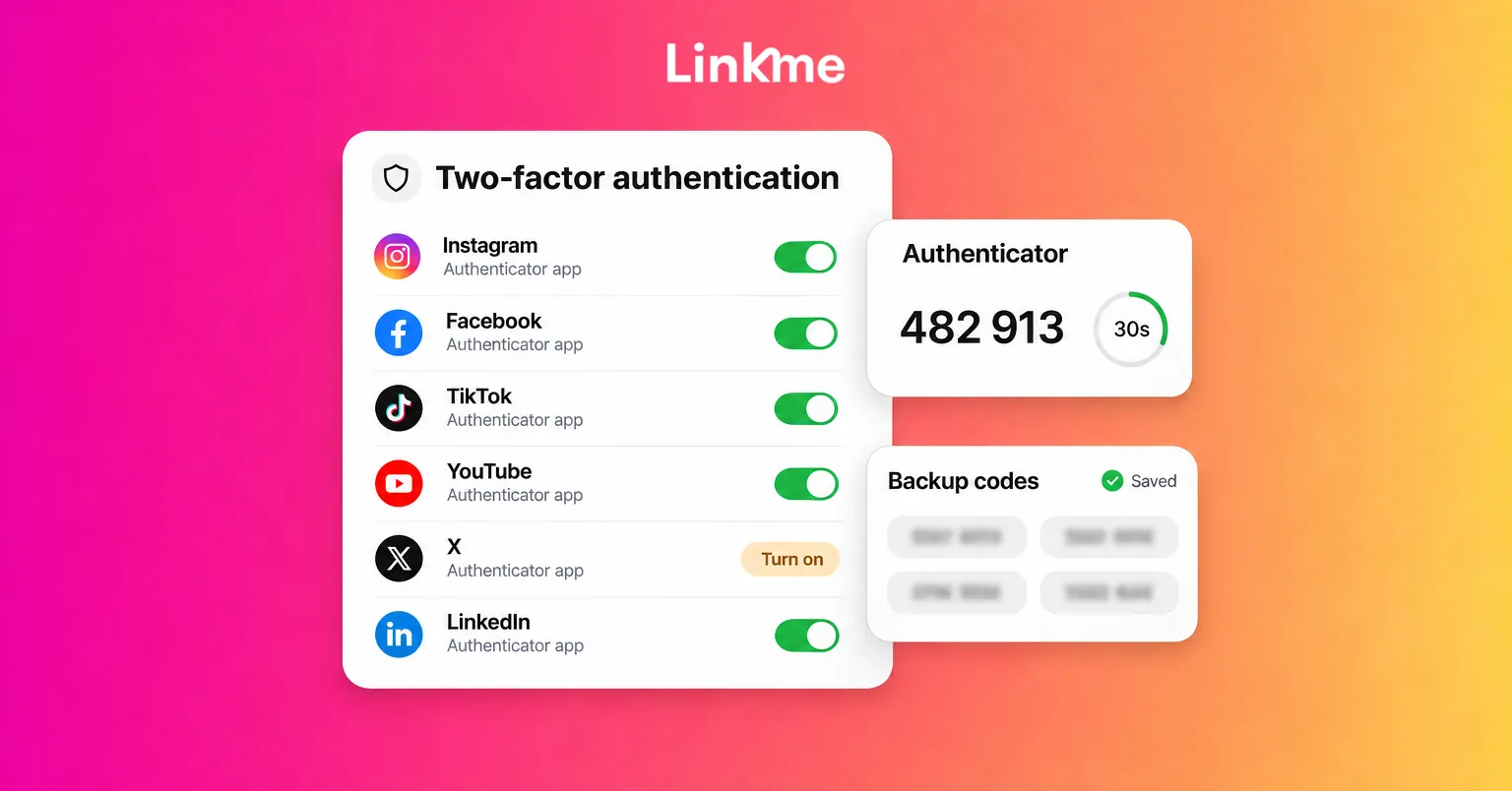
Two-factor authentication on social media means that a stolen password is not enough to get into your account: anyone signing in from a new device also needs a second proof, usually a code from an app on your phone, a security key or a passkey. It takes a few minutes per network to set up, and it blocks takeovers that rely only on a stolen password.
Below is how to turn it on for Instagram, Facebook, TikTok, YouTube, X and LinkedIn, which method to choose, where to keep your backup codes, and how teams can use it without passing codes around.
How 2FA works, and which method to pick
When you sign in from a device the network does not recognize, it asks for your password and then a second factor. The second factor is something you have (your phone, a key) rather than something you know.
| Method | How it works | Strength |
|---|---|---|
| Passkey or security key | Your device or a physical key confirms the sign-in | Strongest; resists fake login pages |
| Authenticator app | An app generates a six-digit code that changes every 30 seconds | Strong; works offline and is not tied to your phone number |
| Sign-in prompt | A push notification on a signed-in phone asks “Is this you?” | Good, where offered |
| Text message (SMS) | A code is sent to your phone number | Better than nothing, but the weakest option |
| Email code | A code is sent to your email | Only as safe as that email account |
Why an authenticator app beats SMS
SMS 2FA risks come from the phone number itself. If someone convinces your carrier to move your number to their SIM card, a so-called SIM swap, they receive your codes. Numbers also change, lapse or get recycled, which can lock you out of your own account. An authenticator app such as Google Authenticator, Microsoft Authenticator or a password manager with a built-in authenticator keeps the codes on your device instead.
One caveat applies to both: a fake login page can ask you for the code and use it immediately. Passkeys and security keys resist that, which is why Google recommends them as the strongest second step.
Turn on 2FA network by network
Menu names change between app versions, but these paths were current at the time of writing.
Instagram and Facebook
Both are managed through Meta’s Accounts Center. Open your profile, tap the menu, then go to Accounts Center > Password and security > Two-factor authentication and choose the account. Pick Authentication app when offered; text message and WhatsApp are the alternatives. Once it is on, open the additional methods to get your backup codes.
While you are there, review Where you’re logged in and remove sessions you don’t recognize, and find the list of recent emails Instagram has sent you, so you know how to check whether a security email is real.
TikTok
Go to Profile > Menu > Settings and privacy > Security & permissions > 2-step verification. TikTok asks you to choose at least two methods from phone, email and authenticator app. Choose the authenticator plus your email, then tap Turn on. Keep the recovery code TikTok gives you when you link the authenticator, because you will need it if you lose the app. TikTok’s own account safety guide also covers its security checkup and passkeys.
YouTube
YouTube channels are protected by the Google Account that owns them. In your Google Account, open Security & sign-in and select Turn on 2-Step Verification. Google lets you use passkeys, security keys, Google prompts, the Google Authenticator app or text and call codes, and it recommends passkeys for the strongest protection against phishing. Print or save a set of backup codes from the same page. YouTube’s page on securing the Google Account linked to your channel walks through each option.
X
Go to Settings and privacy > Security and account access > Security > Two-factor authentication. X offers an authentication app, a security key and text message, but text message codes are only available to paid Premium subscribers. For most accounts, the authentication app is the right choice. Save the backup code X gives you when you turn it on.
Click Me > Settings & Privacy > Sign in & security > Two-factor authentication and choose Set up. LinkedIn offers an authenticator app or a phone number for SMS; choose the authenticator app. If anyone on your team uses Campaign Manager, Recruiter or Sales Navigator, LinkedIn requires 2FA on their LinkedIn account to access it. The steps are in LinkedIn’s help article on turning two-factor authentication on and off.
Don’t skip the email account
Every one of these accounts can be reset through an email address. If that inbox has no 2FA, an attacker can reset the social account from there. Protect the email first.
Where to keep backup codes
Backup codes are single-use codes that get you in if your phone is lost, broken or reset. Treat them like a spare house key.
- Do store them in a password manager, or print them and keep the paper somewhere secure.
- Do generate a fresh set if you think the old ones have been seen, which usually cancels the previous set.
- Do note which account each set belongs to, especially if you run several brands.
- Don’t keep them only as a screenshot on the same phone that runs your authenticator.
- Don’t paste them into a shared doc or team chat.
If your authenticator app supports encrypted backup or sync to a second device, turn it on so a new phone doesn’t mean a locked account.
2FA for teams: each person gets their own login
The most common way businesses weaken 2FA is by sharing one login. The second factor is tied to one phone, so whoever has the phone becomes the team’s code service. Codes get forwarded by text, the person is on vacation, and a phishing message asking for “the code” looks routine.
The fix is to give each person their own access instead of sharing the account:
- Use each network’s business tools to add people with their own logins, such as page and channel permissions, so nobody needs the owner’s password. YouTube, for example, asks creators to grant access through channel permissions rather than sharing passwords.
- If your team publishes through a management tool, make sure it also gives everyone an individual login with a role.
- Ask each person to turn on 2FA for their own login, and check that they have.
In Linkme, every teammate signs in with their own Linkme login, so there is no shared password to hand around, and social accounts connect through each network’s own sign-in. Each person turns two-factor on for their own login, and owners and admins can see who has it on and each person’s status. The Ads, Team & Security page shows how roles and the audit log fit around that, and the team roles guide covers inviting people.
Common mistakes to avoid
- Turning on 2FA with a phone number you might lose, such as a temporary or work SIM.
- Leaving trusted devices on the list long after the device is gone.
- Using SMS on the one account that matters most because it was the default.
- Assuming 2FA on the social account protects the ad account, the email and every connected tool. Check each one.
Frequently asked questions
Is SMS 2FA better than nothing?
Yes. Any second factor blocks attacks that rely only on a stolen password. But SIM swaps and lost numbers are real risks, so move to an authenticator app, a security key or a passkey on any account that matters to your business.
What happens if I lose the phone with my authenticator app?
Sign in with a backup code, then set up the authenticator on your new phone and generate new backup codes. Without backup codes you will need the network’s recovery process, which can take days and may ask for identity verification.
Can two people share 2FA on one social account?
They can, but they shouldn’t. Give each person their own access through the network’s business permissions or a management tool with individual logins, so nobody forwards codes and each person can be removed on their own.
Does two-factor authentication stop phishing?
It stops someone who only has your password. It does not stop you from typing a code into a fake page. Never enter a code on a page you reached from a link, and prefer passkeys or security keys where the network offers them.
Two-factor authentication is one of the few security steps that takes minutes and pays off for years. Turn it on for every account today, then give your team individual logins so it stays on.