Remote Social Media Management Without Sharing Passwords
Freelancers and agencies can run a client's accounts from anywhere without their password: individual logins, scoped roles, Act as user, approvals and a record of who did what.
On this page
Running a client’s social accounts from another city is normal now. What has not caught up is how access often works: a password sent by text, a shared login nobody remembers changing, and no way to tell who published the post that went wrong. Remote social media management works when every person has their own login, a role that matches their job, and a record of what they did, so the client keeps control and you never need their password.
This guide is for freelancers and agencies managing accounts for brands, creators or local businesses. It covers how to set up access, how to work inside a client’s account safely, how approvals fit in, and how to hand over cleanly when the work ends.
Why shared passwords are the real risk
A shared password feels faster at the start. Over time it creates problems that are hard to undo:
- No accountability. If three people use one login, nobody can tell who changed the bio or deleted a comment.
- Security alerts and lockouts. Logins from new devices and locations can trigger verification checks that land on the client’s phone, often at the worst moment.
- Two-factor gets switched off. To make sharing easier, teams often disable the protection that matters most.
- Messy exits. When a freelancer leaves, the only safe step is changing the password, which locks out everyone else as well.
The platforms themselves point the other way. Meta, for example, lets a business add a partner to its business portfolio and assign access to specific assets, so an agency can work without the owner’s login. Do the same with the tools you use on top of the networks.
Set up access without passwords
Connect accounts through each network’s own sign-in
Social accounts should be connected by the client, or by an owner on their side, through the network’s own sign-in screen. The connection belongs to their account, and they can remove it at any time without changing a password.
In Linkme, social accounts and ad accounts connect through each network’s own sign-in, and every person signs in with their own Linkme login. There is no shared password to hand around. The Ads, Team & Security page covers how the roles, approvals and audit log fit together.
Give each person a role
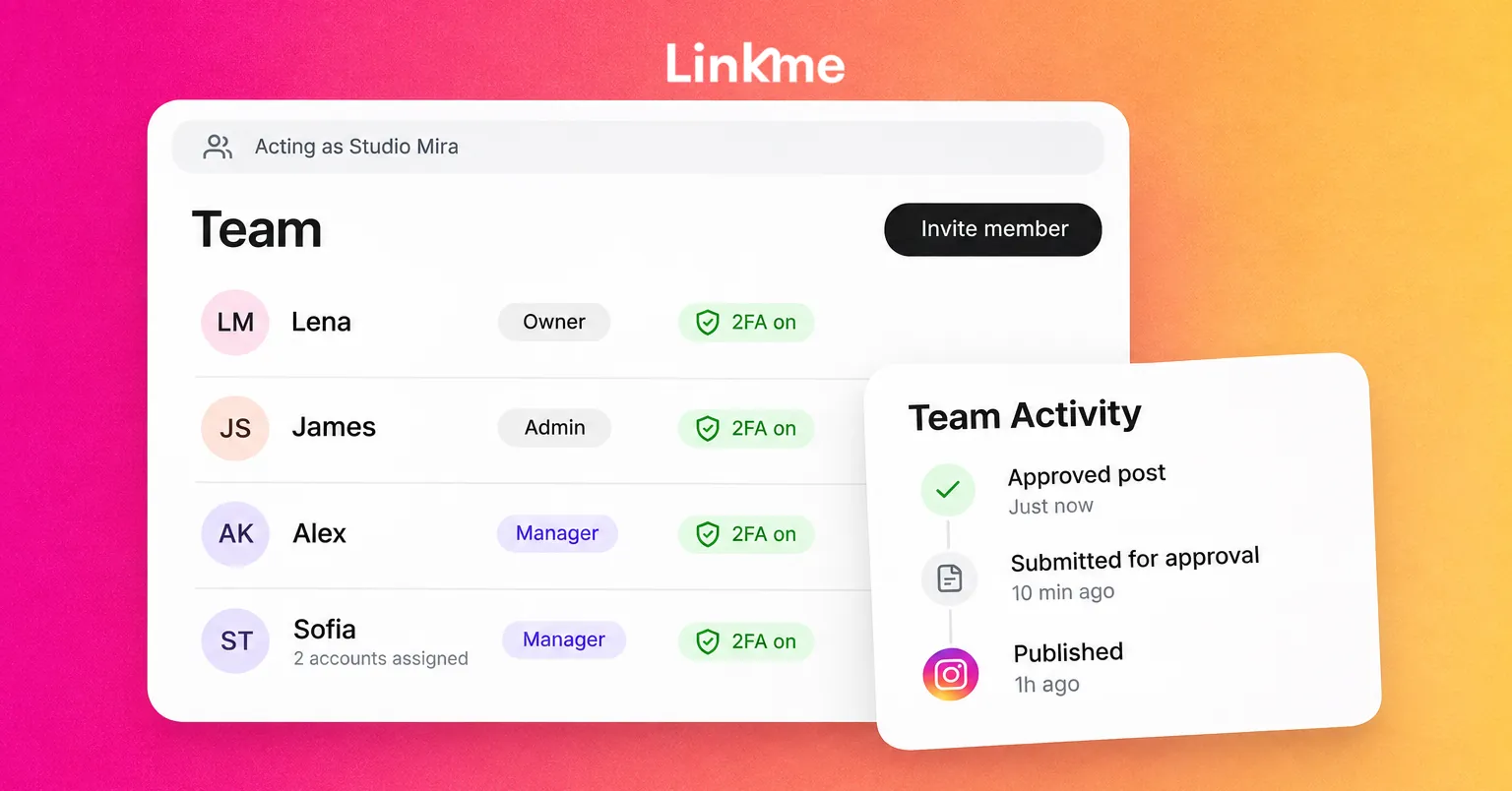
Match access to the job. On a Linkme Business account, the roles are:
| Role | What they can do |
|---|---|
| Owner | Everything, including billing, ad accounts and spending |
| Admin | Invites managers, approves posts and edits the business |
| Manager | Works on assigned pages; their posts need approval |
Owners invite people by email from Settings, then Team. Only the owner can make someone an admin. Per-person permissions can turn on Social Inbox, DM Automations or Publish without approval for a specific teammate. The team roles guide walks through the steps.
A typical freelance setup: the client is the owner, their marketing lead is an admin, and you are a manager on the pages you run.
Work inside a client’s account with Act as user
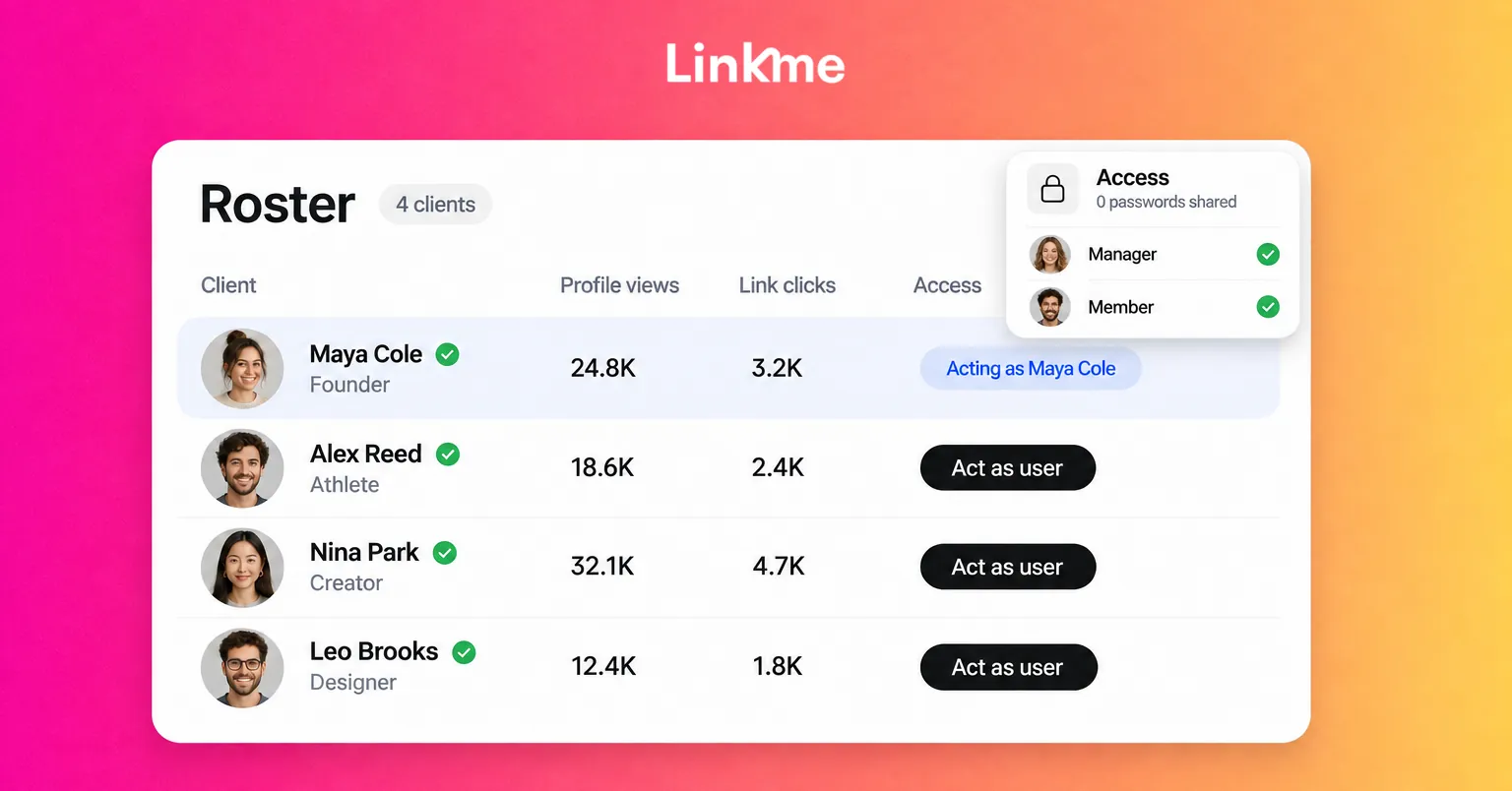
Agencies that manage many creators or brands need to work on each one without logging in and out. Linkme for Agencies uses Edit / Act as user for this: a manager opens a client’s account from the agency dashboard and works on their page, Post to All, automations and leads as that client, without the client’s password. A banner shows who you are acting as, and Exit Acting Mode returns you to the agency view.
Agency roles are Owner, Super Manager, Manager and Member. The owner holds the subscription, the roster and the settings. Managers can be given all accounts or only specific ones, and they get access to those accounts’ profiles, Post to All, Automations and Leads, but not the inbox or agency administration. Talent keep their own login throughout. The agency guide covers the setup.
A few things to know before you rely on it:
- Assign accounts deliberately. Use specific account access for freelancers or junior staff, and keep all-account access for people who need it.
- Some actions stay with the client. For example, ads do not run while an agency acts on a client’s account; the business signs in itself for that.
- Keep clients informed. Acting as a client is powerful, so agree in writing what you will and will not change.
Use approvals for remote sign-off
When you are not in the same room as the client, approvals replace the “can you look at this?” message.
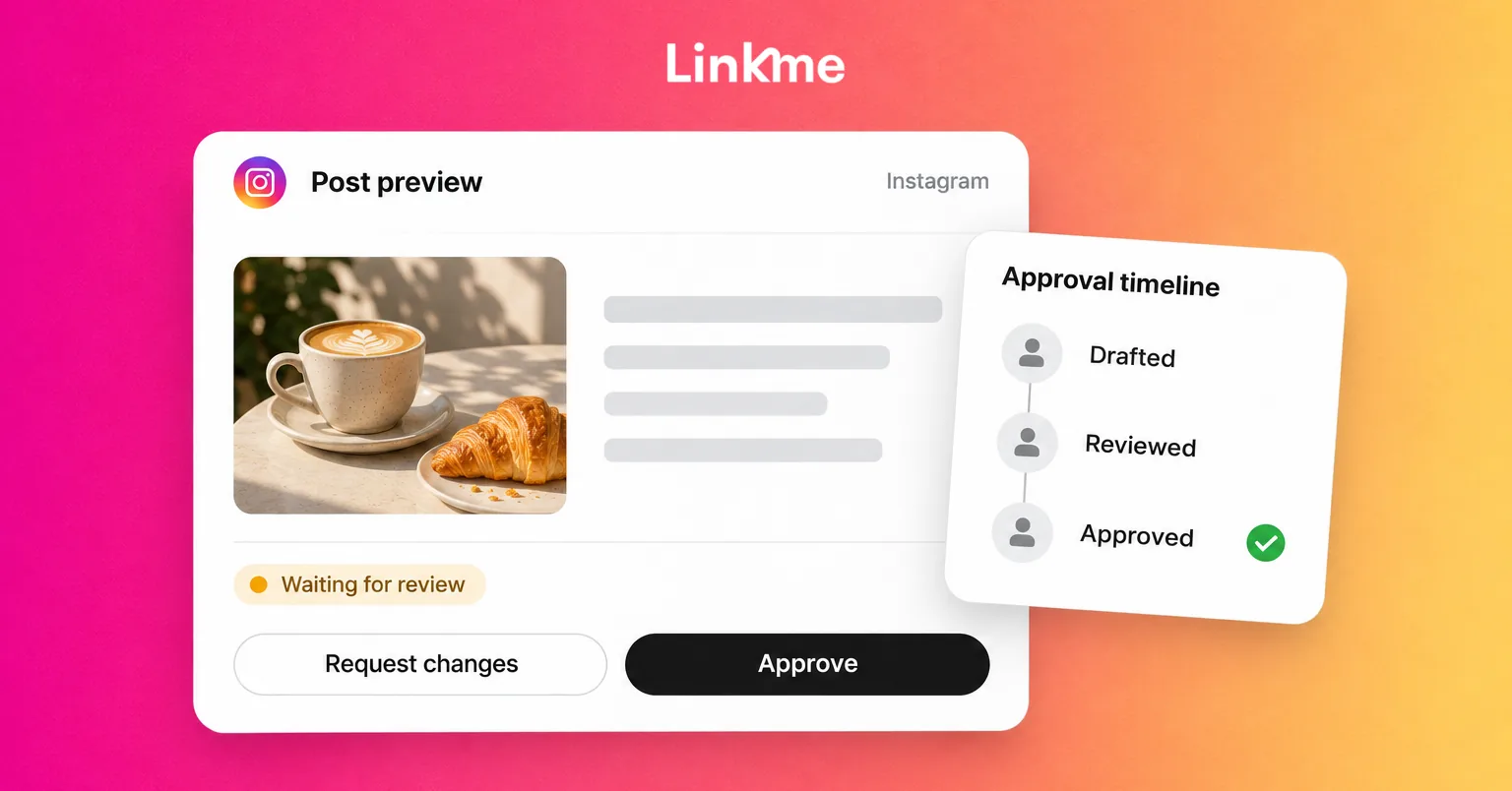
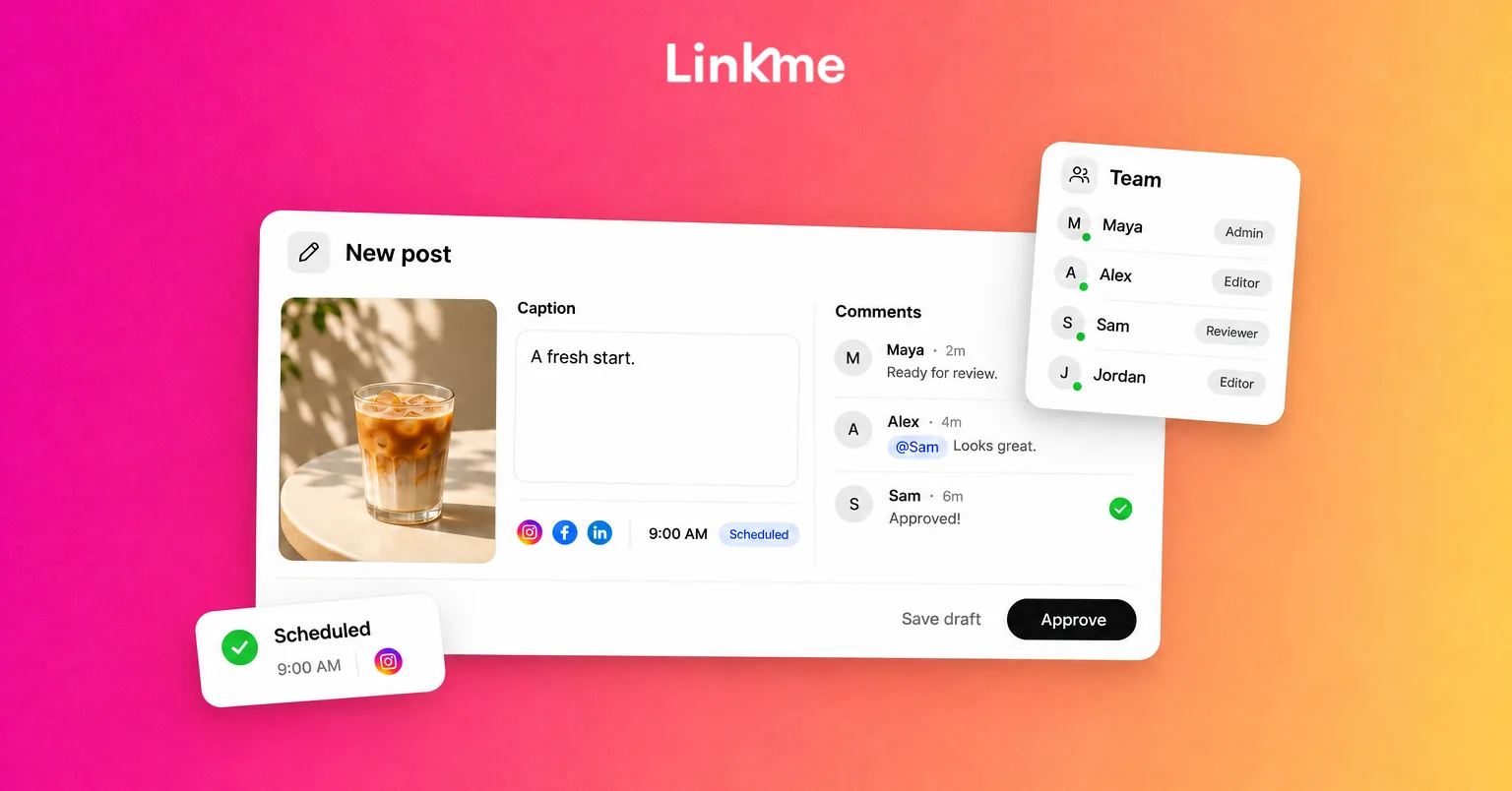
- You write the post and schedule it. If your role needs sign-off, it is submitted for approval.
- The owner or an admin, alerted by a Review requests notification if they have it turned on, opens Needs attention and approves it or requests changes.
- Once approved, it publishes at its scheduled time. A post approved after its time can still publish.
- If you change the caption or time after approval, it goes back for approval.
This keeps the client in control of what goes out without them joining every working conversation. For designing the wider review process, see the social media approval workflow article.
Keep a record of who did what
Remote work depends on trust, and trust is easier with a record. In Linkme Business:
- Team Activity shows who submitted, approved and published each post.
- The audit log shows who changed what, newest first, for owners and admins.
- Two-factor status shows how many people have it turned on, and each person’s method.
- Active sessions let each person see the devices signed in to their own login and sign out of any of them.
- Alerts such as Review requests and Failed publishes reach people in the app and by email.
Share a short monthly summary with the client: what was published, what was approved, any failed posts and how they were fixed.
Remote client checklist
Use this when you start with a new client:
- [ ] Client connects their social accounts through each network’s own sign-in
- [ ] Client is the owner; you are invited with your own email
- [ ] Your role and account access match the work you were hired for
- [ ] Two-factor is on for everyone with access
- [ ] Approval rules are agreed: which posts need sign-off and who approves
- [ ] Alerts are set so reviewers know when something is waiting
- [ ] A reporting rhythm is agreed, such as a monthly summary
- [ ] Offboarding is written down: who removes your access and what the client keeps
Hand over cleanly when the work ends
Good offboarding is part of the service:
- Ask the owner to remove you from the team or roster, rather than you deleting things on your way out.
- Make sure scheduled posts, automations and saved replies are documented, so the next person knows what is running.
- Hand over brand assets, captions and reports the client paid for.
- Confirm the client can still sign in to every social account and connected tool without you.
When access was individual from the start, the exit takes minutes and nobody has to reset a password.
Frequently asked questions
How do you manage social media remotely for a client?
Have the client connect their accounts through each network’s own sign-in, then invite you with your own login and a role limited to the accounts you manage. Use approvals for sign-off, keep an activity record, and agree a reporting rhythm and offboarding plan at the start.
Is it safe to share social media passwords with a freelancer?
It is better to avoid it. Shared passwords remove accountability, often lead to two-factor being turned off, and make it hard to remove one person’s access. Use the platform’s partner or team access, or a management tool with individual logins and roles.
What does Act as user mean in Linkme?
It is how agency managers work on a client’s Linkme account without their password. From the agency dashboard, a manager chooses Edit / Act as user to open that client’s page, Post to All, automations and leads, then exits acting mode to return to the agency view.
Can a client approve posts without logging in every day?
They need to sign in to approve, but they do not need to watch the calendar. Review alerts reach them in the app and by email when a post is waiting, and approved posts keep their scheduled time.
Managing accounts remotely is mostly about access done properly. Give everyone their own login, limit what each role can touch, and keep a record of what happened. See how Linkme handles roles, approvals and security on the Ads, Team & Security page, or look at Linkme for Agencies if you manage a roster of clients.