Linkme AI Is Now Link: Your AI Social Media Manager
Adam & Eve have been retired. Linkme AI is now Link, which edits your page, answers from your analytics and drafts posts, and waits for your approval every time.
On this page
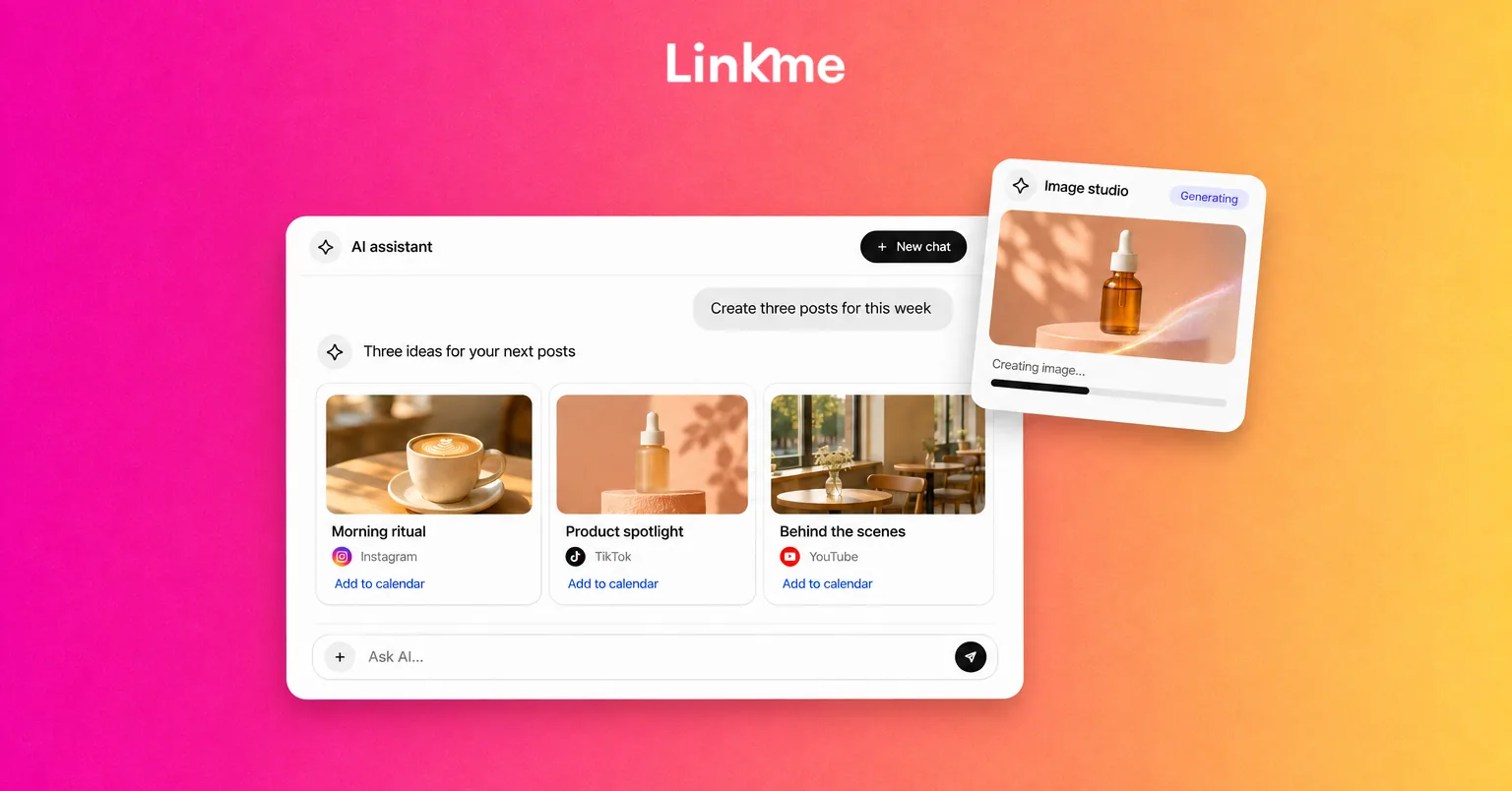
If you are looking for Linkme AI, it now goes by the name Link. The Adam & Eve chat companions from Linkme’s early app have been retired, and Link does a different job. Instead of chatting about any topic, it works as an AI social media manager in your Linkme dashboard. Link edits your page, answers questions from your analytics, drafts posts and makes images, videos and voiceovers, and nothing goes live until you approve it.
This guide covers what changed, what Link does and doesn’t do, how approvals work, and which plans include Link and its AI credits.
What happened to Adam & Eve
Adam & Eve were general chat companions in the old Linkme app, back when Linkme was a networking app built around short public updates. You could ask them about science, current events or anything else. That version of Linkme no longer exists, and Adam & Eve went with it.
Today Linkme is a social media platform for businesses, teams and creators. It covers link in bio pages with QR codes, posting to many networks at once, DM automations, a social inbox, lead capture, email campaigns, selling and analytics. The AI changed with the product. Rather than a chatbot that will talk about anything, Link is built to work on your accounts, and it shows you each step before anything happens.
General-purpose chatbots are easy to find. What makes Link useful is that it knows your page and your numbers.
What Link does
Linkme calls Link “your AI social media manager.” Its work falls into three areas.
Edits your page
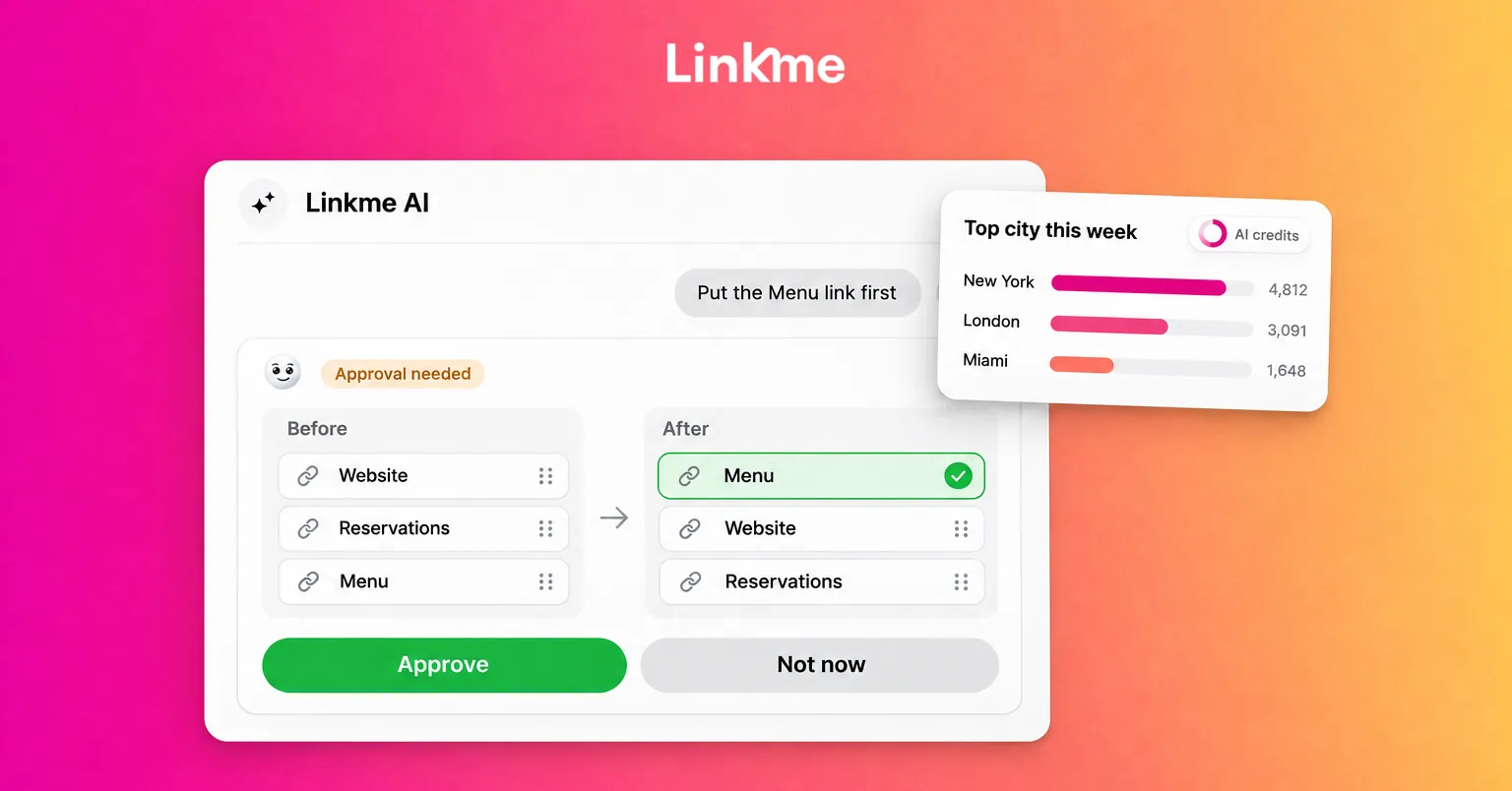
Ask in plain words, such as “put the Menu link first and make it shine” or “switch my page to dark and change the font.” Link can change:
- the bio, profile photo, username and visibility
- the theme, font and style
- links: adding, renaming, reordering and removing them, setting featured links and hiding a link in chosen countries
- the header, gallery, merch, tracking pixels and video profile
You can attach an image or a file to your message, such as a new gallery photo or a logo for your profile picture, and ask for several changes at once.
Answers from your analytics
Link has read-only access to your page’s analytics. Ask “which city clicked our tickets link most this week?” and the answer comes back as a card. It can draw on real-time activity, hourly and daily totals, comparisons with the previous period, countries, cities, traffic sources and individual links. Asking a question never changes your data.
Link can also find anything in your dashboard, and you can talk to it by voice, which is easier than typing when you’re on your phone.
Drafts posts and makes content
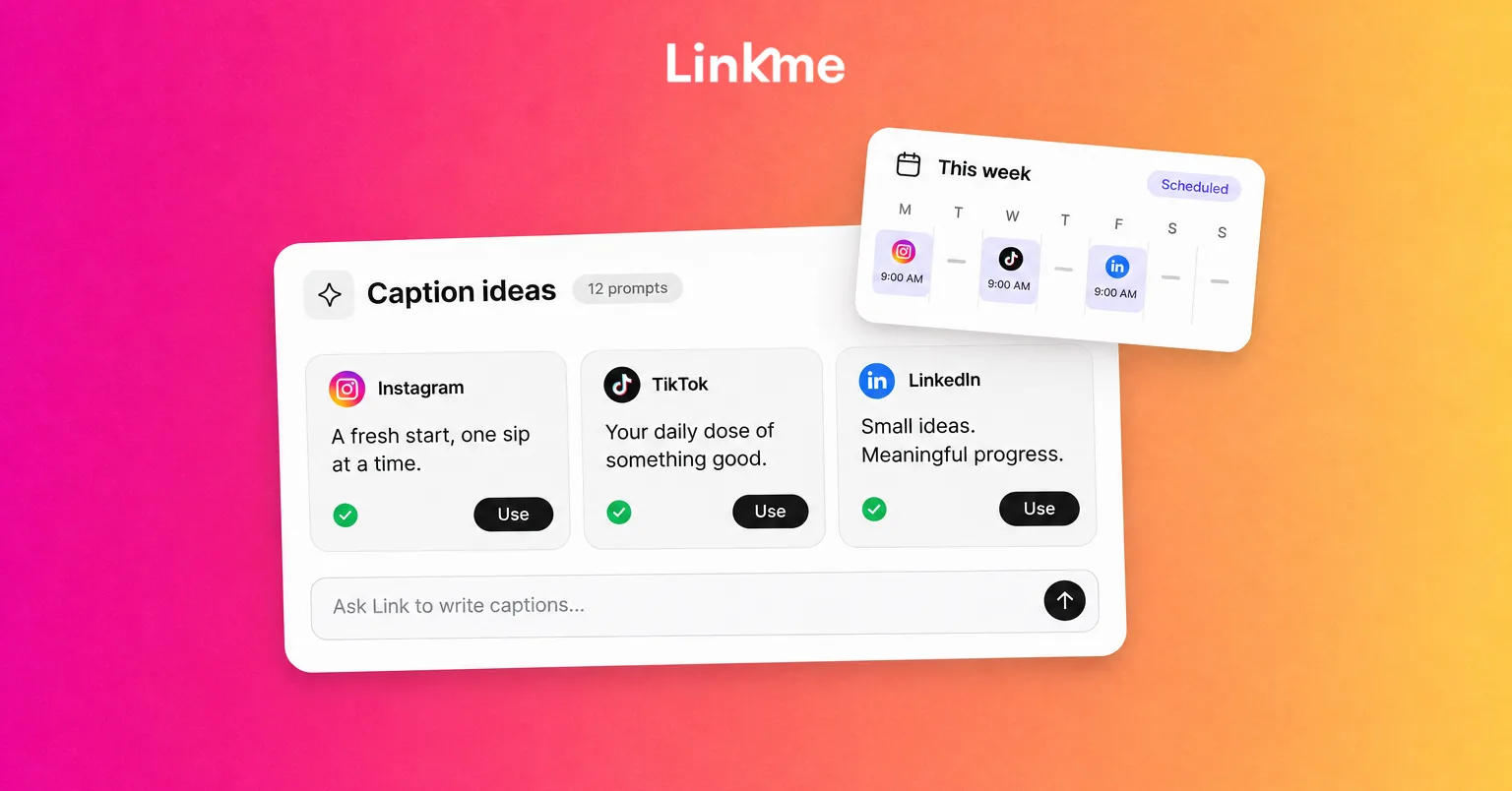
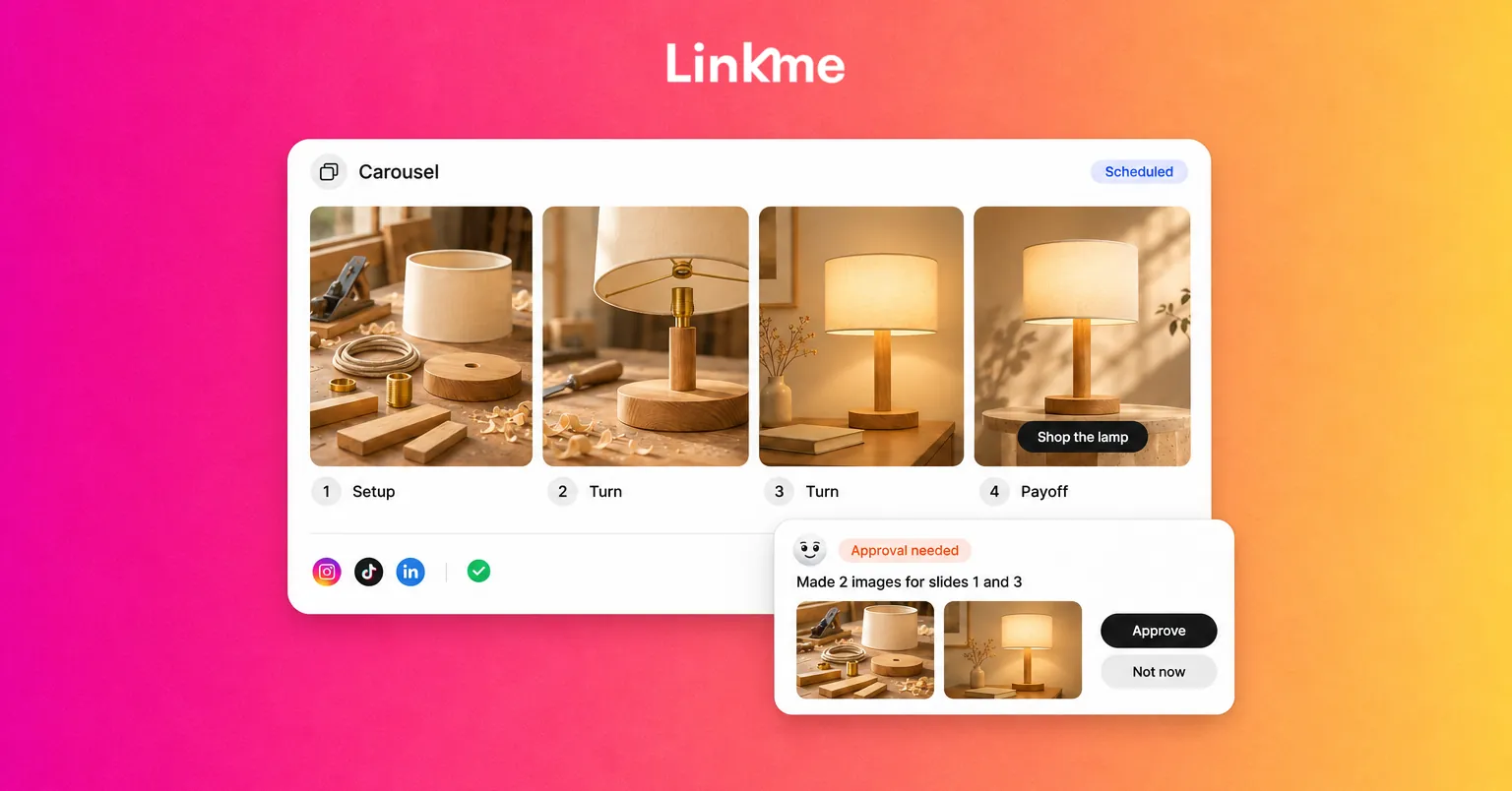
Link drafts posts and makes the images, videos and voiceovers that go with them. Once you approve each step, it can schedule the posts and set up automations. A post goes out only when someone taps the button on the card that shows it.
On Business plans, Link also handles the creator marketplace. Tell it who you want to reach and it finds creators on Linkme who fit, sends your brief to the ones you approve and brings their videos back.
What Link does not do
Knowing the limits up front saves confusion later.
| Task | Does Link do it? | What handles it instead |
|---|---|---|
| Reply to comments or DMs | No | DM automations reply with the text and links you set. Your team answers everything else in the social inbox. |
| Publish a post on its own | No | A person taps the button on the post card. |
| Change your page without asking | No | Every change waits for Approve. |
| Create events | No | Add events in the page editor or sync them from Bandsintown. |
| Schedule a link to appear and disappear | No | Give the link a start and an end in the Link Scheduler. |
The rule on replies is deliberate. Link can draft and set up an automation, and it switches that automation on only after you approve it. Any conversation outside what you set up stays with a person.
How approvals work
Every request follows the same four steps:
- Ask in plain words. Type the request, or say it in a voice chat.
- See the changes. Each one arrives as a card showing the before and after, marked Approval needed.
- Approve or Not now. Nothing on your page moves until you press Approve.
- Ask about the result. Follow up with a question and the answer comes from your own analytics.
Here is a typical Monday with Link:
- “Which link got the most clicks last week, and from which cities?” Link replies with a card from your analytics.
- “Move that link to the top and make it big.” Link shows the change, and you press Approve.
- “Draft three posts for this week about it, each with an image.” Link brings back drafts. You edit the copy, approve the ones you want and schedule them.
If Link answered but nothing changed, the approval step is the usual reason. Link only acts once you tap Approve on its card.
Plans and AI credits
Link is part of the paid plans, and the work it does uses AI credits.
For people and creators: Link comes with Linkme Pro. The Free and Plus plans do not include it. The pricing page compares what each plan adds.
For businesses: every Linkme Business package includes Link, unlimited users and unlimited brands. The Link and AI credits guide lists the monthly credit balance for each package:
| Business package | AI credits each month |
|---|---|
| AI Standard | 20,000 |
| AI Power Maxed | 50,000 |
| Enterprise | 100,000 or more, set in your agreement |
The credits are a single monthly balance shared by the whole team, so when teammates use Link, they spend the owner’s balance. A ring under the message box shows how many credits are left. When a business runs out, Link says so. The owner can tap Get more AI credits, and teammates see a prompt to ask the owner, because they can’t add credits themselves.
Getting good results from Link
Link does more useful work when your requests are specific.
- Name the thing. “Move the Summer Menu link to the top” works better than “fix my links.”
- Give a time frame. “Compare clicks this week with last week” gives you a clear answer. “How are we doing?” leaves Link to guess.
- Read every card. The card shows exactly what will change, so check it the way you’d check a colleague’s draft.
- Check the facts in drafts. Prices, dates, addresses and offer terms should match your own records before you approve a post.
- Keep a short style note. Write a few lines on your tone, words to avoid and how you sign off, and include it when you ask for posts.
For prompt patterns you can adapt, see these AI prompts for social media captions and content planning. The Linkme AI Course also teaches prompting for AI video and photos and how to brief Link.
Frequently asked questions
Is Linkme AI the same as Adam & Eve?
No. Adam & Eve were general chat companions in the old Linkme app, and they have been retired. Linkme AI today is Link, an AI social media manager that works on your page, analytics, posts and campaigns.
Is Link the same as Linkme AI?
Yes. Your Linkme dashboard calls it Linkme AI, and the Linkme AI button at the foot of the sidebar opens it as a panel.
Can Link post or reply to followers without me?
No. Link never publishes a post on its own and never replies to comments or DMs. Posts go out only when someone taps the button on the card, and replies come from DM automations you set up or from your team.
Which plan do I need to use Link?
Link comes with Linkme Pro for individual creators and with every Linkme Business package: AI Standard, AI Power Maxed and Enterprise. Its work uses AI credits from your plan’s balance.
Link is built for people who want help running their social presence and still want the final say. See everything it can do on the Link feature page, then try one small request on your own page and approve it.