Multi-Link in Bio: How to Organize Many Links on One Page
Getting many links onto one page is easy; organizing them is the work. Use headers, link sizes, carousels, a music link and scheduled links to keep a page clear.
On this page
A multi-link in bio is one page, opened from the link in your social profile, that holds every destination you want people to find: your channels, your shop, your latest release, a booking form. Getting many links onto one page is easy. Keeping that page organized, so a visitor finds the right link in a couple of seconds, is the real work. This guide shows how to structure a page with many links using headers, link sizes, carousels, sections and links that go live and come off on a schedule.
Why one bio link turned into a page of links
Social networks give you limited room for links. Instagram lets you add up to five links to your profile, but only the first shows directly and the rest sit behind a short “and others” label. Meta’s paid Meta One subscription adds a link page to your Instagram bio, as Meta’s help center explains, but it still lives inside one network. On TikTok, a personal account needs 1,000 followers or a Registered Business Account to add a website link at all, per TikTok Support.
A dedicated page solves both problems. The same address works in every bio, and you control the order, labels, grouping and timing of every link on it.
Start with an inventory, not a layout
Before you open an editor, list every link you currently share anywhere: bios, story stickers, email signatures, video descriptions. Then tag each one by how long it stays relevant.
| Type of link | Examples | Where it belongs |
|---|---|---|
| Always on | Website, main channels, contact | Lower on the page, grouped under headers |
| Current priority | New release, this month’s offer, open registration | The top of the page, in the largest size |
| Time-boxed | Ticket on-sale, a drop, a webinar | Scheduled to appear and come off on set dates |
| Rarely used | Old press, archived projects | Grouped in a carousel, or removed |
Two rules help here. First, pick one primary action for the page right now, the thing you most want a visitor to do. Second, remove duplicates. If your shop and your “new collection” link go to nearly the same place, keep one.
Build the page in layers
Put one featured link at the top
The top of the page gets the most attention, so give it to your current priority. Use the largest link size and a thumbnail that shows what people get, such as a product photo, cover art or event poster. Write the label as an action: “Get tickets for Friday” says more than “Tickets.”
Group the rest under headers
Headers turn a long list into short, labeled sections. Three to five groups usually cover everything:
- Watch or listen for channels, videos and music
- Shop for products and merch
- Work with me or Visit us for booking, contact and locations
- Free stuff for guides, newsletters and sign ups
Keep header text to one or two words. Visitors scan headers the way they scan the shelves in a store.
Use link sizes to show priority
On a Linkme page, featured links come in four sizes: Big, Medium, Small and Button. Each can carry its own icon or thumbnail.
| Size | Use it for |
|---|---|
| Big | The one link you want tapped most, with a strong image |
| Medium | Two or three secondary priorities |
| Small | Standard links inside a group |
| Button | Simple utility actions: Contact, Book, Directions |
If every link is Big, nothing stands out. A page with one Big link, a few Medium ones and the rest Small reads clearly at a glance.
Use carousels for sets of similar links
When you have several links of the same kind, such as recent videos, products in a collection or past episodes, show them as a horizontal carousel. People swipe through the set without the page getting longer. The Links & websites guide recommends a carousel or a better order when a page starts to feel long.
Collapse streaming links into one music link
Musicians often list Spotify, Apple Music, YouTube and others as separate rows. A Music Smart Link replaces that row with a single link: paste one song or album URL, and Linkme finds the other platforms that carry it, such as Apple Music, YouTube, Amazon Music, Deezer, SoundCloud and Tidal. Fans tap their preferred service, and your analytics show clicks per platform. The smart music link guide covers the steps.
Keep social accounts in their own place
Your profiles on other networks are destinations, but rarely the main action. Add them as platform links rather than featured links, so they stay available without taking space from your priorities.
Turn sections on, off and into order
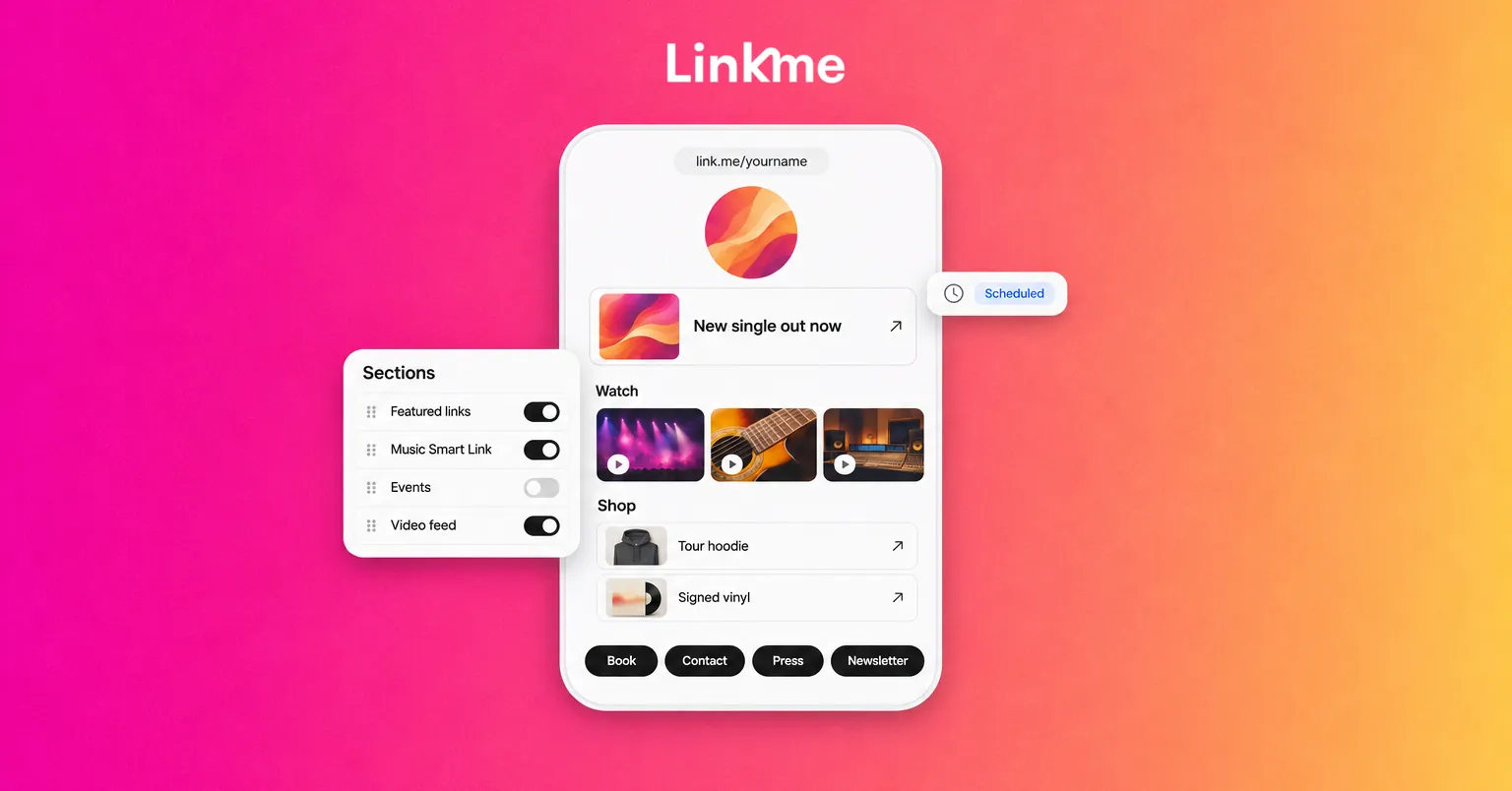
Links are only part of a page. On Linkme you can also switch on sections for a photo and video gallery, contact info, an email contact form, events, your merch and products, your courses, a music link, video feeds from Instagram, TikTok and YouTube, and Google Reviews. Each section can be switched off when it is not useful and dragged into a new order.
Order sections by what a visitor came for:
- A musician: latest release, tour dates, video feed, merch, socials
- A restaurant or venue: reservations, menu, events, reviews, contact
- A coach or consultant: booking, a free guide, client results, contact
- A creator: email sign up, current brand partner, latest videos, shop
If a section has nothing current in it, such as an events list with no upcoming dates, switch it off until it does.
Let links appear and disappear on schedule
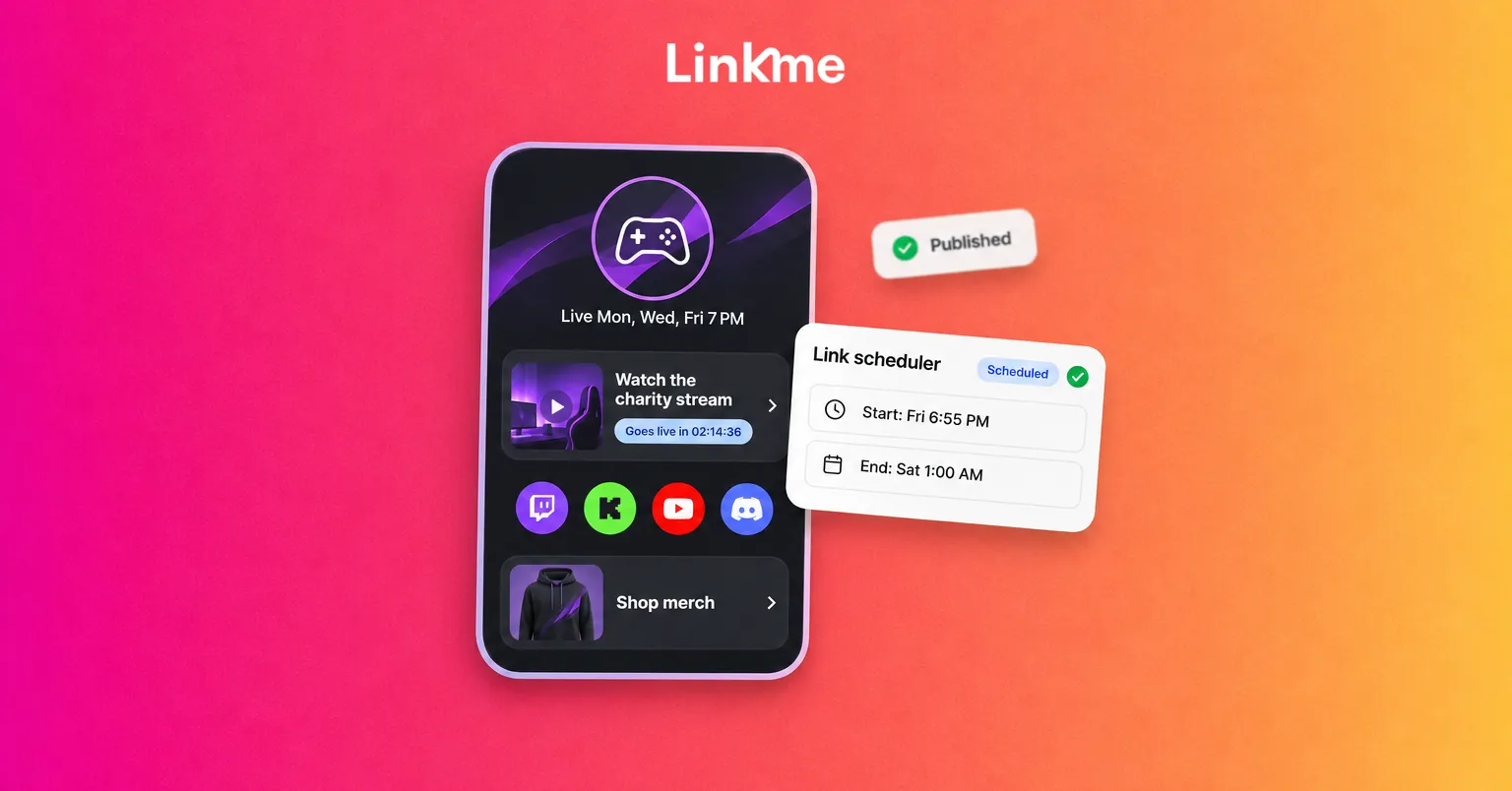
A page gets cluttered when campaign links stay up after the campaign ends. Scheduling fixes that. With the link scheduler on Linkme Plus and Pro, you give a link a start date and time and an end date and time. It waits on your page under a countdown, goes live on its own and comes off when the window closes. Your links appear as Live, Scheduled, Draft or Expired in one list. The link scheduler guide walks through the setup.
Use it for product drops, ticket on-sales, launches and limited offers. You can schedule as many links as you like, each with its own timing, so next month’s campaign can be ready before this month’s ends.
Check what people actually tap
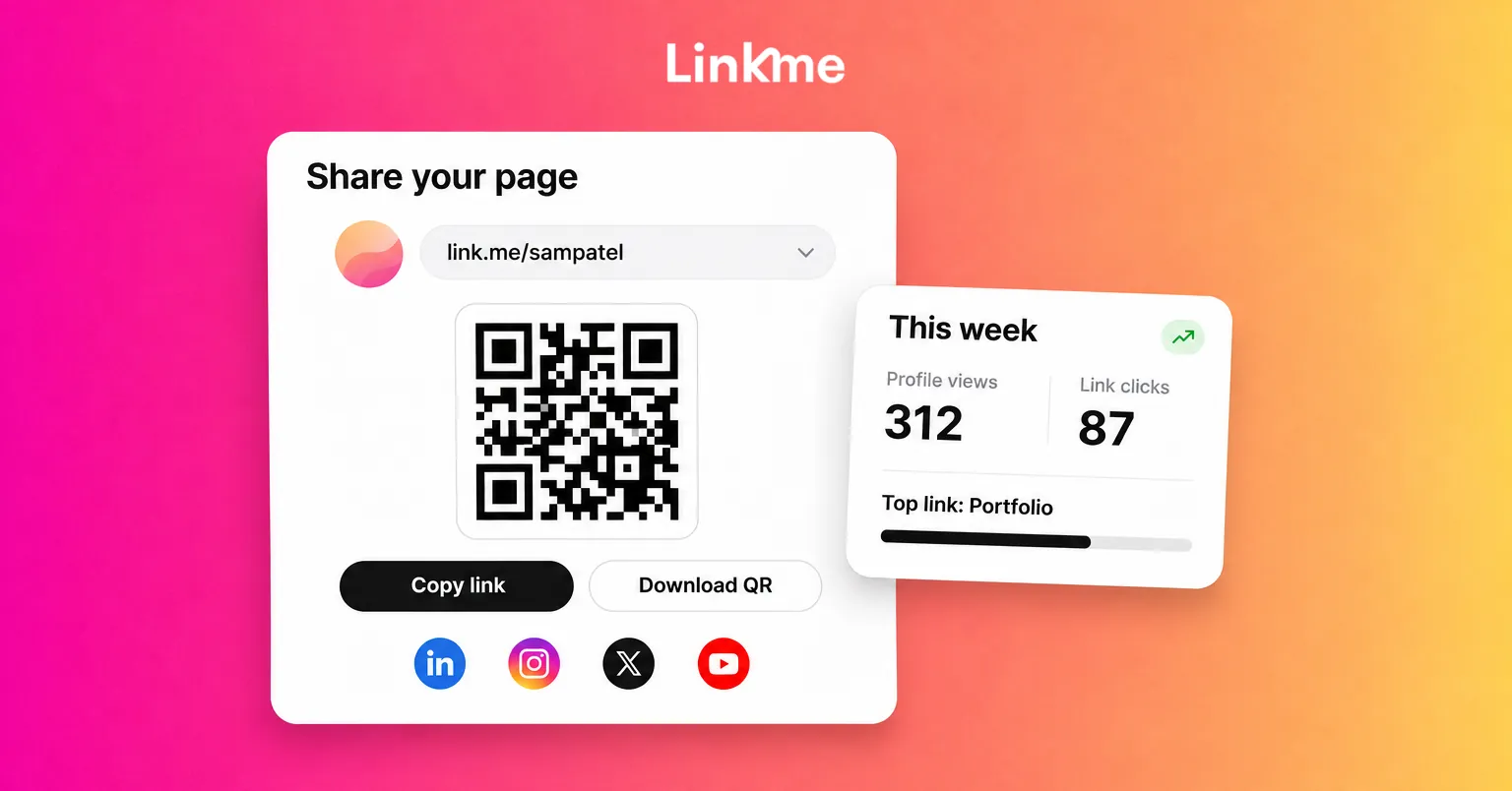
Organizing a page is never finished. Every link on a Linkme page shows its own click count in your analytics, so once a month:
- Find links with few or no clicks. Move them lower, merge them into a carousel or remove them.
- Check whether the top link gets the most clicks. If a lower link outperforms it, ask whether your priorities have changed.
- Test one change at a time, such as a new label or thumbnail, so you can tell what made the difference.
Frequently asked questions
What is a multi-link in bio?
It is a single web page, linked from your social profiles, that lists many links in one place. Visitors tap your bio link and choose where to go next, whether that is your shop, a video, a booking form or another channel.
How many links can I put in my Instagram bio?
Instagram allows up to five links on a profile, with only the first one shown directly, and Meta’s paid Meta One subscription adds a link page for more. A link in bio page that you control works in every network’s bio, with your own grouping, labels and order.
How many links should a link in bio page have?
There is no fixed number. What matters is that one primary action is obvious and the rest are grouped so visitors can scan them. If the page feels long, move similar links into a carousel and remove links nobody taps.
Can I schedule links to appear and disappear on my page?
Yes. On Linkme Plus and Pro, the link scheduler takes a start and an end date and time for any link, shows a countdown on your page until the link goes live and takes it off when the window closes.
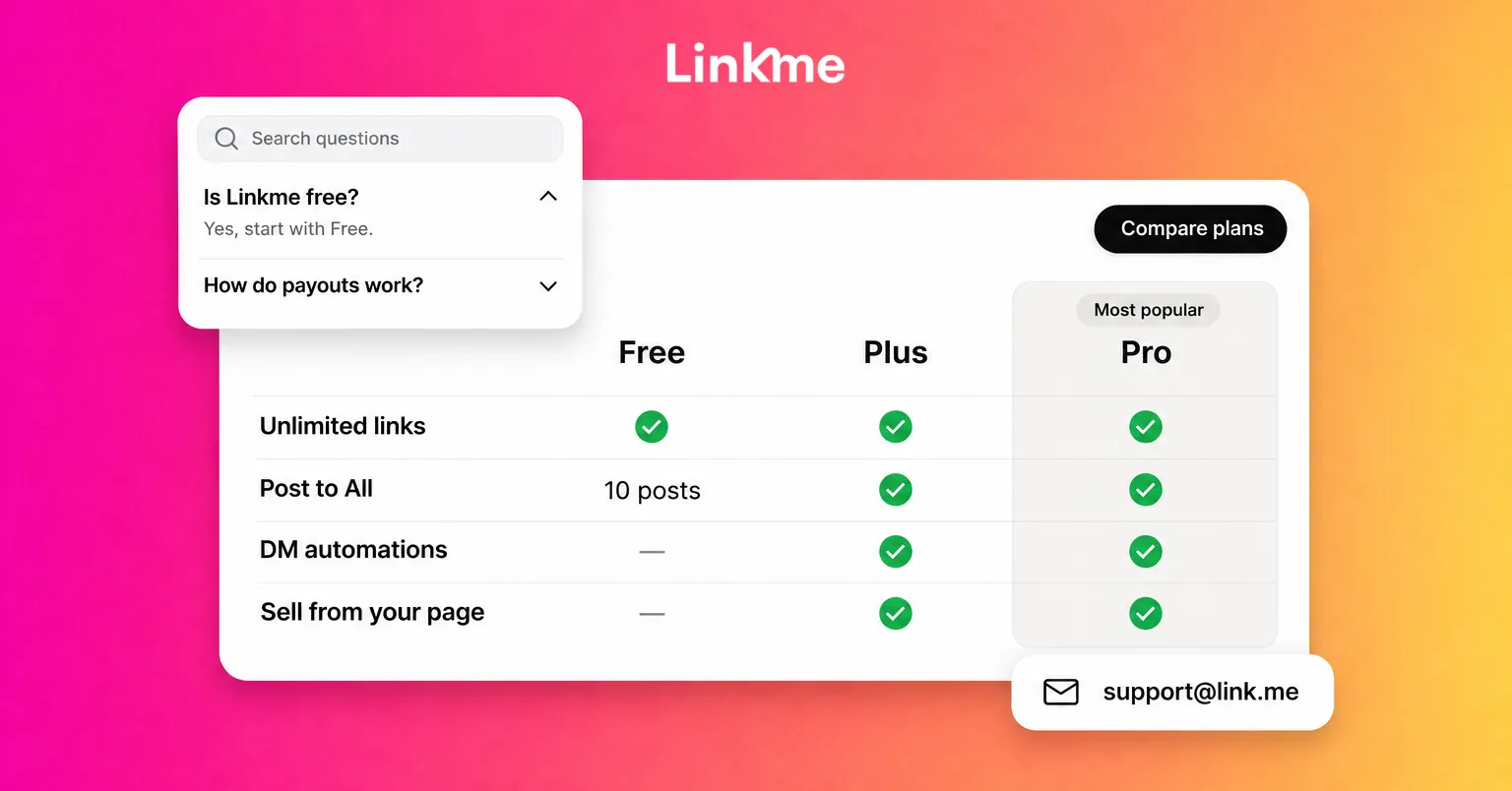
A page with many links works when it is ordered by priority, grouped under clear headers and kept current. Linkme’s free plan includes unlimited links, so you can build the structure first and add scheduling when your campaigns need it. Start with Pages & QR.