How to Make a Digital Business Card That Stays Current
A digital business card is a page you can edit forever. What to put on it, how to build one, where to share the QR code and how to tell if people use it.
On this page
- Key takeaways
- What a digital business card is, and what it is not
- What to put on a digital business card
- How to make a digital business card with Linkme
- Let people share their info back
- QR code business card: where to share it
- See whether people use it
- Digital business cards for a whole team
- Frequently asked questions
A digital business card is a web page that holds your contact details, links and work, shared by a QR code or a link instead of a printed card. Unlike paper, it never goes out of date: change your number or job title and everyone who scans it sees the new version. The best ones also work in both directions, letting the person you meet send their details back to you. This guide covers what to put on a digital business card, how to build one, where to share it and how to see whether people use it.
What a digital business card is, and what it is not
The term covers a few different things:
- A contact file (a vCard) that adds your details to someone’s phone. Useful, but static: once it is saved, later changes never reach that phone.
- A virtual business card image, a designed card saved as a picture. It looks good but nothing on it is clickable.
- A contact card link: a web page with your details, links and work, opened by a link or a QR code.
The third is the most useful because it does everything the others do and more: it can hold a portfolio, a booking link and social profiles, it can collect the other person’s details, and you can edit it any time without resending anything. The rest of this guide focuses on that kind.
What to put on a digital business card
Keep it to what a new contact needs in the first minute. In order:
- Name, photo and one line describing what you do, in the words you would say out loud. “Commercial photographer for restaurants and hotels” is better than “Visual storyteller.”
- Contact details: email, phone if you take calls, and city or service area.
- The main action: book a call, request a quote, see the menu, view listings. Make it the biggest button.
- Proof: two or three examples of work, a short video or a link to reviews.
- Socials: only the accounts you keep up to date.
- A way to share details back, so the contact can reach out or you can follow up.
Leave out anything that will date quickly unless you plan to update it, and anything that does not help the reader decide to get in touch.
Examples by role
| Role | Main action | Proof to include |
|---|---|---|
| Real estate agent | Book a viewing | Current listings, client reviews |
| Freelancer or consultant | Book a call | Portfolio pieces, a case study |
| Restaurant or venue manager | Reservations | Menu, upcoming events |
| Sales rep | Request a quote | Product video, price list |
| Creator or athlete | Partnership inquiries | Recent brand work, audience numbers |
How to make a digital business card with Linkme
A Linkme page works as a digital business card at link.me/yourname, with its own QR code. Here is how to set one up:
- Claim your username. Pick one you would be happy to say out loud and print. Your page goes live at link.me/yourname.
- Add your photo, name and bio in Edit Profile.
- Add contact info as a section, along with your social accounts.
- Add featured links for your main action and your work, in Big, Medium, Small or Button sizes. Put the main action at the top.
- Switch on the sections that help: a gallery, video feeds from Instagram, TikTok and YouTube, events, or Google Reviews.
- Drag sections into order so contact details and the main action sit near the top.
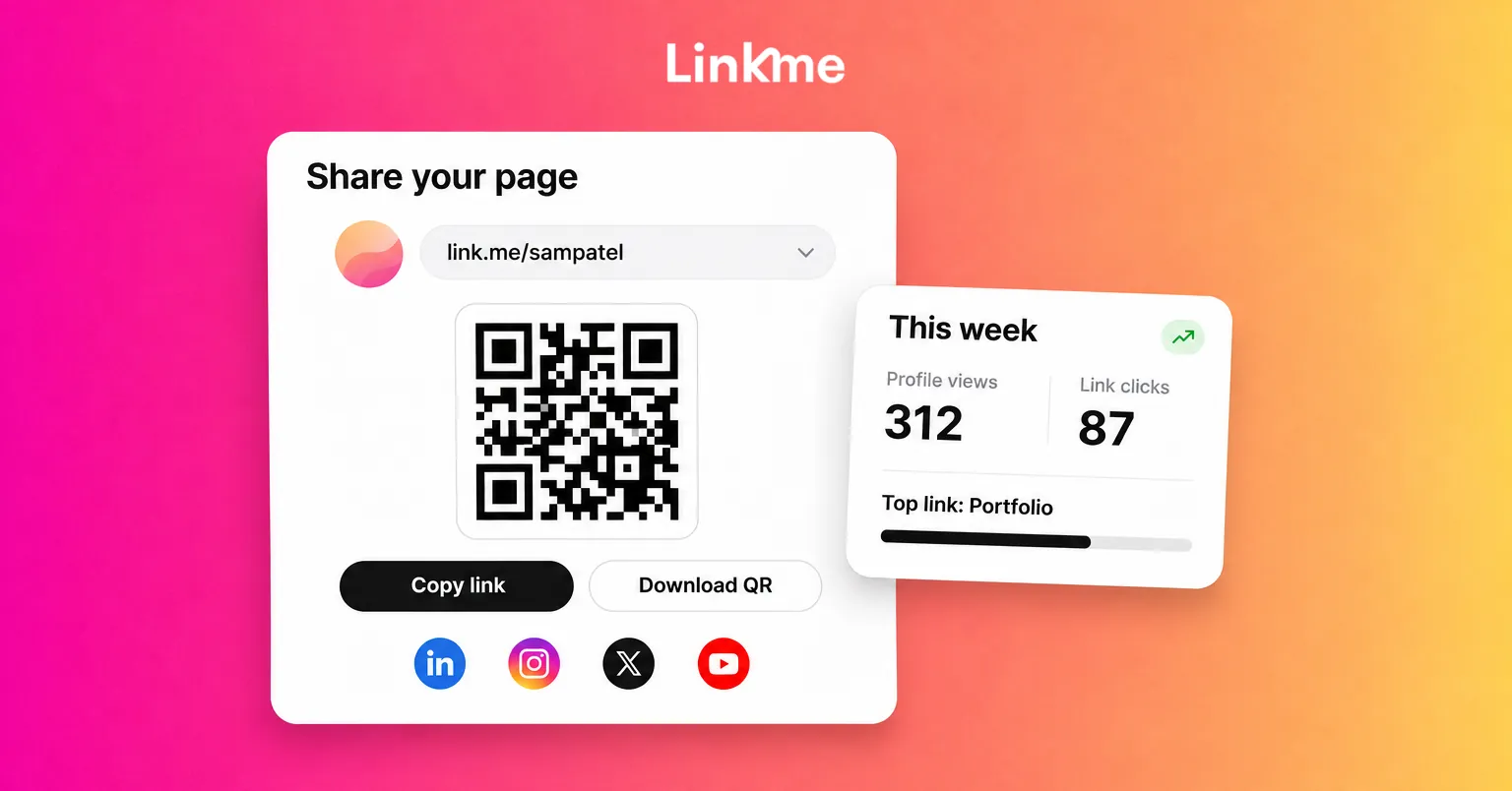
- Download your QR code from Your QR Code in the dashboard top bar.
A free digital business card, and what upgrades add
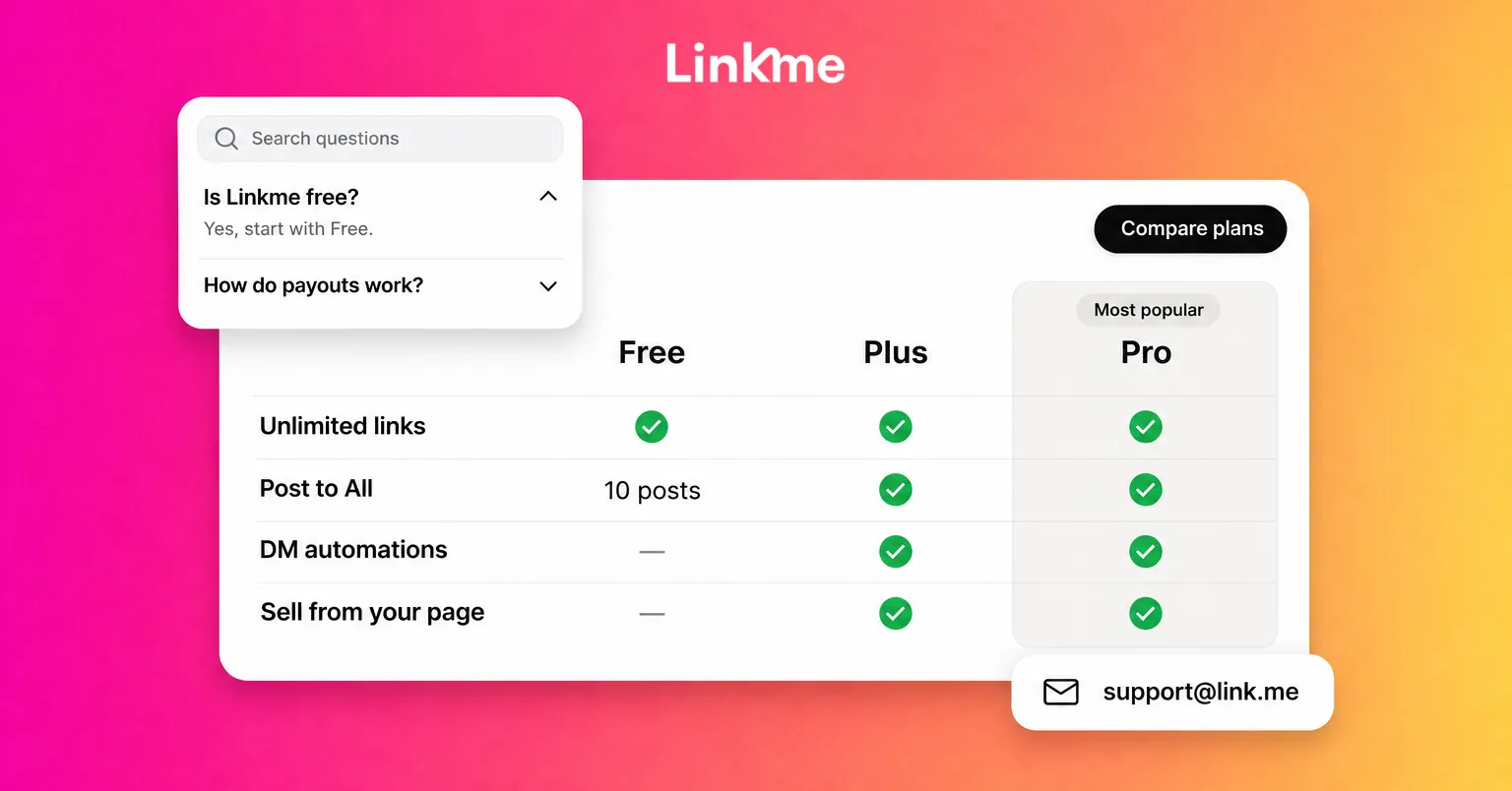
The free plan gives you a page with unlimited links, basic analytics for profile visits and link clicks, and the page’s QR code, with a Powered by Linkme badge on the page. Plus adds forms, the link scheduler and deeper analytics. Pro adds Leads with email campaigns and lets you use your own logo in place of the Linkme mark. Check the pricing page for the current plans.
Let people share their info back
A paper card only works one way: you hand over your details and hope they call. A digital business card can close that gap.
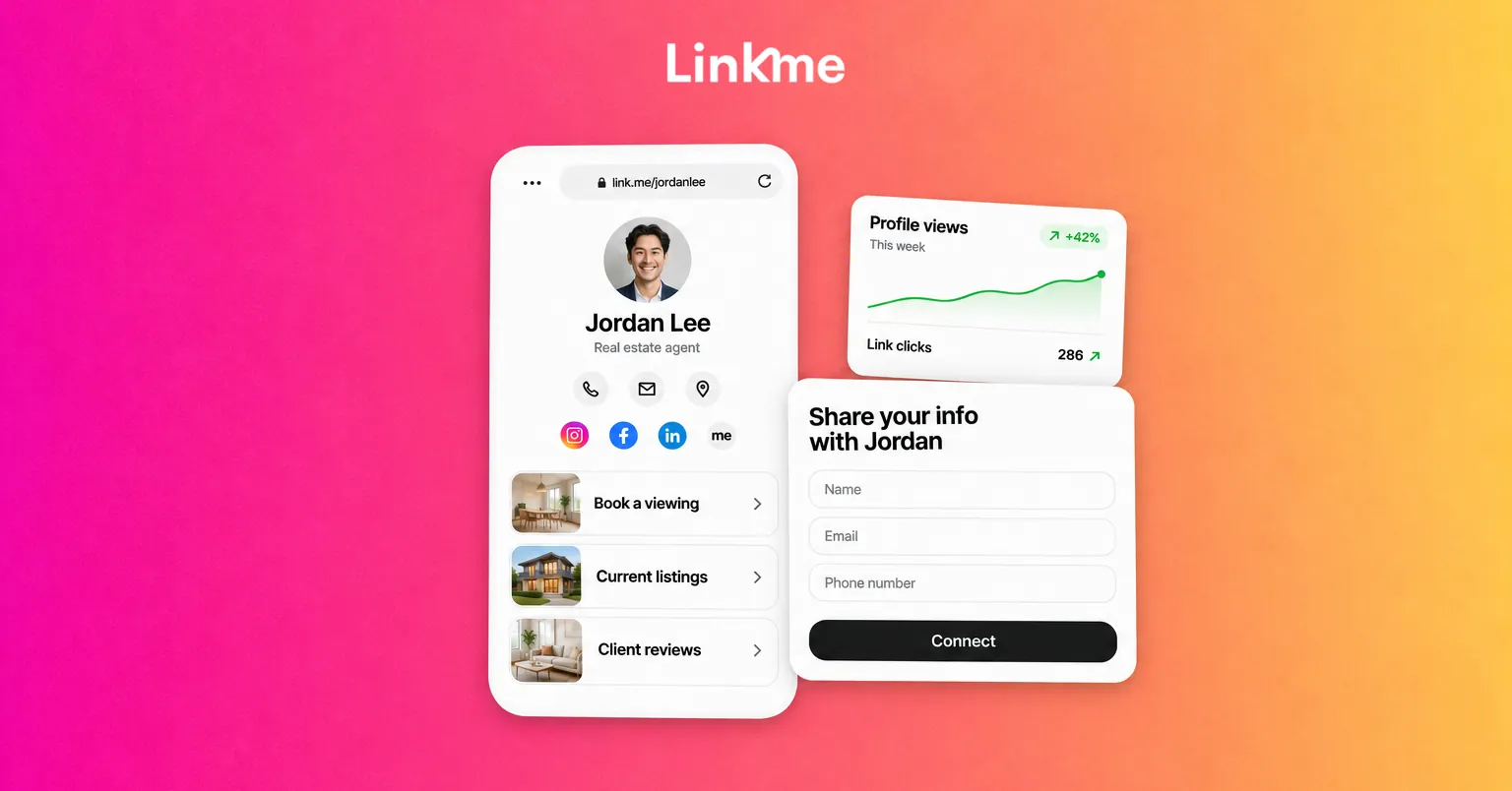
On a Linkme page, the me icon at the end of your social links opens a Share your info back card, where a visitor can send you their name, email and phone number. You can also switch on an email field under your bio with a “Connect with” button, or add a form with Text, Email and Mobile fields. Each person lands in Leads with the source they came from, such as Add to contacts, so you know who reached you through the card. Forms are on Plus, and Leads with email campaigns are on Pro and every Business plan.
When you hand over your card in person, ask: “Want to drop your details on there so I can send you that link?” It gives the other person a reason to do it now.
QR code business card: where to share it
You get one QR code per page, and it always opens your live page, so you print it once and keep editing the page. Most current iPhones and Android phones scan QR codes straight from the camera app, so people do not need anything installed.
Put the code, or the link, wherever people meet you:
- Your phone: save the QR image to a favorites album or use it as a lock screen for events.
- Name badges and lanyards at conferences and trade shows.
- The back of a printed card, if you still carry them, so paper leads somewhere current.
- Email signature: add link.me/yourname as a text link.
- Social bios, so the same page works online and in person.
- Packaging, receipts, counter signs and slides at the end of a talk.
Print the code large enough to scan from arm’s length, with a short label that says what people get, such as “Scan for my contact details and portfolio.”
See whether people use it
A paper card gives you no idea whether anyone looked at it. With a page, you can check. Each scan opens your page, so it counts as a profile view rather than a separate scan number, and every link a visitor taps counts as a link click. Linkme’s analytics show both for any date range, with each link’s own click count.
Compare the days after an event or a busy week with a quiet one. If views go up but nobody taps your main action, move it higher, rename it or make it the biggest button.
Digital business cards for a whole team
If several people represent your business, give each person their own page so contacts reach the right person, with the same structure and look across the team. On a Linkme Business package, Linkme pages are unlimited, and your team can run them from one login, with each manager working on the pages they are assigned.
Frequently asked questions
What is a digital business card?
It is a web page with your contact details, links and work that you share with a QR code or a link. You can update it any time, and everyone who opens it sees the current version.
Can I make a digital business card for free?
Yes. A free Linkme page includes unlimited links, a QR code and basic analytics for visits and clicks. Paid plans add forms, a contact list, email campaigns and your own logo.
How do people save my details from a digital business card?
They open your page from the QR code or link and can call, email or tap your links straight away. On Linkme, they can also send you their own details through the Share your info back card, so you have a way to follow up.
Do I still need printed business cards?
Not usually. If you like having something to hand over, print a simple card with your name and a QR code on the back. The code opens your page, so the card stays current even when your details change.
A digital business card does its job when it is easy to open, quick to read and leads to a next step. Create your Linkme page and put your QR code on everything you hand out.