Driving Traffic From Social Media: How to Track Clicks and Conversions
Measure social traffic from post to conversion with consistent UTM tags, link in bio analytics, Attribution Links, pixels and sign ups counted by source.
On this page
Driving traffic from social media is only useful if you can see where that traffic goes and what it does when it arrives. To measure it, tag your links with UTM parameters, track visits and taps on the page your bio links to, put your ad pixels on that page, and record the action that counts as a conversion: a sign up, an order or a booking. This guide shows how to set that up so each network, post and link can be judged by results, not likes.
Map the path from post to conversion
Social traffic usually passes through four steps, and each one is measured in a different place:
| Step | Question it answers | Where you measure it |
|---|---|---|
| Post | Did people see and engage with it? | The network’s own analytics |
| Click to your page | How many people left the app? | Your link in bio page analytics |
| Tap on a link | Which offer or destination did they choose? | Per-link clicks on your page |
| Conversion | Did they sign up, buy or book? | Your website analytics, store, booking or CRM records, or sign ups on the page |
Write down which action counts as the conversion for each campaign before you post. “Presale sign ups,” “first orders with the code SOCIAL10” or “demo bookings” can be measured. “Awareness” on its own cannot.
Getting people to click in the first place, with calls to action and comment-triggered DMs, is a separate job. This guide starts at the click.
Tag links with UTM parameters
UTM parameters are tags added to the end of a URL so your website analytics can tell where a visit came from. Google Analytics recommends always setting three of them: utm_source, utm_medium and utm_campaign (Google Analytics Help). utm_content is useful for telling two links or creatives in the same campaign apart.
Use a naming convention and stick to it
Inconsistent tags split one source into several rows. Agree on lowercase values and write them down:
| Parameter | What it describes | Example values |
|---|---|---|
| utm_source | The network | instagram, tiktok, x, youtube, linkedin |
| utm_medium | The kind of placement | social, paid_social, bio |
| utm_campaign | The campaign or launch | fall_menu, presale_march |
| utm_content | The specific post or creative | reel_teaser, story_poll |
A tagged link looks like this: https://example.com/menu?utm_source=instagram&utm_medium=bio&utm_campaign=fall_menu.
Keep a simple tracking sheet
Log each tagged URL with its campaign, network and date. When someone asks where last month’s sign ups came from, you can answer from your analytics instead of guessing.
Track the link in bio, not just the destination
Most social traffic leaves through one link: the one in your profile. If that link opens a page with several destinations, your website only sees the visitors who tapped through to it, and it cannot tell you which network sent them unless every link is tagged for every source.
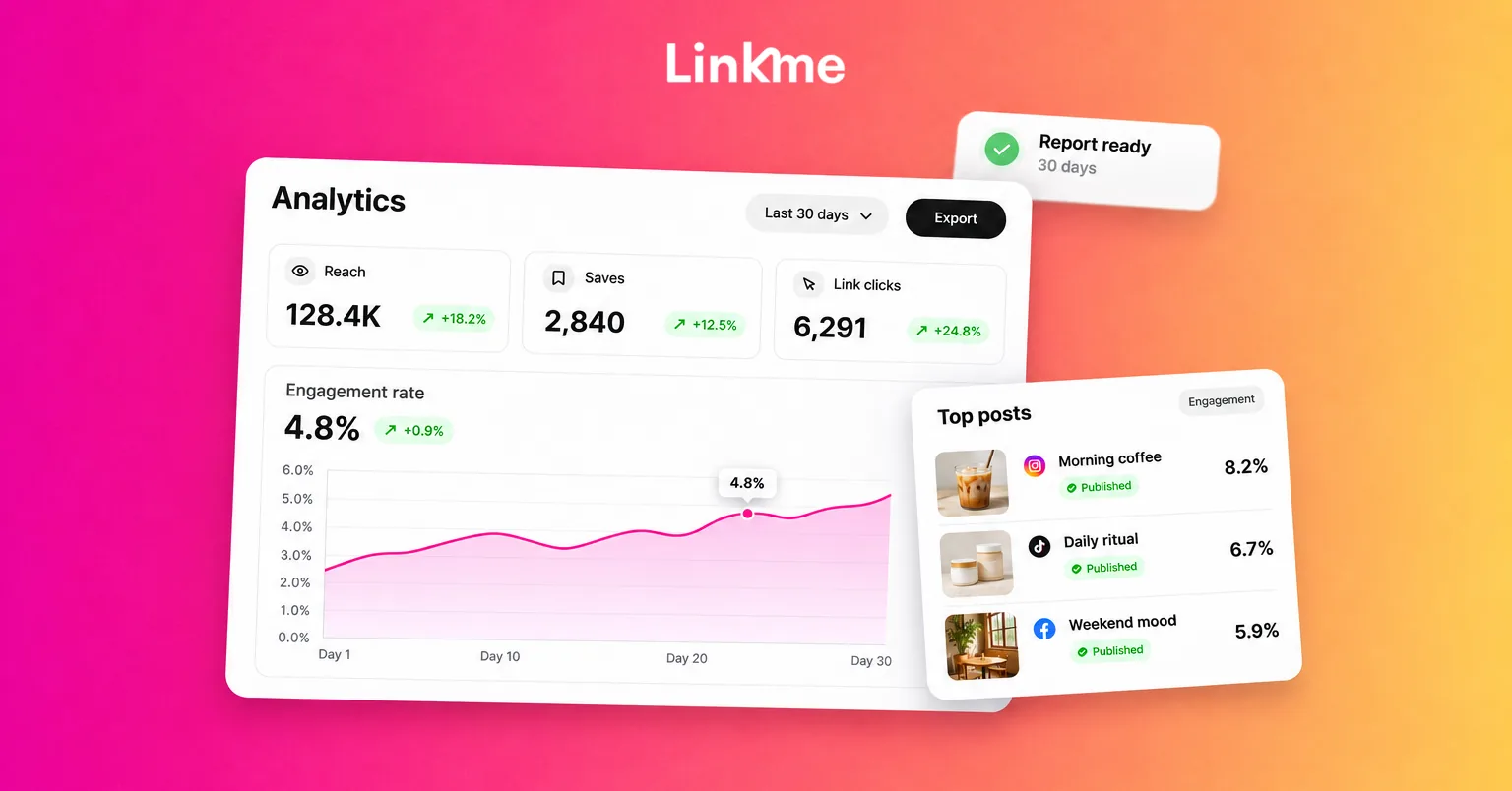
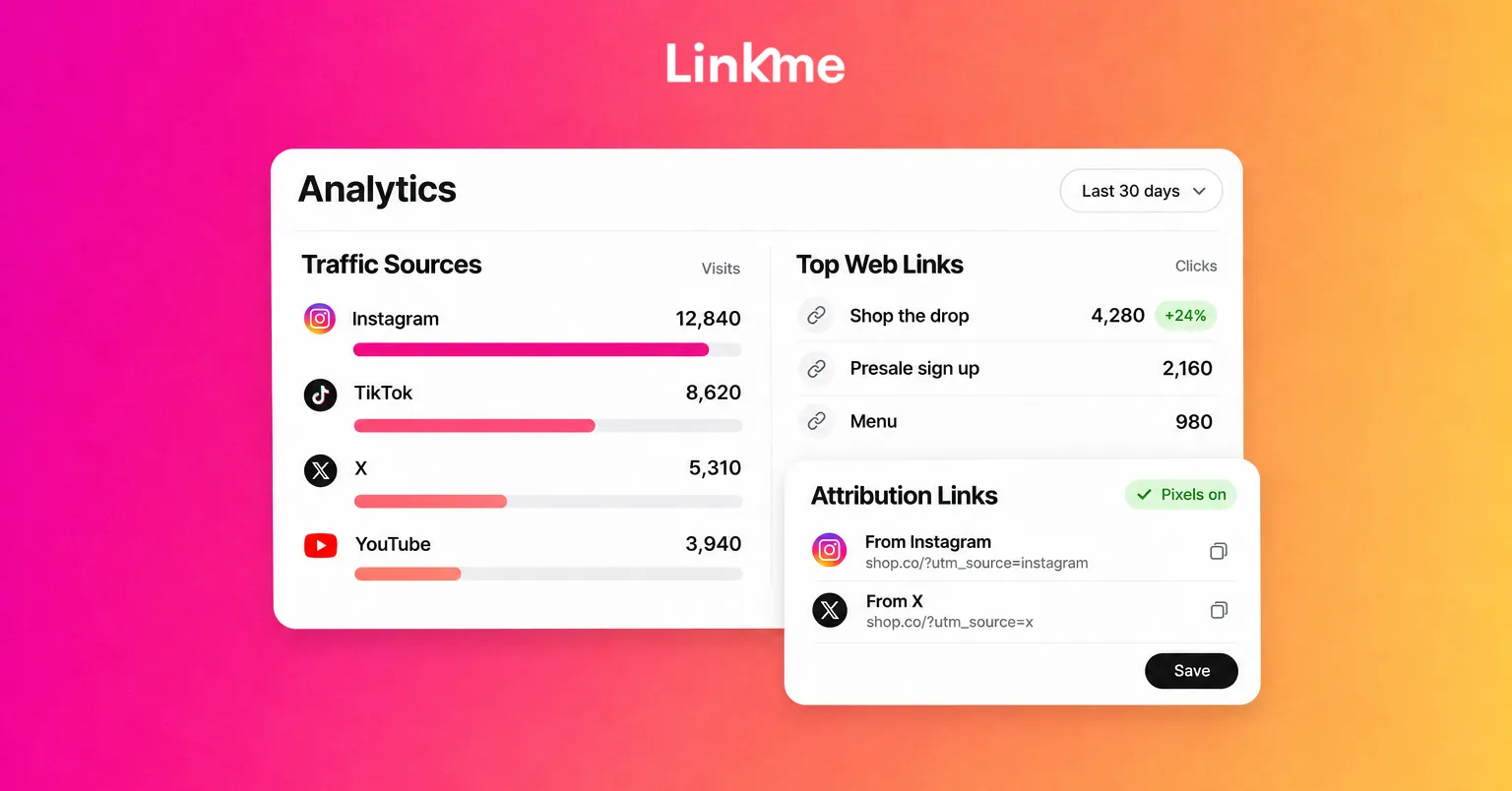
A link in bio page with its own analytics fills that gap. On a Linkme page, Analytics shows Profile Views, Link Clicks, Total Interactions and Engagement Rate for any date range, plus:
- Traffic Sources: which app sent each visitor.
- Top Web Links: every link on the page ranked by the clicks it earns. Open one to see its total clicks, its top countries and cities, and the hours it is tapped most.
- Period Comparison: the range you picked next to the one before it.
- Geographic Analytics: visits and clicks by country, down to the city.
Real-Time Activity, which counts visits and clicks from the last 30 minutes, comes with Linkme Pro. Use it during a launch or a live event to see whether a post is sending traffic right now.
Send each source to the right URL
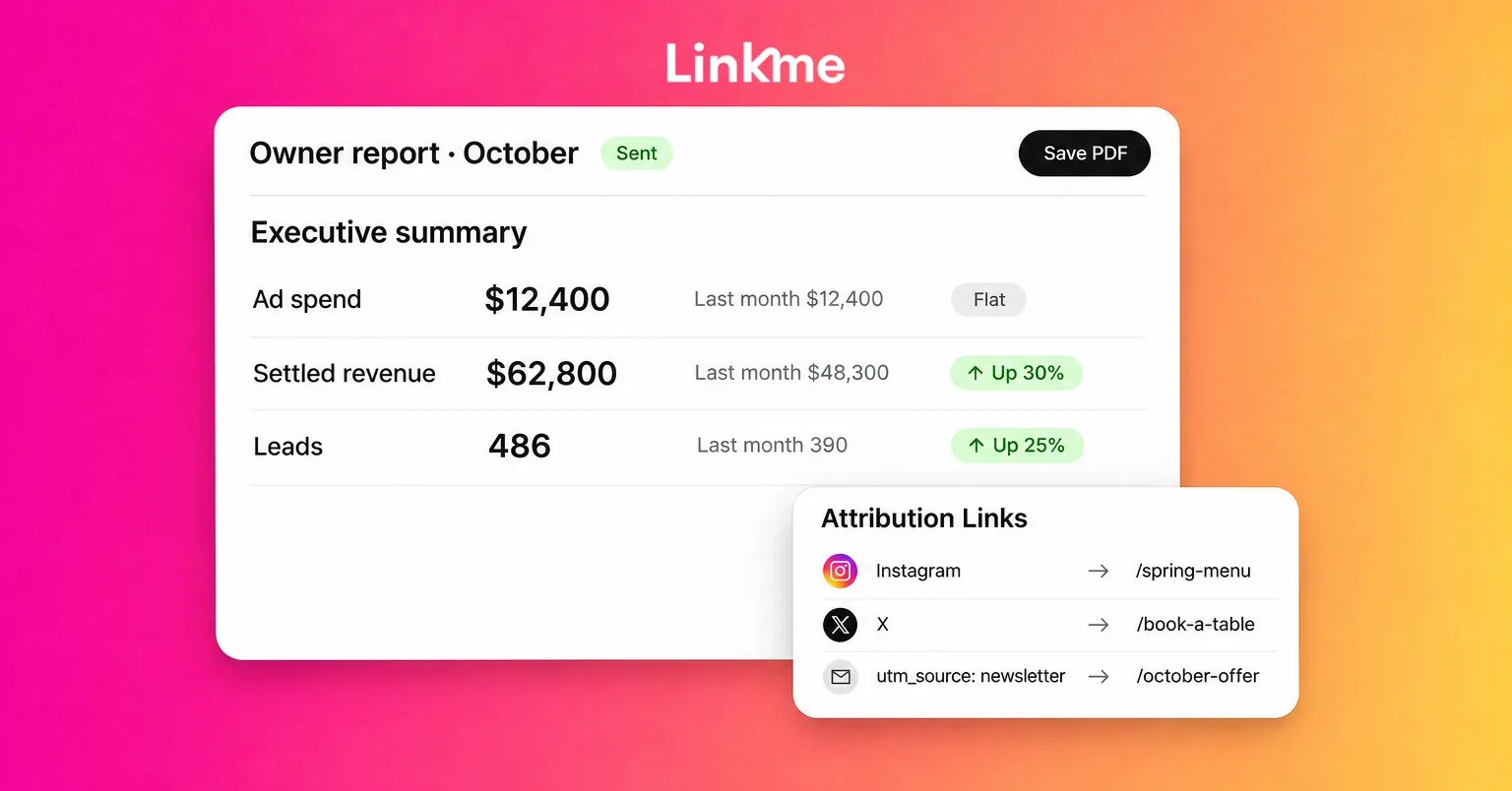
On a Linkme page, Attribution Links send visitors from Instagram, X or your own utm source to a different URL for the same link. That lets you point one “Shop the drop” tile at a destination tagged for Instagram when the visitor came from Instagram, and at a different one for X, without showing two tiles. It also lets you run a source-specific offer. The Pages & QR page covers how they work alongside pixels and QR codes.
Add pixels so your other tools see the visit
Ad platforms and analytics tools can only build audiences and attribute results for pages that carry their tag. On Linkme Pro you can add your Meta Pixel ID, TikTok Pixel ID and Google Analytics Measurement ID to your Linkme page once, and those tools see every visit to it.
In practice that means:
- Retargeting: visitors to your link page can be included in audiences in your ad tools.
- One view of the journey: your analytics tool sees the visit to the link page and, if the destination carries the same tag, the visit to your site.
- Conversion events stay on the destination. Purchases and bookings are recorded by the pixel or analytics on the site where they happen, so make sure that site is tagged too.
Count conversions that happen on the page itself
Some conversions never leave your link page. When a visitor signs up through the Connect with field or a form, or buys from you, they land in Leads with their source: Email Contact Form, Subscribe, Add to contacts, Purchase or the form’s own name. Filter Leads by source and date to see which part of the page brings in contacts, and compare that with the traffic you sent that week. See Lead capture for how sources are recorded.
Read the numbers without fooling yourself
Expect the sources to disagree
A network counts link taps one way, your link page counts visits another way, and your website counts sessions a third way. Some people tap and leave before the page loads; some block tracking. Linkme’s analytics are first-party numbers from your Linkme page, not data from Instagram, TikTok or other connected platforms, so they will not match the networks exactly.
Do not try to reconcile every number. Compare each source with itself over time, and use the ratios between steps:
- Click-through: page visits divided by the post’s reach.
- Tap rate: link clicks divided by page visits.
- Conversion rate: conversions divided by clicks on the relevant link.
Run a weekly traffic check
- Which network sent the most visits this week, and did it change from last week?
- Which link earned the most clicks, and is it the one you most wanted people to tap?
- Which UTM campaign produced conversions on the website?
- Did sign ups in Leads rise when traffic did?
- What one change will you make: move a link up, rewrite a call to action, or stop promoting something that does not convert?
For choosing which metrics to report upward, see social media metrics.
Frequently asked questions
How do I track traffic from social media to my website?
Add UTM parameters to every link you share, with at least utm_source, utm_medium and utm_campaign, and use the same values every time. Your website analytics will then group visits by network and campaign.
Why don’t my link clicks match Instagram’s numbers?
Each tool counts differently. Instagram counts taps on the link, your link page counts visits that loaded, and your website counts sessions. People who leave early or block tracking drop out between steps. Compare trends within each source instead.
Can I track conversions from a link in bio?
Yes, in two ways. Conversions on your website are tracked by tagging links with UTMs and adding your pixels to both the link page and the site. Conversions on the page itself, such as sign ups and purchases, appear in Leads with their source.
What is a good conversion rate for social media traffic?
It depends on the offer, the audience and how warm the traffic is. A free sign up converts more easily than a high-priced purchase. Set your own baseline over a few weeks and work on improving it.
Social traffic is easier to grow once you can see where it goes. Tag every link, track the page in the middle, and count the actions that matter. See how Linkme Analytics shows visits, sources and clicks for every page you run.