NameDrop for Android: How to Share Your Contact on Any Phone
NameDrop only works between recent iPhones. Here is how Android and older iPhone users share contact details: Tap to share on recent Pixels, a contact file, or a QR code that opens your page.
On this page
There is no NameDrop for Android. Apple’s NameDrop only exchanges contact cards between iPhones and Apple Watches held close together. Google’s closest equivalent, Tap to share, only works on Pixel 6 and newer phones running Android 17 or later, and only with other Android devices. For everyone else, including iPhones too old to update, the dependable option is to share contact details through a QR code that opens a page with your info, which any phone with a camera can scan.
Why NameDrop does not help Android users
According to Apple’s NameDrop guide, you hold your iPhone a few centimeters from the top of another iPhone or a supported Apple Watch, then choose to share your contact card or only receive theirs. It shares your name, the phone number or email you pick and your Contact Poster, and it only sends new contact information, not updates to a contact someone already has.
That leaves three groups out:
- Android users. NameDrop does not run on Android, and an iPhone cannot NameDrop to an Android phone.
- Older iPhones. NameDrop arrived with iOS 17, which supports iPhone XS, XR, SE (2nd generation) and later. An iPhone X or earlier cannot use it.
- Mixed groups. At a meetup, a table of four phones rarely all match.
The rest of this guide covers what works in each of those cases.
Android’s built-in options
Tap to share on recent Pixel phones
Google added a NameDrop-style feature to Android. Its Tap to share help page says it is available for Pixel 6 and newer phones running Android 17 and higher. You place the tops of both unlocked phones together, keep them there until they glow, pick which fields of your contact card to share, or choose to only receive the other person’s card.
It is the closest thing to NameDrop for Android, with the same limits: both phones must be in your hands, both must support the feature, and it only works with nearby Android devices.
Share your contact card from the Contacts app
In Google’s Contacts app on Android, open Your info, then tap Share. Other contact apps have a similar share option. Google notes that the recipient receives a VCF file, a standard contact card that most phones can open and save.
This works across Android and iPhone, but it has friction. You need the other person’s number or a messaging app in common first, and a contact file sitting in a chat thread is easy to forget.
Show a QR code instead
A QR code skips the “what’s your number?” step. Most phones can scan one with the built-in camera app or a scanning tool such as Google Lens, so the other person does not need any particular app or phone.
Which method to use
| Situation | Best method | Why |
|---|---|---|
| Both people have Pixel 6 or newer on Android 17+ | Tap to share | Fast, no typing |
| Both people have recent iPhones | NameDrop | Fast, no typing |
| Android and iPhone together | QR code | Works on any phone with a camera |
| Older iPhone or older Android | QR code or contact file | Nothing else is guaranteed to work |
| Speaking to a room, a booth or a slide | QR code on screen or print | Many people can scan at once |
| Following up later by message or email | A link to your page | Works without meeting in person |
Build a contact page anyone can scan
A QR code is only as useful as what it opens. A code that opens a phone number gives someone one way to reach you. A code that opens a page can hold your contact details, your social accounts, your portfolio or shop and a way for them to reply.
What to put on the page
- Contact info. The phone number and email you are happy to share publicly. Leave out your home address.
- Your social accounts. So people can follow you where they already spend time.
- Two or three key links. A portfolio, a booking link, your latest project or your store.
- A way to share back. A short form or button where the other person can leave their name and email or number.
Setting it up with Linkme
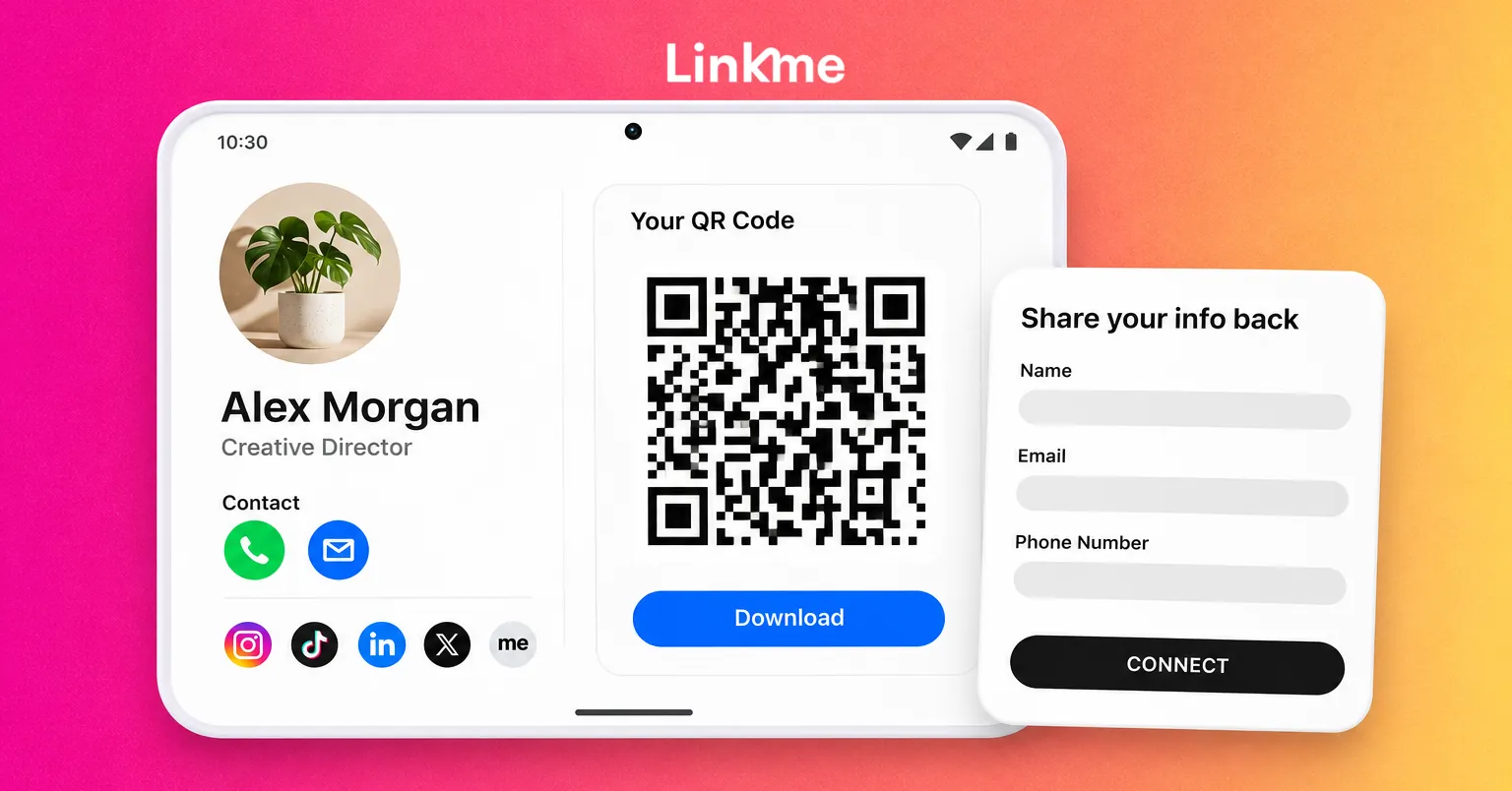
A Linkme page at link.me/yourname can hold contact info, platform links, featured links, a gallery and an email contact form, in the order you choose. Every page has one QR code. Open Your QR Code in the dashboard and press Download to get the image. Because the code always opens your live page, you can change your number, links or job title later without reprinting anything. The Pages & QR feature page walks through what a page can hold.
Linkme also handles the return trip. Visitors can tap the me icon at the end of your page’s social row and fill in the Share your info back card with their name, email and phone number. Each person lands in your Leads list with the source Add to contacts, where you can filter and export them as a CSV. Leads is included on Linkme Pro and on Business plans; the details are on the lead capture page.
Where to keep your QR code
The code is no use if you cannot find it in the moment. A few places that work:
- Your phone’s lock screen or a photo album favorite, so you can show it in two taps.
- A small sticker on the back of your phone case, if you share details often.
- Name badges, booth signs and slides at events, sized large enough to scan from a few steps away.
- Printed cards or flyers, which stay current because the code opens a page you can keep editing.
- Your email signature, as a plain link to link.me/yourname for people who meet you online.
Test the code from a few steps away and in low light before you rely on it.
Privacy checks before you share
A page is public, so treat it differently from a contact card you hand to one person:
- Use a work number or email if you prefer not to publish your personal one.
- Review the page from a logged-out browser to see exactly what strangers see.
- Remove links you no longer use, especially old payment or personal accounts.
- If you collect people’s details, only ask for what you need, and tell them how you will contact them.
Frequently asked questions
Is there NameDrop for Android?
Not NameDrop itself, which is an Apple feature. Google offers Tap to share, which lets you exchange contact cards by touching phones, but only on Pixel 6 and newer phones running Android 17 or later and only with other Android devices.
Can an Android phone and an iPhone tap to share contacts?
Not with NameDrop or Tap to share, since each only works within its own platform. Between Android and iPhone, use a QR code or send your contact card as a file.
How do I share my contact as a QR code on Android?
Create a page or contact card that holds your details, then generate a QR code that opens it and keep the image somewhere quick to reach. With Linkme, your page at link.me/yourname already has a QR code you can download from the dashboard.
Does the other person need an app to scan my code?
Usually not. Most phones scan QR codes with the built-in camera or a tool like Google Lens, and a Linkme page opens in the phone’s browser.
Whatever phone you carry, the goal is the same: make it easy for someone to save your details and reach you later. A QR code that opens a page you keep up to date does that for everyone in the room, not just the people with the same phone as you.