NameDrop vs QR Code: Which Is Better for Sharing Your Contact?
NameDrop is fast when two iPhones are a few centimeters apart. A QR code that opens a page works at any distance, on any phone, and can be measured. Here is when to use each, and how to combine them.
On this page
NameDrop vs QR code comes down to distance and reach. NameDrop is the fastest way to swap contact cards when two iPhones are a few centimeters apart. A QR code that opens a page works from across a room, on any phone, in print and on a screen, and the page can hold your socials and links as well as your number. Most people who share their details often end up using both.
What NameDrop does
NameDrop is Apple’s way to exchange contact information by bringing devices together. According to Apple’s NameDrop guide, you hold your iPhone a few centimeters from the top of the other person’s iPhone or supported Apple Watch, wait until NameDrop appears on both screens, and choose to share your contact card and receive theirs, or only receive theirs. You pick which phone number or email address to include.
It is quick, private and needs no typing. Within its limits, it is hard to beat.
Where NameDrop falls short
The phones must be almost touching
NameDrop needs both devices held a few centimeters apart. That suits a one-to-one introduction and does not suit a speaker on stage, a booth with a queue, a printed flyer or a video call.
It only works on Apple devices
NameDrop runs between iPhones and supported Apple Watches. It arrived with iOS 17, so iPhones that cannot run iOS 17, such as the iPhone X and earlier, are left out, as is every Android phone.
It sends a few fields
What arrives is limited. Apple’s personal safety guide says NameDrop shares only your name, the phone number or email address you choose and your Contact Poster, not other details on your card such as your address. Apple also notes that NameDrop only sends new contact information and does not update a contact someone already saved, so if you change jobs, the old card stays on their phone.
You get no record
NameDrop does not tell you how many people you met, who opened your links later or which event led to a follow-up.
What a QR code and page do differently
A QR code on its own is just a pointer. Its value depends on what it opens. A code that opens a page gives the person scanning it a lot more to work with.
- It works at a distance and in volume. Twenty people can scan a slide at the same time.
- It works on any phone. Most phones read QR codes from the camera app, so iPhone, Android and older models are all covered.
- It works remotely. The same page link goes in a DM, an email signature or a bio when you never meet in person.
- It holds more than contact info. Socials, a portfolio, a booking link, a shop or your latest work.
- It stays current. If the code opens a page you edit, printed codes never go out of date.
- It can be measured. Visits and link clicks show whether an event or a flyer actually led anywhere.
The trade-off is one extra step. The other person has to scan, open the page and choose to save your details or follow you. A contact card from NameDrop lands in their phone in one move.
NameDrop vs QR code at a glance
| NameDrop | QR code and page | |
|---|---|---|
| Devices | iPhone and supported Apple Watch | Any phone with a camera |
| Distance | A few centimeters | Whatever the camera can read |
| One-to-many | No, one exchange at a time | Yes, from a slide, sign or badge |
| Remote sharing | No | Yes, as a link |
| What is shared | Name, a phone number or email, Contact Poster | Contact info, socials, links, products |
| Updates after sharing | No, only new contacts | Yes, edit the page any time |
| Two-way exchange | Yes, both cards | Yes, with a share-back form or button |
| Measurement | None | Page visits and link clicks |
When to use which
Use NameDrop when you are face to face with one person and you both have iPhones. It is faster than pulling up a code.
Use a QR code when you are on a stage or a booth, meeting people with different phones, printing anything, or appearing on a screen.
Use the page link for every follow-up that happens online: messages after an event, email signatures and social bios.
Use them together
Because NameDrop does not pass along a website, pair it with your page. Right after the exchange, text your link.me URL to the number you just received, or show your QR code while you are still face to face. Someone who saves you in a hurry then has your socials and work one tap away.
Set up a contact page with a QR code
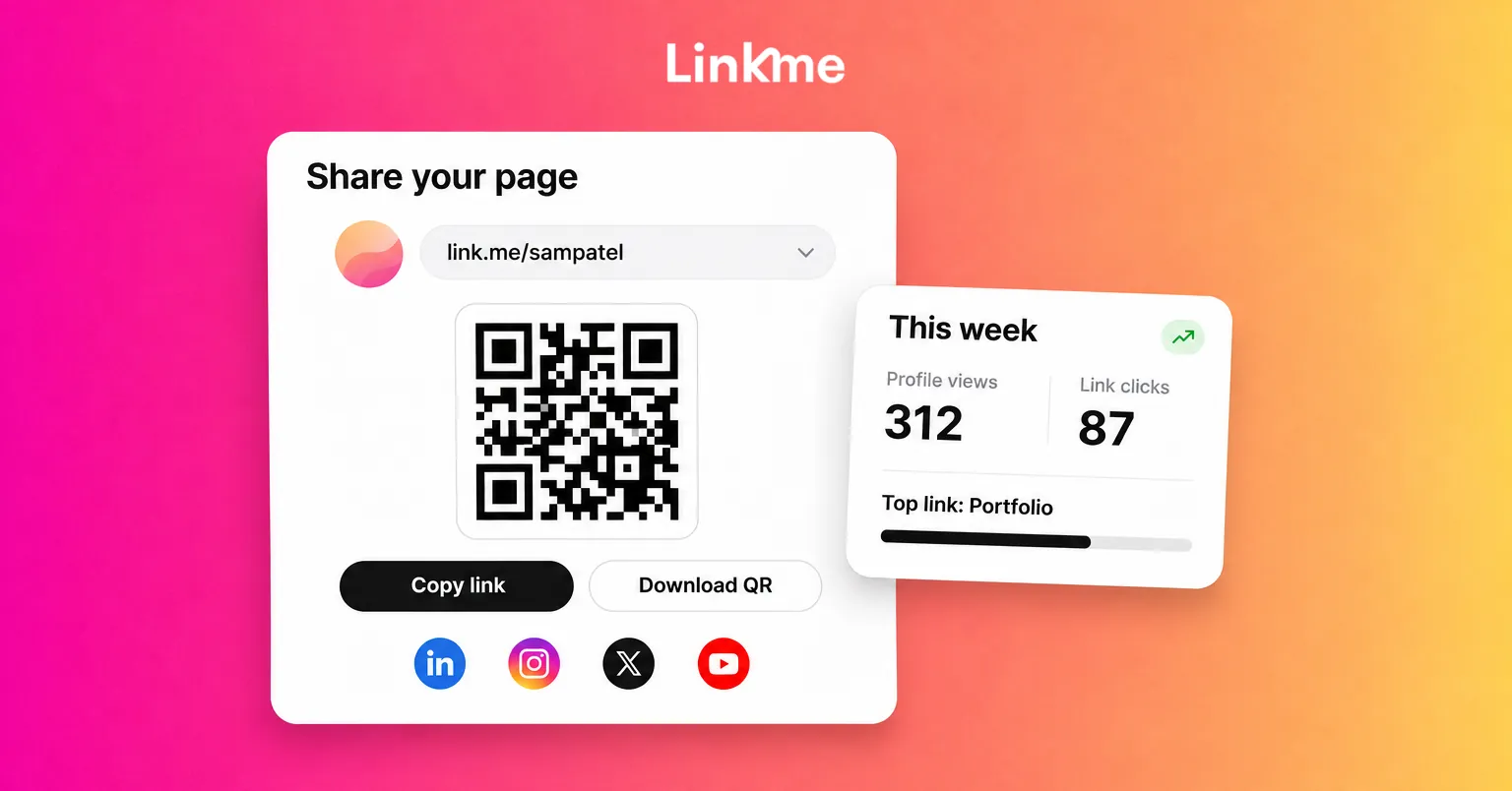
On Linkme, the code opens your page at link.me/yourname, which can carry contact info and your social accounts alongside featured links, a gallery or an email contact form, in whatever order suits you. Every page comes with one QR code. Open Your QR Code in the dashboard and press Download for a PNG ready for print. The code always opens your live page, so edits show up on codes you have already printed. The Pages & QR feature page shows everything a page can hold.
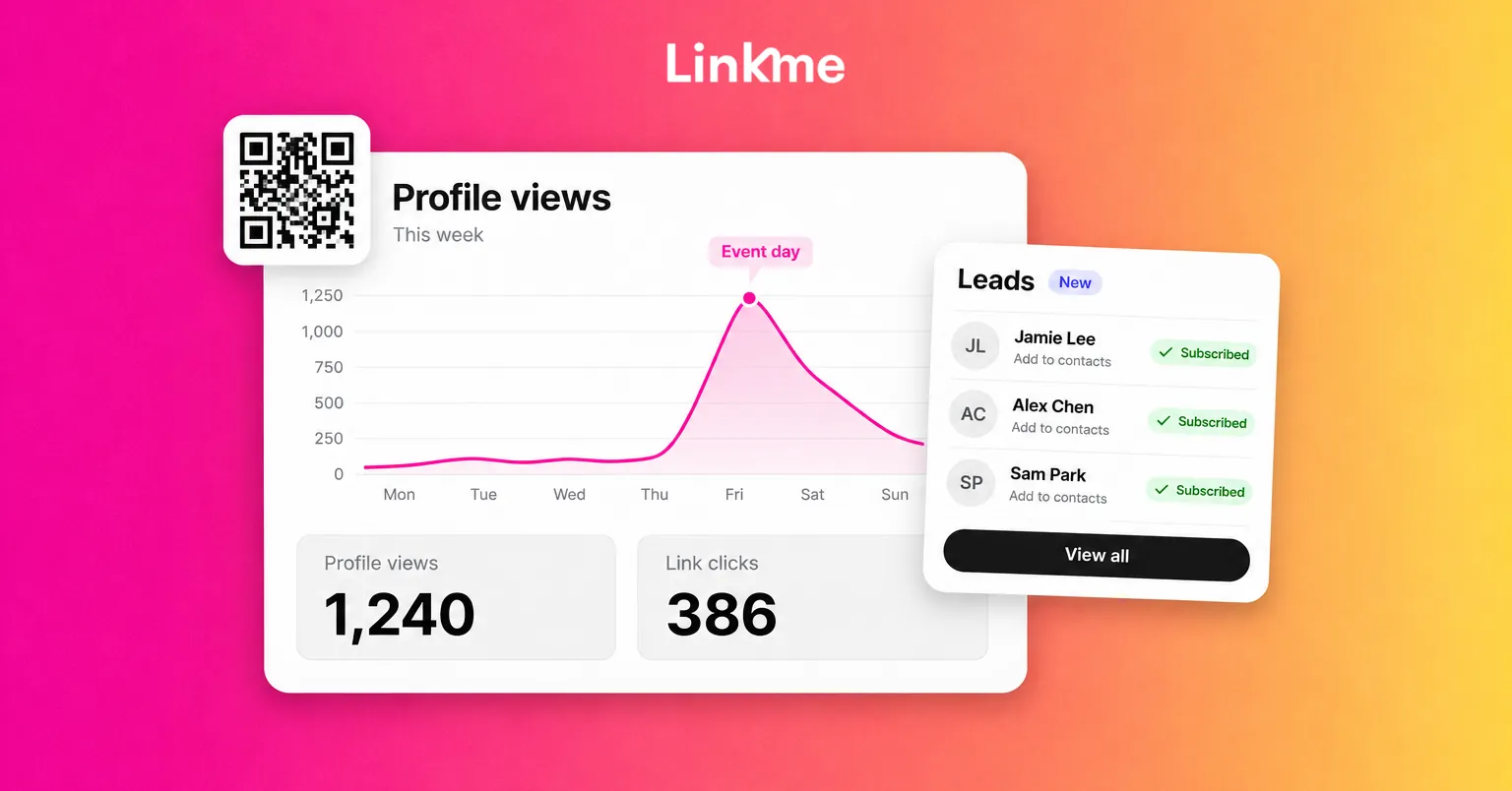
To make the exchange two-way, visitors can tap the me icon at the end of your page’s social row and fill in the Share your info back card with their name, email and phone number. They land in Leads with the source Add to contacts, ready to filter or export as a CSV. Leads is included on Linkme Pro and on Business plans, as the lead capture page explains.
How to read the numbers
Linkme does not count QR scans as a separate number. Each scan opens your page, so it counts as a profile view, and the links people tap count as link clicks. Linkme Analytics shows those for any date range, and Plus adds deeper views such as the countries and cities visits come from, so a spike after an event tells you the code did its job.
A checklist before your next event
- Check that the name, phone number and email NameDrop will share are current.
- Review your page from a logged-out browser and remove anything you would not hand a stranger.
- Put the QR code somewhere you can reach in two taps, and on your badge or slide.
- Print the code large enough to scan from a few steps away, and test it in the venue’s lighting.
- Add a share-back form or button so you collect details as well as hand them out.
- Check page visits and new contacts the day after, then follow up while people still remember you.
Frequently asked questions
Does NameDrop work with Android phones?
No. NameDrop works between iPhones and supported Apple Watches. To share with an Android user, show a QR code or send your contact card or page link by message.
Can you use NameDrop from a distance?
No. Apple’s instructions are to hold the devices a few centimeters apart until NameDrop appears on both screens. For anyone farther away, a QR code or a link is the practical option.
Is a QR code a good NameDrop alternative?
For most situations beyond a one-to-one meeting between iPhone users, yes. It works on any phone, reaches many people at once, and can open a page with your socials and links, not only a contact card.
Can I see how many people scanned my code?
On Linkme, scans are not counted separately. Each scan opens your page and counts as a profile view, and every link someone taps counts as a link click.
NameDrop is a good shortcut between two iPhones. A QR code and a page you keep current cover everyone else, and they keep working long after the handshake.