Account Security Beyond Passwords: Passkeys, 2FA and Team Logins
Passkeys, authenticator-app 2FA, login alerts and one login per teammate: the controls that keep business and creator social accounts safe when a password leaks.
On this page
Account security beyond passwords means making a stolen or guessed password useless on its own. For the social accounts a business or creator depends on, that comes down to four controls: passkeys where the network offers them, two-factor authentication with an authenticator app, login alerts with regular session reviews, and a separate login and role for every person who works on the account instead of one shared password.
This guide explains each control, where to switch it on and how to replace shared passwords on a team.
Why passwords alone fail for social accounts
Brand and creator accounts attract more attacks than personal ones, because they reach an audience and sometimes control ad spend. Passwords fail in predictable ways:
- Phishing. A fake copyright notice or brand-deal message links to a page that looks like a real login screen.
- Reuse. A password used on another site leaks in a breach and gets tried everywhere.
- Sharing. The password sits in a group chat, a spreadsheet or a former contractor’s notes.
- No trail. When five people use one login, nobody can tell who changed the bio, posted the reply or connected a new app.
Each control below closes one or more of those gaps.
Passkeys: logins that cannot be phished
A passkey replaces the password with a cryptographic key stored on your device or in your password manager. You confirm with your fingerprint, face or device PIN. Because the passkey only works on the real site or app it was created for, a lookalike login page has nothing to steal.
Where you can use one today:
- YouTube. Passkeys are set on the Google account that owns the channel. Google explains how to sign in with a passkey instead of a password.
- Facebook and Instagram. Meta supports passkeys for Facebook and Messenger and has extended them to Instagram. They are set up under Password and security in Accounts Center, which Meta is gradually turning into Meta Account. Meta notes passkeys may not be available on every account yet, so check yours; see About Meta passkeys.
- X. Passkeys are under Settings and privacy, then Security and account access; see how to use passkeys on X.
- TikTok. Passkey login is available in the app’s account settings on supported devices.
For LinkedIn and other networks, check the security section of the app’s settings. Support keeps expanding, and where passkeys are not offered yet, the next two controls carry more weight.
Two cautions. Create passkeys only on devices you control, not a shared office computer. And keep at least one recovery method current, because a lost phone should not mean a lost account.
Two-factor authentication with an authenticator app
Two-factor authentication (2FA) asks for a second proof after the password. Every major network offers it. An authenticator app is a stronger choice than text messages, because codes sent by SMS can be intercepted if someone takes over your phone number.
The short version for a business or creator account:
- Turn on 2FA on every network the account uses, plus the email address behind it.
- Choose an authenticator app or a security key over SMS.
- Save the backup codes in a password manager or another secure place the account owner controls.
- Protect the email account first. Whoever controls the email can usually reset everything else.
Setup steps differ by network and change often, so follow each network’s own help center.
Login alerts and session reviews
Even with strong logins, you want to know quickly when something unusual happens.
- Turn on login alerts. On Instagram and Facebook, alerts and the list of logged-in devices sit under Password and security in Accounts Center (Meta Account on accounts that have moved over). Google sends security alerts for new sign-ins to the account behind YouTube.
- Review sessions monthly. Open the “where you’re logged in” or active sessions list on each network and sign out of anything you do not recognize, including old phones and devices from former staff.
- Review connected apps. Remove third-party apps you no longer use. Each one is another path into the account.
- Act on an alert immediately. If a login was not you, sign out of that session, change the password and confirm 2FA is still on.
Put the review on a calendar. Security habits that depend on memory tend to stop.
Stop sharing passwords: one login per person
The biggest change most teams can make is to stop passing one password around. A shared password cannot be protected by your personal passkey or 2FA, it cannot be removed from one person without disrupting everyone, and it leaves no record of who did what.
What to do instead
- Use the network’s own team access where it exists. Business tools from the major networks let you grant people access to a Page or account without handing over the login.
- Use a management tool with individual logins. Connect the social accounts once, through each network’s own sign-in, and give teammates access inside the tool.
- Give each person the least access they need. Someone who drafts posts does not need to approve ad spend.
- Remove access the same day someone leaves. With individual logins, that is one action for one person.
How this works in Linkme
In Linkme, every person signs in with their own login, so there is no shared password to hand around. Social accounts and ad accounts connect through each network’s own sign-in. The owner invites teammates by email as an Admin or a Manager: admins invite managers, approve posts and edit the business, while managers work on the pages they are assigned and their posts need approval. The team roles guide walks through invitations and per-person permissions.
The security controls on Ads, Team & Security cover the rest of this checklist:
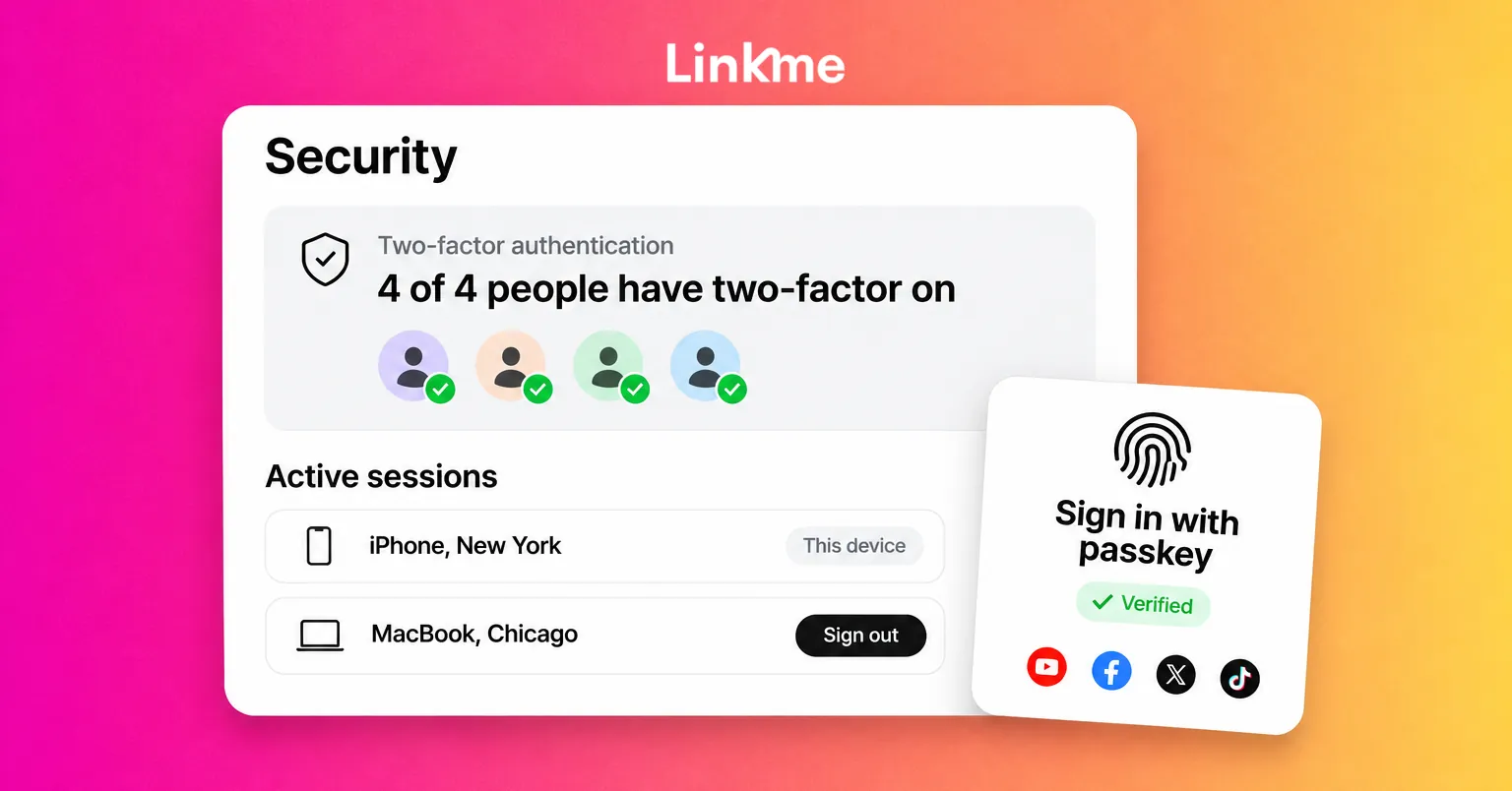
- Two-factor status. Each person turns two-factor on for their own login, and owners and admins see how many people have it on and each person’s status.
- Active sessions. Each person sees the devices signed in to their login, with Sign out on each one.
- Audit log. Owners and admins see who changed what, newest first.
- Alerts. Each person picks alerts such as review requests, failed publishes and ad approvals, in the app and by email.
A one-hour security setup
| Step | Time | Done when |
|---|---|---|
| Secure the email behind each account | 10 min | Strong unique password plus 2FA or a passkey |
| Add passkeys where offered | 10 min | Passkey created on your own devices |
| Switch 2FA to an authenticator app | 15 min | SMS no longer the only second factor; backup codes stored |
| Turn on login alerts and review sessions | 10 min | Unknown devices signed out |
| Remove unused connected apps | 5 min | Only tools in active use remain |
| Replace shared passwords with individual access | 10 min | Each teammate has their own login and role |
Frequently asked questions
What is account security beyond passwords?
It is a set of controls that keep an account safe even if a password leaks: passkeys, two-factor authentication with an authenticator app or security key, login alerts and session reviews, and individual logins for each person who needs access.
Are passkeys safer than two-factor authentication?
Passkeys resist phishing because they only work on the real site or app, which a password plus a code does not guarantee. Where a network offers passkeys, use them. Keep 2FA turned on as well, because it still protects any route that falls back to a password.
Do passkeys work when several people manage one account?
A passkey belongs to one person’s device or password manager, so it is not a way to share a login. For a brand account, give each teammate their own access through the network’s business tools or a management tool with individual logins and roles, and keep the passkey with the account owner.
How often should we review account security?
Check login alerts as they arrive, review active sessions and connected apps monthly, and audit who has access whenever someone joins or leaves the team.