Slack for Social Media Teams: What Belongs in Chat and What Needs Approval
Chat is great for ideas and quick questions, and a poor place to sign off a post. Here is how social teams split work between Slack or Teams and the publishing tool.
On this page
Most social teams already live in Slack or Microsoft Teams. Ideas, quick questions and urgent heads-ups move fast there, which is exactly why it works badly as the place where a post gets signed off. Slack for social media teams works best when chat handles the conversation and the publishing tool holds the decision: the exact caption, media and time that were approved, and who approved them.
This guide shows how to split the work between the two, set up channels and notifications that help rather than distract, and avoid the most common gap: approving something in a thread that is not what actually goes live.
What belongs in chat and what belongs in the approval record
The question is not Slack versus an approval tool. Each is good at a different job.
| Belongs in Slack or Teams | Belongs in the publishing tool, next to the post |
|---|---|
| Brainstorming ideas and hooks | The final caption, media and links |
| Quick questions about a brief or a product detail | The scheduled date, time and accounts |
| “Is anyone free to shoot at the store Thursday?” | The request for review and who it is waiting on |
| Heads-ups about breaking news or a customer issue | Approve or request changes, with the decision recorded |
| Sharing results and wins | Publication status: scheduled, published or failed |
| Coordinating with other departments | A history of who submitted, approved and published what |
The pattern is simple: conversation and context in chat, the decision and the delivery in the tool that publishes.
Why sign-off in a thread causes problems
A manager replies “looks good” to a screenshot in a channel. Later, the designer swaps the image and the copywriter fixes a typo. When the post goes live, nobody can say for sure whether the approval covered the version that published.
Thread approvals tend to fail in a few predictable ways:
- Version drift. The approval refers to a screenshot or draft that has since changed.
- Lost context. The thumbs-up is buried under fifty messages, so nobody finds it when a client asks who approved the post.
- Unclear authority. Anyone can react to a message, and it is not obvious whose reaction counts.
- No link to the schedule. Chat does not know whether the post was actually scheduled, or whether it published.
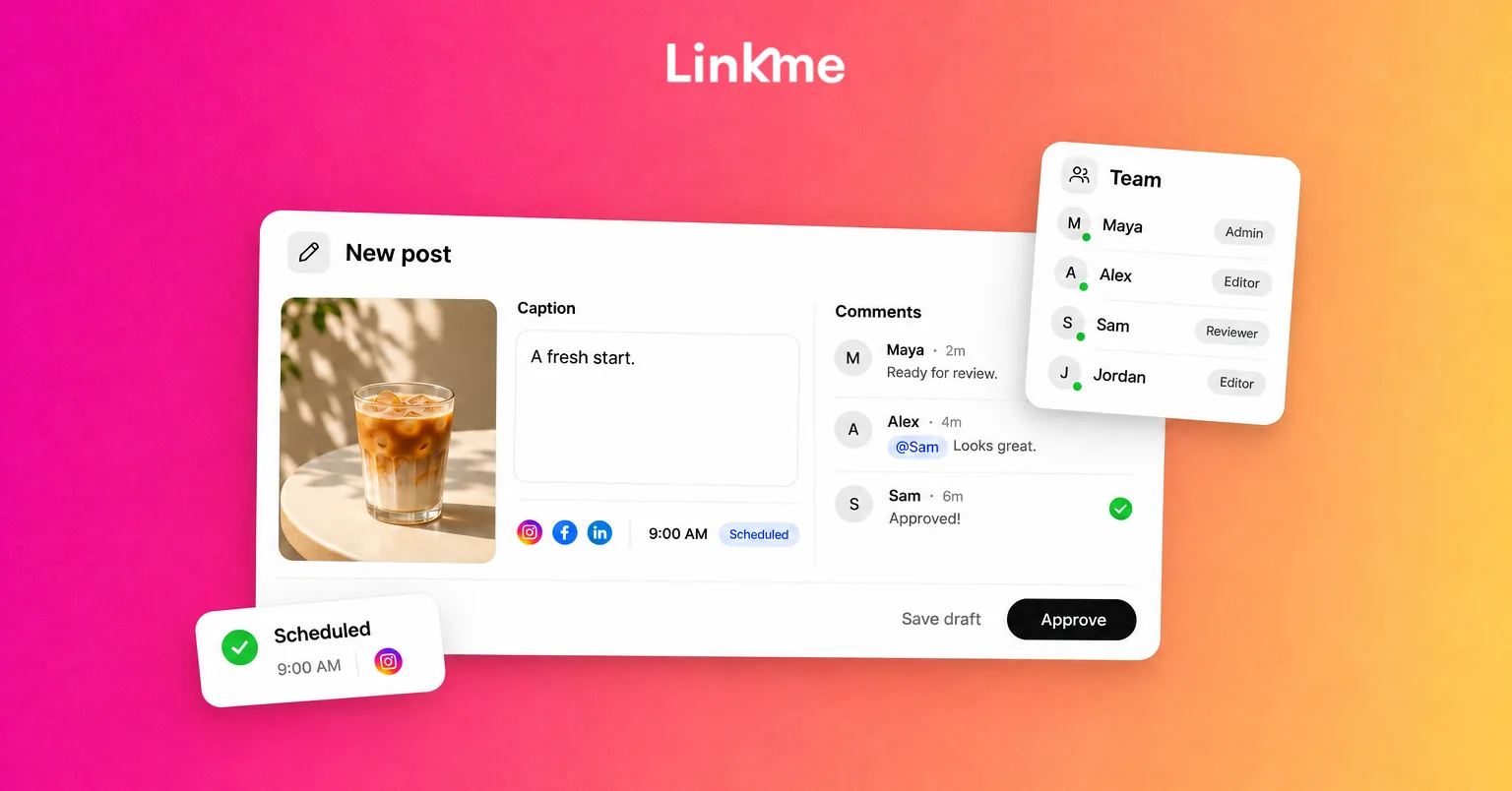
When approval sits with the post, the decision is attached to the exact content and time. If the content changes, the approval should be reset. The social media approval workflow article goes deeper on designing those review steps.
How approvals work in Linkme alongside chat
In Linkme, post approvals happen inside the publishing workflow:
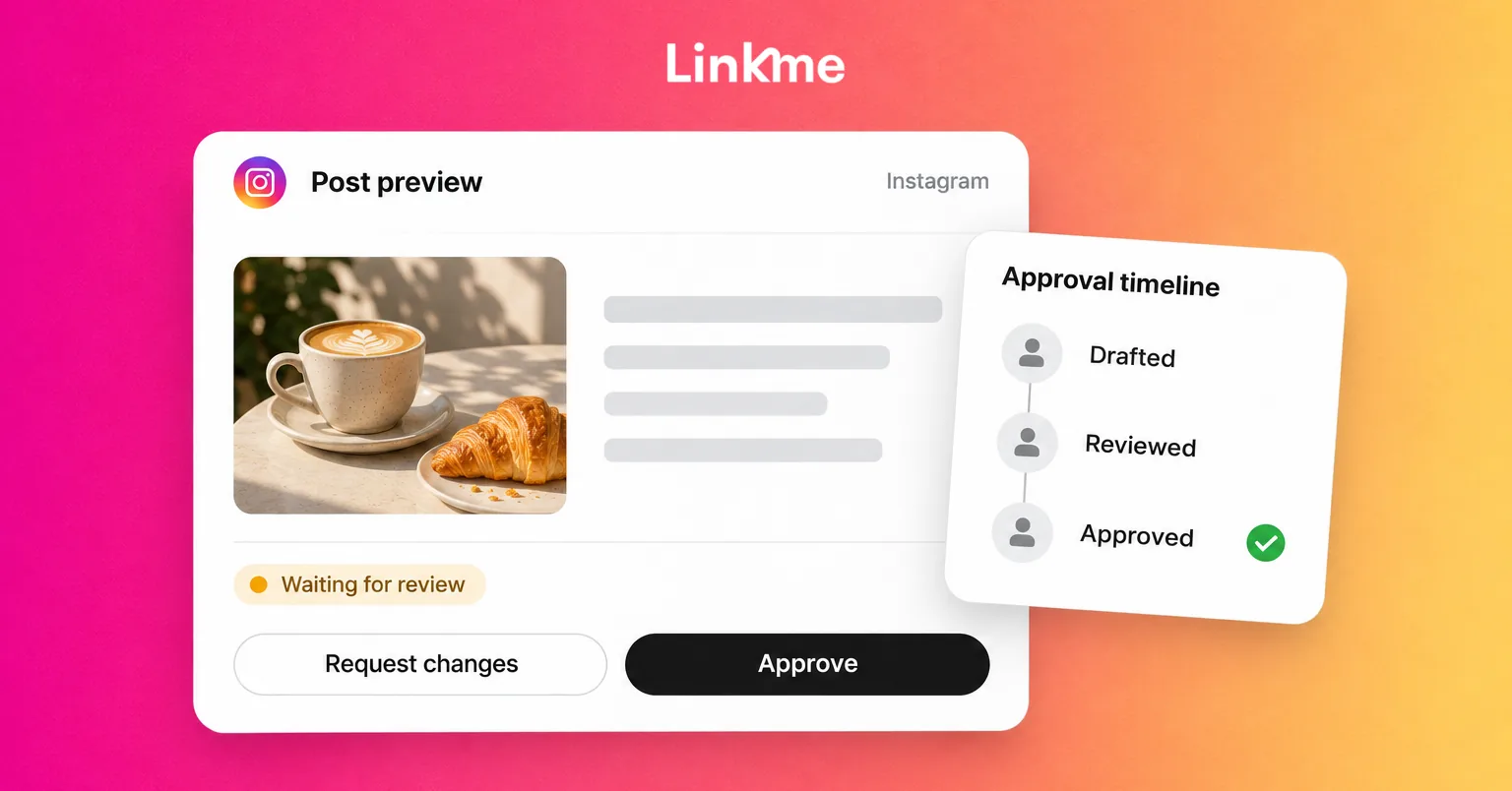
- A teammate writes the post in Plan as usual. When their role needs sign-off, the composer shows Approval required; anyone else can turn on Request approval.
- They submit it for approval, and the post shows Waiting for approval.
- An owner or admin opens Needs attention, reviews the post and taps Approve, or Request changes to send it back.
- Once approved, the post publishes at its scheduled time. Owners and admins can approve one or several posts at once.
- Changing the caption or the time sends an approved post back for approval, so the sign-off always matches what goes live.
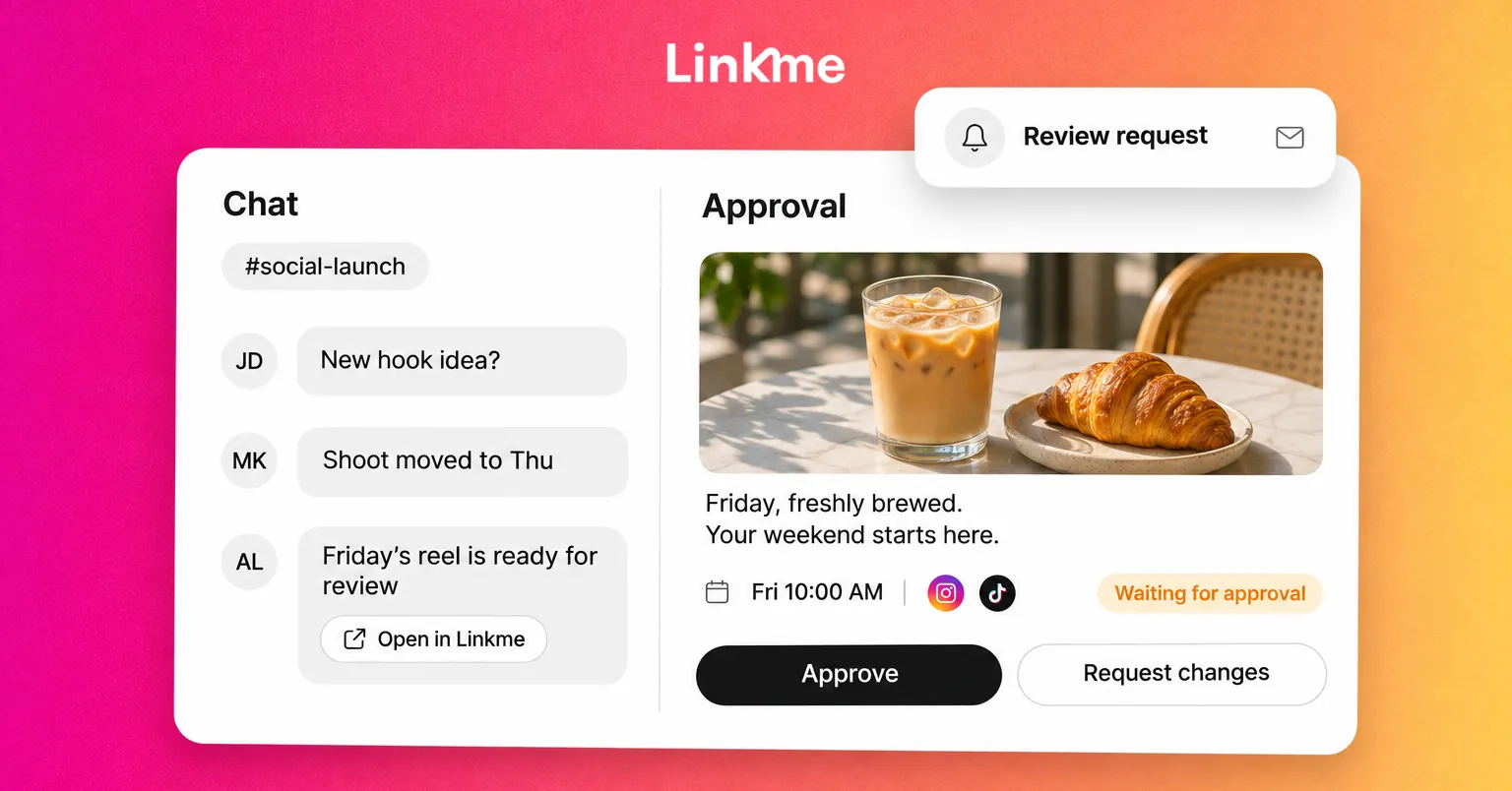
Team Activity records who submitted, approved and published what, and alerts such as Review requests and Failed publishes reach each person in the app and by email. Each person picks which alerts they receive.
That leaves chat to do what it does well. A good habit is to post a short message in the campaign channel when something is ready, such as “Friday’s launch reel is in Needs attention,” and let the reviewer act in Linkme rather than replying “approved” in the thread.
Set up channels that match how the team works
Social media team communication stays readable when channels have clear jobs. A structure that suits most in-house teams and agencies:
- #social-[brand] for each brand, client or location, where day-to-day questions live.
- #social-campaign-[name] for big launches or events, archived when the campaign ends.
- #social-urgent for issues that need a response within the hour, such as a customer complaint gaining traction or a post that needs to come down. Keep it quiet so alerts stand out.
- #social-wins for results and good comments, which helps morale and gives you material for reports.
Use a consistent request format
Ask people outside the social team to request posts with the same short template, pinned in each channel:
- What it is and why it matters
- Audience and accounts
- Deadline and any fixed date
- Assets or where to find them
- Who needs to approve it
A consistent format cuts the follow-up questions that slow everything down.
Working with clients and partners
Agencies and freelancers often share channels with clients. Slack offers Slack Connect for channels shared with other organizations, and Teams has its own options for external access. Shared channels are useful for quick questions, but agree up front that final approval happens in the publishing tool, so the client’s sign-off is tied to the exact post.
Keep notifications useful
The fastest way to make a team ignore chat is to send every event into it. Use these rules:
- Notify on actions, not activity. A review waiting on someone, a failed publish or an urgent customer issue deserves a ping. Every scheduled post does not.
- Send people to the source. A notification should say what needs doing and where, not repeat the full post for discussion.
- Name the person. Mention the reviewer directly rather than the whole channel.
- Respect time zones. Schedule non-urgent messages for the recipient’s working hours.
- Review monthly. If a type of alert is always ignored, stop sending it.
Common mistakes to avoid
- Treating a reaction emoji as approval. It is quick but leaves no clear record of what was approved.
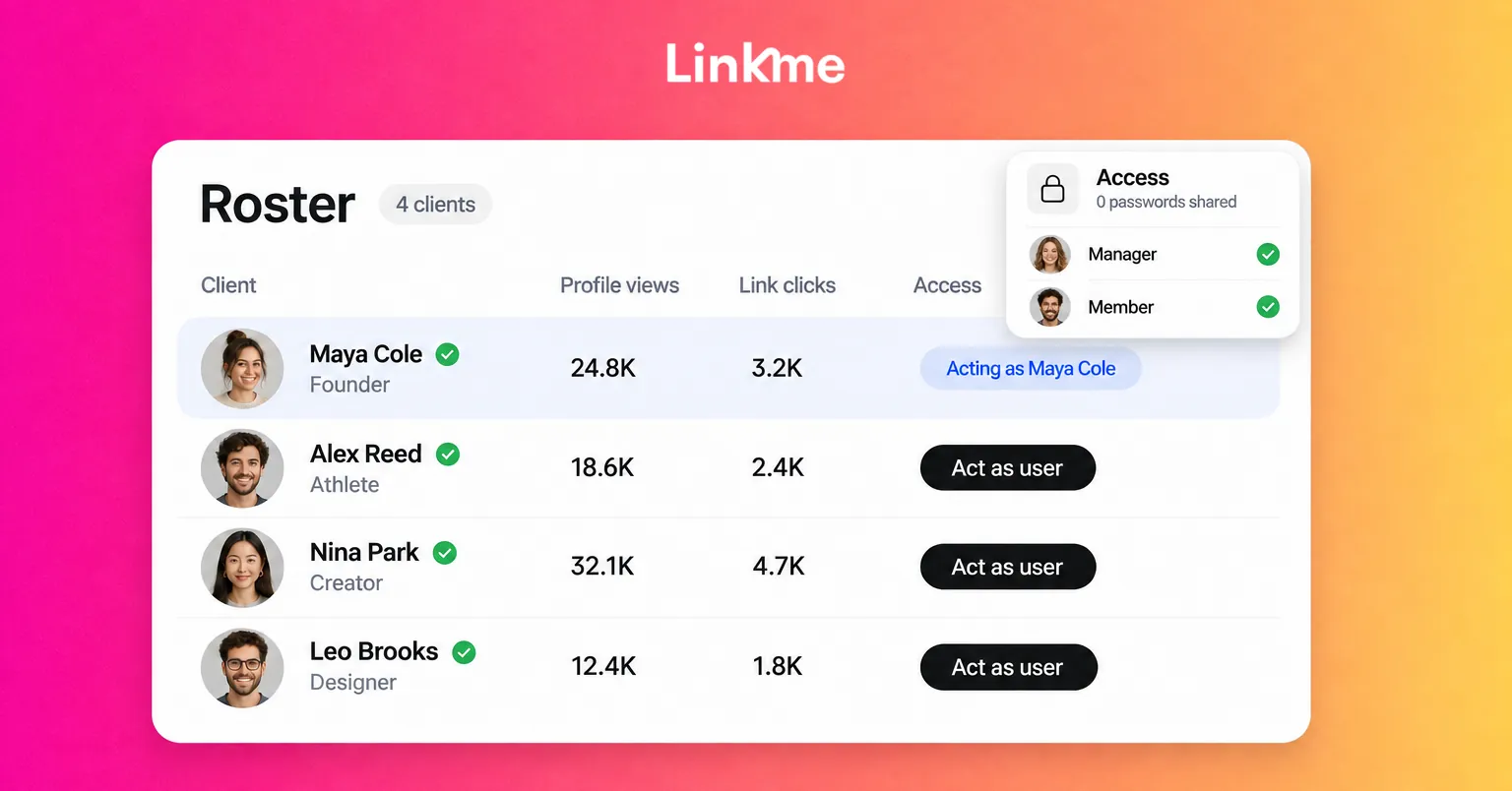
- Sharing passwords in chat. Give each person their own access with an appropriate role instead. Linkme gives every teammate their own login, so nobody needs a shared password.
- Pasting final captions back and forth. The latest version should live in one place, the draft in the publishing tool.
- Using DMs for decisions. Private messages hide context from the rest of the team. Keep work discussion in channels.
- Letting channels sprawl. Archive campaign channels when they end, and keep a short channel guide pinned.
For a wider look at the tools that support this kind of teamwork, see social media collaboration tools.
Frequently asked questions
Is Slack good for social media teams?
Yes, for discussion, coordination and urgent alerts. It is less suited to holding approvals, because a reply in a thread is not tied to the final version of a post or its schedule. Pair it with a publishing tool that records approvals next to the post.
Can you approve social media content in Slack?
You can discuss content and agree on direction there, but treat formal sign-off as something that happens in the publishing tool. That way the approval covers the exact caption, media and time, and it resets if any of those change.
What Slack channels should a social media team have?
A practical set is one channel per brand or client, one per major campaign, an urgent channel kept for time-sensitive issues, and a wins channel for results. Pin a short request template and a channel guide so everyone knows where things go.
How should a social team get notified about posts waiting for review?
Send alerts only for things that need action, such as a review request or a failed publish, and name the person who needs to act. In Linkme, review requests and failed publishes reach each person in the app and by email, according to the alerts they choose.
Chat keeps a team moving; the approval record keeps it accountable. Let each tool do its own job. To see how reviews, roles and Team Activity work together in Linkme, read the post approvals guide or book a demo.