Link in Bio for Streamers: How to Set Up Your Page
Lay out a streamer's page around what visitors want: where to watch, when you are on next, and how to join the community, with a scheduled go-live link.
On this page
Most people who tap a streamer’s bio link want one of three things: to watch right now, to know when the next stream starts, or to get closer to the community. A good link in bio for streamers answers those in that order: a watch link at the top, your channels and schedule under it, then Discord, merch and an email sign up for the people who want more.
This guide shows how to lay that page out and set it up on Linkme, including a going-live link that counts down to a big stream.
What a streamer’s page has to do
Your bio link gets traffic from places you are not streaming: a clip on TikTok, a Short on YouTube, a reel, a post on X. Those visitors arrive on a phone, often inside the app’s own browser, with a few seconds of attention.
Plan the page for three visitors:
| Visitor | What they want | What the page should show first |
|---|---|---|
| Saw a clip, never watched live | Proof you are worth following, and where to watch | Your main channel, then your other platforms |
| Regular viewer | When you are on next | The schedule, and a watch link when a stream is close |
| Superfan | More of you | Discord, merch, tips and email updates |
A layout that works for most streamers
From top to bottom:
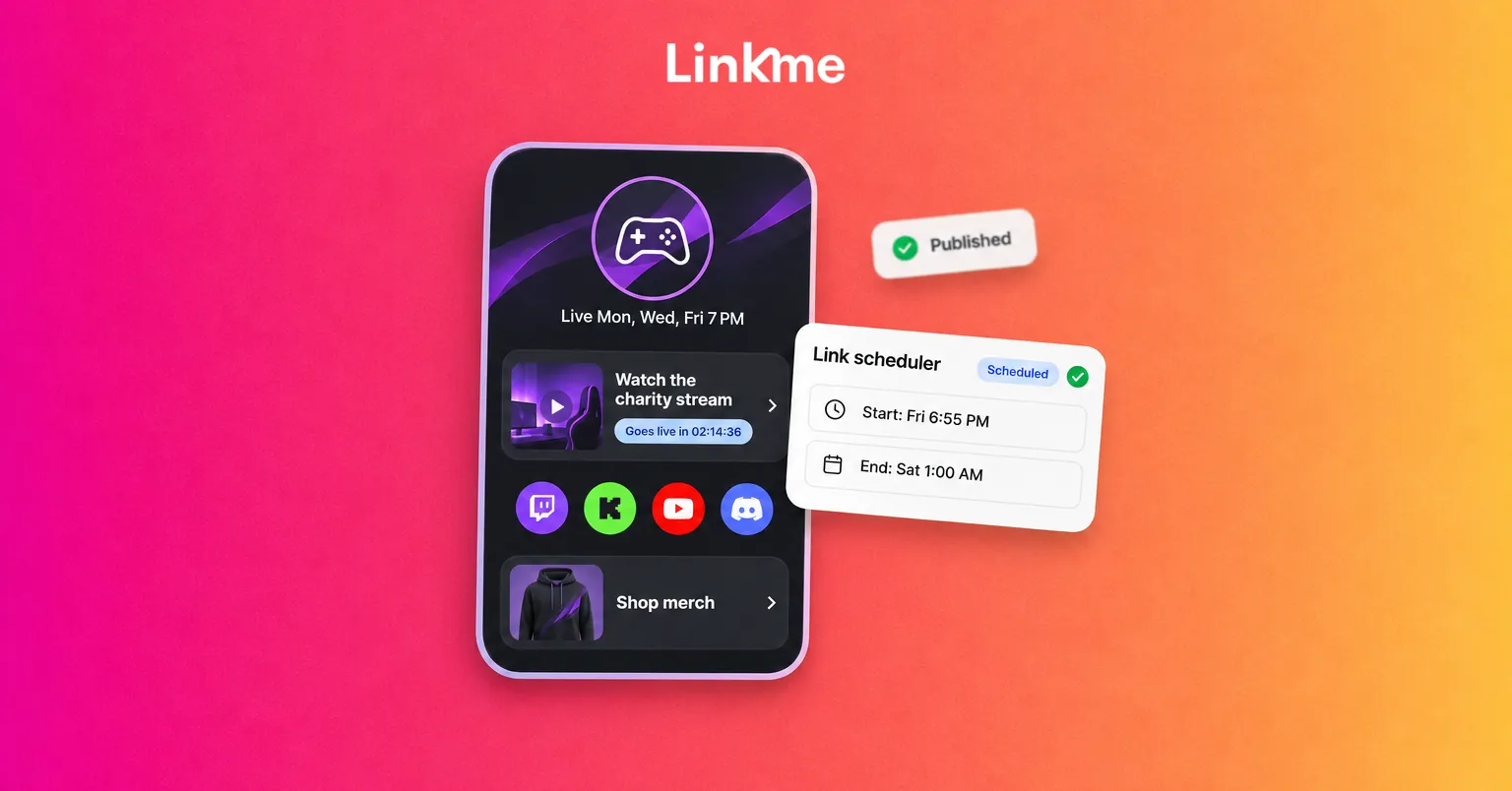
- Bio line with your schedule. For example, “Live Mon, Wed, Fri at 7 PM ET.” It is the first thing a regular checks.
- Your main channel as a big link. “Watch live on Twitch” or “Watch on YouTube,” whichever platform you stream on most.
- Your other channels. Twitch, Kick, YouTube and any other platform you stream or post on, as smaller links or platform icons.
- A schedule link. Your platform’s schedule page, or a post where you keep the week’s plan.
- Clips. A video feed of your latest Instagram, TikTok or YouTube videos, so new visitors can sample you without leaving.
- Community. Your Discord invite.
- Merch and support. Your shop and tips.
- Email sign up. For the announcements you cannot afford to have the algorithm hide.
If you multistream, still pick one platform for the top link. One clear “watch here” beats three equal buttons.
How to set up your page on Linkme
1. Claim the page and match your handle
Pick the same username you stream under, so link.me/yourname is easy to say on stream and type from memory. Add your photo and a short bio with the schedule line. You can also put a video behind or in place of your profile photo, which suits a streamer’s highlight clip.
2. Add your channels
Add your streaming channels as platform links and featured links. Linkme pages hold platform links, featured links in four sizes, video feeds, headers, events and more, and featured links accept any URL, so a platform without its own icon still works. Make your main channel a Big link and keep the others smaller.
Link back the other way too. Twitch has a social links section on your channel’s About page, YouTube lets you add links to your channel, and most streaming platforms give you a bio or profile field for links. Put your Linkme page in each so viewers who find you on one platform can find the rest.
3. Put your schedule where people look
Keep your schedule current on your main platform first, since that is where viewers already look. On Twitch, you set your stream schedule from the Creator Dashboard and it shows on your channel (Twitch Help: Channel Page Setup). On YouTube, scheduling a stream in YouTube Studio creates a watch page early, so viewers can set a reminder and you can share the link in advance.
Then point to it from your Linkme page with the bio line and a “This week’s schedule” link. For one-off streams, such as a charity stream, a tournament or a meetup, add an event with its name, date, venue and a link. Events sort by date on their own.
4. Schedule a going-live link with a countdown
For a special stream, set a link to go live on a timer. With the link scheduler, any link gets a Start Date & Time and an End Date & Time. Before it starts, the page shows a countdown; at the start time it goes live by itself, and it comes off when the window closes. Link scheduling is on Plus and Pro.
A few practical rules:
- Schedule the start a few minutes before you go live, so the link is there when you announce it.
- Set the end time later than you expect to finish. The scheduler follows the clock, not your stream, so it does not know if you run long.
- Point it at the stream itself, not your channel home, if your platform gives you a direct link in advance.
5. Add Discord, merch and an email sign up
- Discord. Add your server invite as a featured link labeled “Join the Discord.” Discord invites can be set to expire, so check the invite’s settings and use a long-lasting one.
- Merch. Linkme sells print-on-demand merch from your page with checkout through Stripe; you add the artwork, set your price, and each order is printed and shipped when it is placed. The free plan includes merch at a higher fee than Plus and Pro. Tips work on every plan.
- Email sign up. Turn on the email field so people can join your list with the Connect with button. Each sign up is saved as a contact, and Leads with email campaigns comes with Linkme Pro, so you can email everyone before a big stream.
An email list is the one channel on this page you own, whatever a platform does with your notifications.
Learn from a live streamer page
Linkme lists IShowSpeed’s page, link.me/ishowspeed, among its live streamer pages. Open it on your phone the way a new viewer would, from a bio link, and note how quickly you can tell where to watch and what else is on offer. Then do the same with your own page and count the taps it takes to reach your stream.
For more ideas from other creators, Linkme’s creators and athletes page shows how other public figures order their pages, typically with an email sign up first and then their brands and channels.
Make the page work inside in-app browsers
Most visitors open your page inside an app’s browser, where they are usually not signed in to Twitch, YouTube or Discord. Test every link from your own bios on a phone. On Pro, the Deeplink Banner adds one button to your page in the Instagram and Threads browsers that opens it in Safari on iPhone or Chrome on Android, where people are already signed in and links behave as they expect.
Check what is working
After a few streams, open your Linkme analytics. Every link shows its own click count, so you can see whether people tap your main channel, the schedule or Discord. The free plan covers visits and clicks; the deeper views on Plus, such as Traffic Sources, show which platform sent people. On Pro, Real-Time Activity shows visits and clicks from the last 30 minutes, which is a quick way to see whether a going-live announcement is sending people to the page.
Move links that earn clicks up, and take off links that nobody uses.
Frequently asked questions
What should a streamer put in their link in bio?
Your main channel at the top, then your other streaming platforms, your schedule, recent clips, Discord, merch and an email sign up. Keep the watch link first, because that is what most new visitors want.
Can my Linkme page show when I am live?
Not automatically. A scheduled link goes live at the time you set and can count down before it, which works well for streams you plan in advance. Set its end time later than you expect to finish.
Should I link Twitch, Kick and YouTube if I stream on all three?
Yes, but make one of them the big link at the top and keep the others smaller. One clear place to watch is easier to act on than three equal choices.
Do I need a paid plan to set this up?
No. The free plan includes unlimited links, tips and merch. The link scheduler and its countdown come with Plus and Pro, and Leads with email campaigns comes with Pro.
Your stream is where your audience spends time; your page is where they decide what to do next. Set it up once, keep the schedule current and adjust it based on what people tap. You can see everything a page can hold on Linkme’s Pages & QR page.