Linkme Tips and Tricks: Power Features Worth Turning On
Power features that keep your Linkme page current and measurable: the link scheduler, Deeplink Banner, tracking pixels, Attribution Links, QR code and Link.
On this page
- Key takeaways
- Which plan each feature needs
- Put links on a timer with the link scheduler
- Get visitors out of the Instagram browser
- Send your page traffic to your ad tools
- Use Attribution Links to route each source
- Make the QR code work harder
- Show a link only where it applies
- Ask Link to make page edits for you
- Check what changed after each tweak
- Frequently asked questions
Once your page has its links, photo and bio, most of what makes it work better is in the settings people skip. These Linkme tips and tricks cover the features that save you manual work and tell you more about your visitors: scheduled links, the Deeplink Banner, tracking pixels, Attribution Links, the QR code, country-specific links and asking Link to make edits for you. Each one takes a few minutes to set up and keeps paying off.
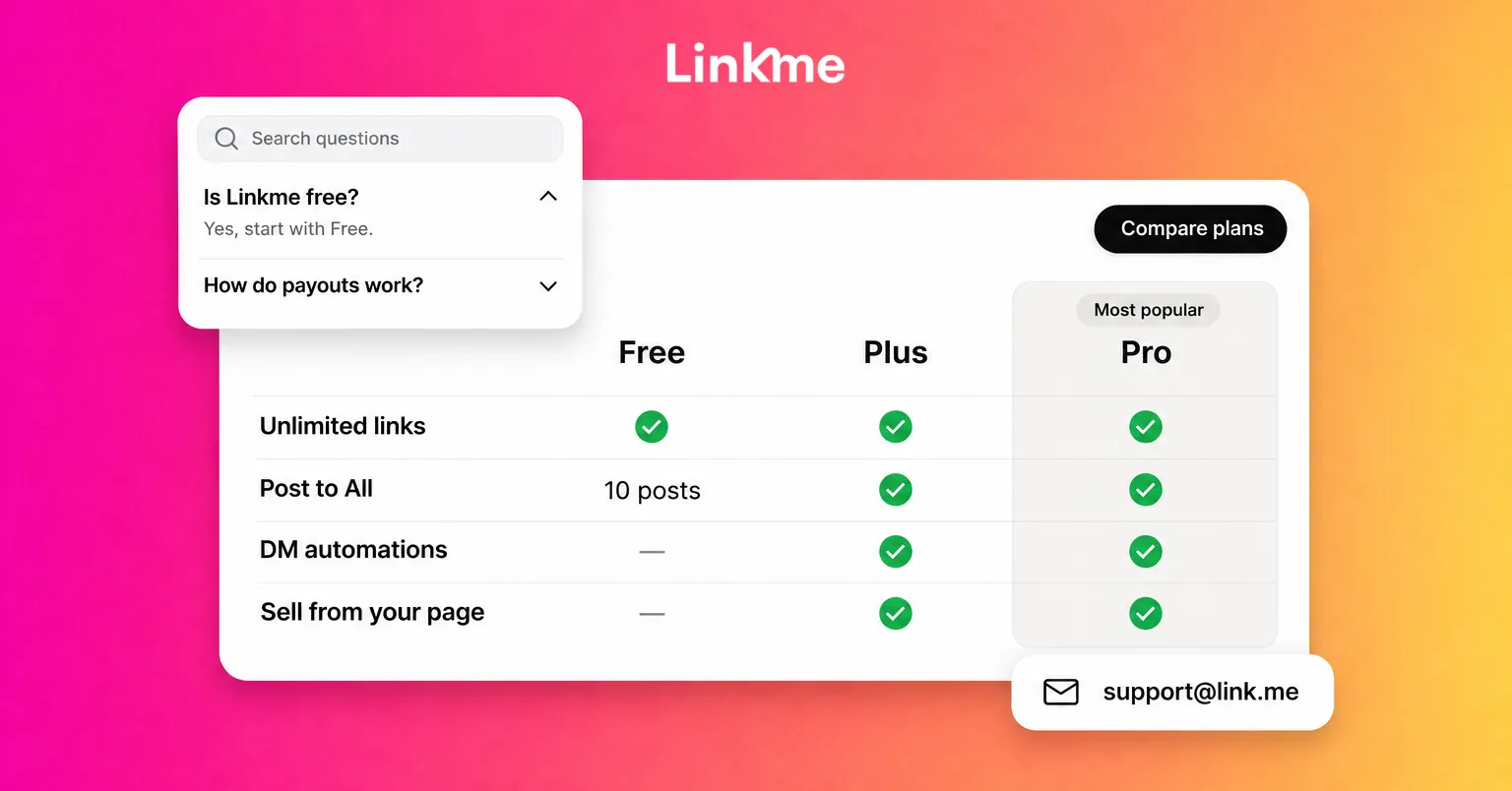
Which plan each feature needs
Check this before you go looking for a setting that isn’t on your plan.
| Feature | Available on |
|---|---|
| Your QR code | Every page |
| Link scheduler | Plus and Pro, and every Business seat |
| Deeplink Banner | Pro, and every Business seat |
| Meta Pixel, TikTok Pixel and Google Analytics Measurement ID | Pro |
| Animated links and your own logo | Pro |
| Real-time analytics | Pro |
| Link, the AI Social Media Manager | Pro, and every Business package |
The pricing page lists the full plan comparison.
Put links on a timer with the link scheduler
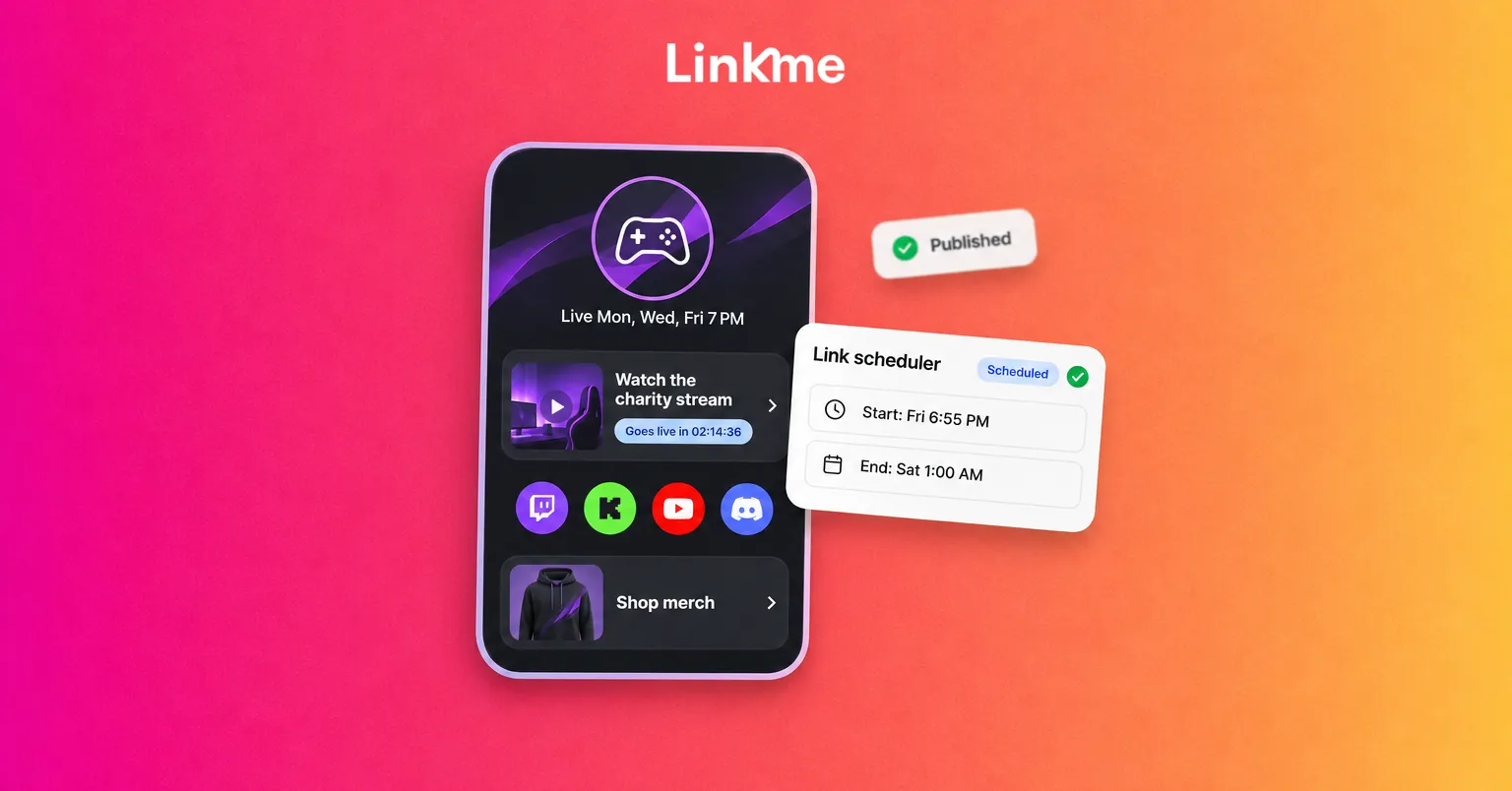
The most common page mistake is a stale link: last week’s presale, an expired offer or a “new video” that is three months old. The link scheduler fixes that by giving any link a Start Date & Time and an End Date & Time.
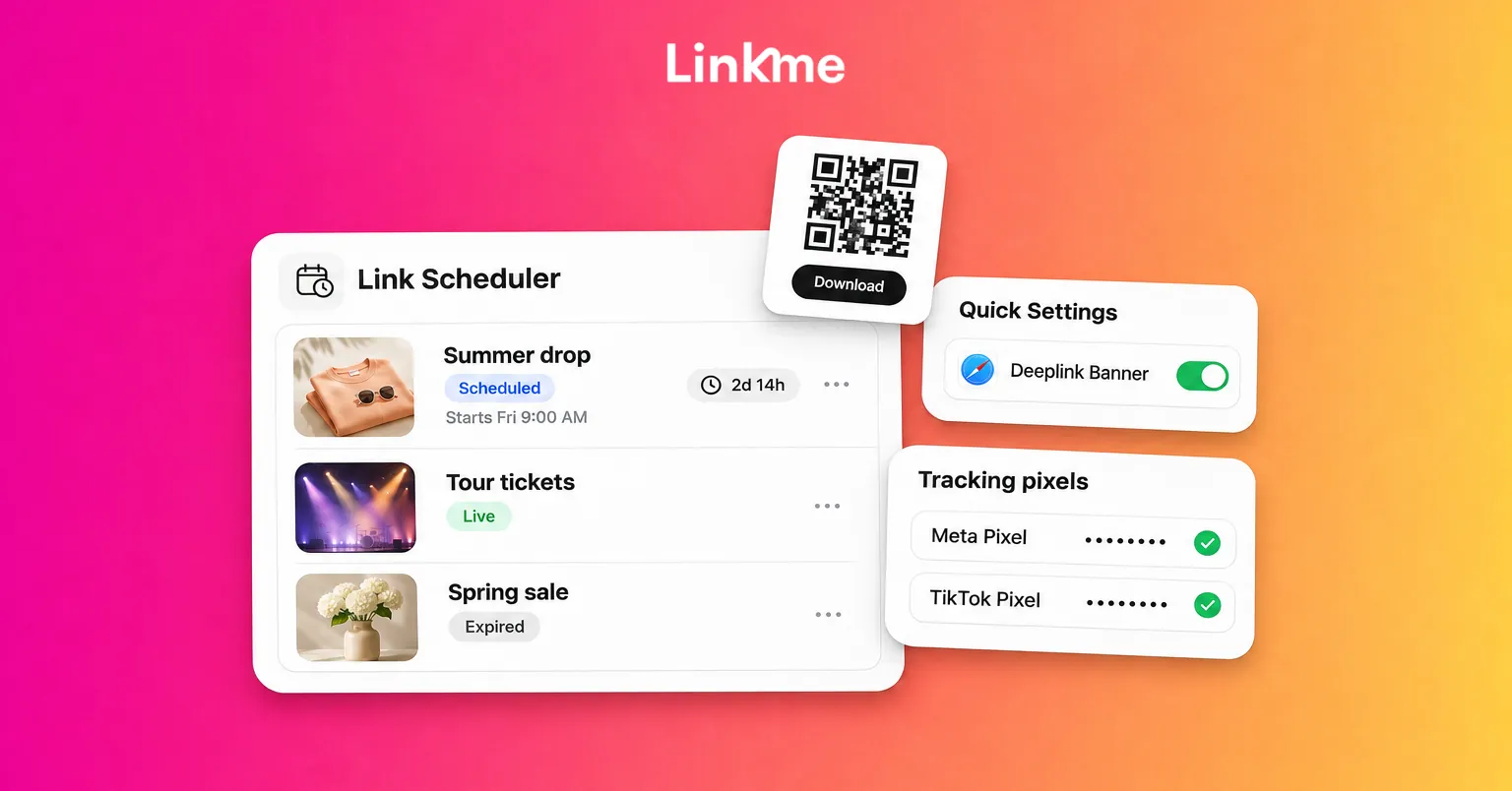
To set one up, open Edit Profile, then Link Scheduler, pick the link and set both times. The link goes live on its own, shows a countdown on your page while it waits, and comes off when the window closes. Your links appear in one list as Live, Scheduled, Draft or Expired, so you can see what is coming up.
Good uses:
- Ticket on-sales and presales. The link appears the minute sales open, and the countdown tells early visitors when to come back.
- Limited offers. A discount link that ends on its own means nobody clicks through to a dead page.
- Launch day. Schedule the new product or video link the night before and sleep.
You can schedule as many links as you want, each with its own timing.
Get visitors out of the Instagram browser
When someone taps your link inside Instagram or Threads, your page opens in that app’s built-in browser. They are signed out of everything there, so stores, streaming apps and checkouts can ask them to log in again.
The Deeplink Banner adds one button to your page that reopens it in Safari on iPhone or Chrome on Android, where people are already signed in. It is one switch in Quick Settings, available on Pro and on every Business seat. If your top links go to a store, a music app or anything that needs a login, turn it on.
Send your page traffic to your ad tools
Linkme analytics are first party: every number comes from visits and taps on your own page. If you also run ads or keep reports elsewhere, add your Meta Pixel ID, TikTok Pixel ID and Google Analytics Measurement ID once on Pro. Those tools then see every visit to your page, so the same traffic shows up in your own reporting and ad accounts.
Two practical points:
- Add only the IDs you actually use. A pixel nobody reads is just clutter.
- Keep checking your Linkme analytics as well. They show per-link clicks, countries and cities without any setup.
Use Attribution Links to route each source
An Attribution Link lets one link on your page send visitors to a different URL depending on where they came from. Visitors from Instagram, X or a utm source you choose can each land somewhere different, and you can tag a campaign’s visitors with a utm source.
Where this helps:
- Platform-specific offers. Instagram visitors land on an offer page built for them, while everyone else gets the standard store.
- Campaign tracking. Tag the visitors from a newsletter or a partner’s post with their own utm source so you can tell them apart later.
- Testing. Send one source to a new landing page and leave the rest on the old one, then compare results.
Keep the label on the link the same for everyone. Only the destination changes.
Make the QR code work harder
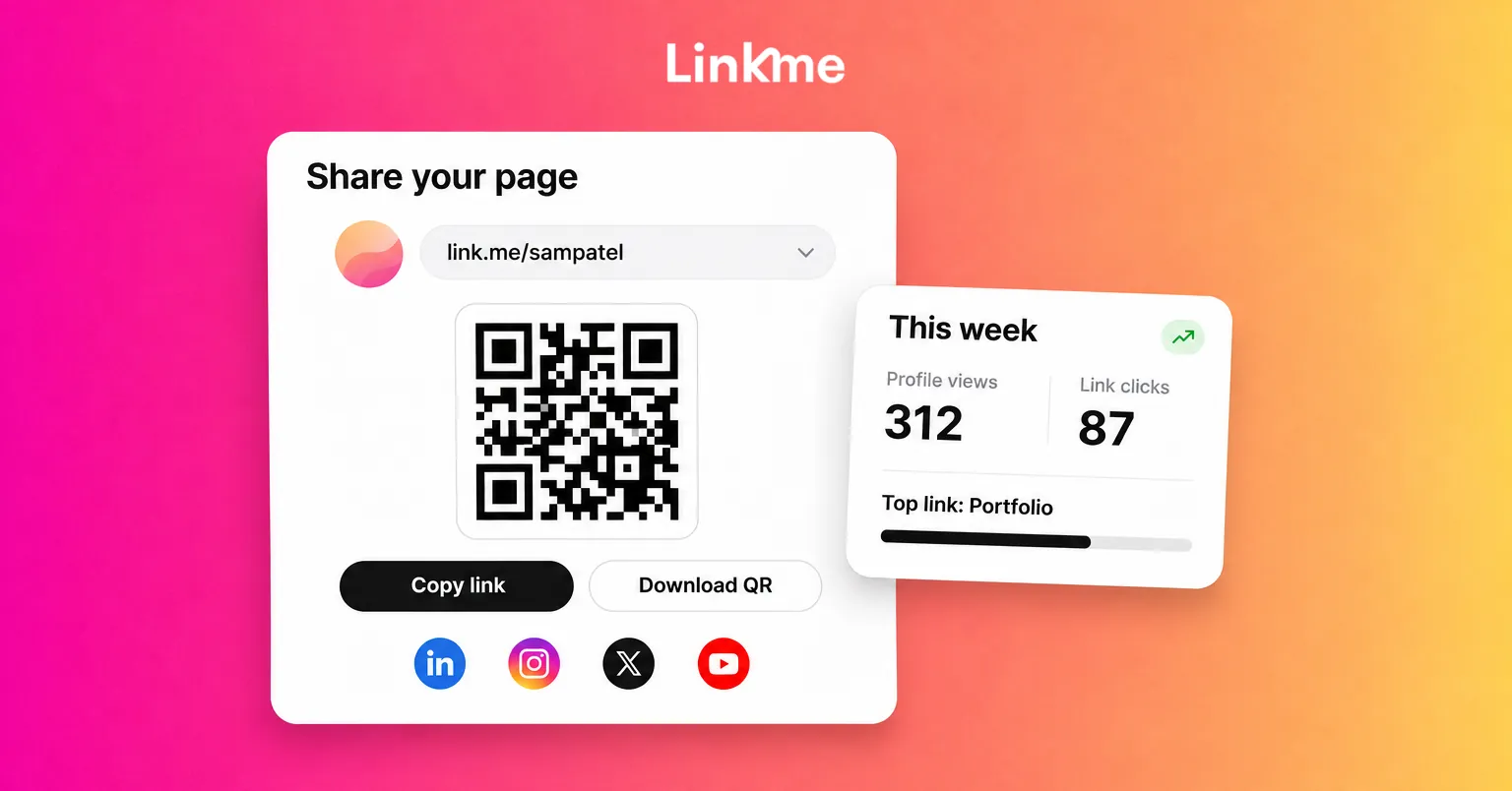
Every page has one QR code, and it always opens your live page. Open Your QR Code from the dashboard top bar and press Download to get a PNG for print.
Because the code never changes, you can print it on menus, posters, business cards, merch tags and event signage and keep editing the page behind it. Pair it with the link scheduler: print one sign for the season, then schedule what the page shows each week.
There is no separate scan count. Each scan is a visit, so it counts in your profile views, and the links people tap count as link clicks. Each digital product also has its own QR code, which is handy for a table display at a market or a slide at a talk.
Show a link only where it applies
If a link only works in some markets, such as a store that ships to one country or a tour date in one region, you can hide that link in chosen countries. Visitors elsewhere see the rest of your page without a link they cannot use.
You set this up by asking Link, covered next. Say which link to hide and in which countries, then approve the change.
Ask Link to make page edits for you
Link, Linkme’s AI Social Media Manager, is on Pro and every Business package. Type or say what you want in plain words, and each change arrives as a card showing the before and after. Nothing on the page moves until you press Approve.
Requests that save real time:
- “Move the tour link to the top and make it a big link.”
- “Change the theme to dark and use a serif font.”
- “Hide the shop link in countries outside the US.”
- “Add this photo to my gallery” (attach the image).
- “Which link got the most clicks from London this month?”
Link can edit the bio, photo, username, theme, font, links, header, gallery, merch, tracking pixels and video profile. It reads your analytics to answer questions but never changes them. It cannot create events or schedule links; add events in the page editor and use the link scheduler for timing.
Check what changed after each tweak
Every change above is a small experiment, so check the result. In Linkme analytics, Top Web Links ranks every link by clicks for any range, and opening a link shows its own top countries and cities. Period Comparison shows the range you picked next to the one before it, which is the quickest way to see whether moving a link up actually helped. On Pro, Real-Time Activity shows visits and clicks from the last 30 minutes, useful during a drop or a live event.
Frequently asked questions
Which Linkme plan includes tracking pixels?
Linkme Pro. You can add your Meta Pixel ID, TikTok Pixel ID and Google Analytics Measurement ID to your page so those tools see every visit. Agency seats are also Pro, so every page on an agency roster can use them.
Does my QR code change when I edit my page?
No. Your QR code always opens link.me/yourname, so every edit shows up on codes you have already printed. You can download it as a PNG from Your QR Code in the dashboard.
Can Link schedule a link for me?
No. Link edits your page and answers questions from your analytics, but timing is set in the link scheduler, where you give a link a start and an end date and time. The link scheduler is on Plus and Pro.
Can I see how many people scanned my QR code?
Not as a separate number. A scan opens your page, so it counts as a profile view, and any link the person taps counts as a link click.
None of these settings change what your page is for. They make it stay current on its own, work properly inside social apps and report back what happened. Start with the scheduler and the Deeplink Banner, then add the rest as you need them. See everything a page can hold on Pages & QR.