How to Build a Discord Community That Supports Your Socials
A practical setup for creators: give your server one clear job, keep channels few, moderate before launch, run regular events and bring fans in from your link in bio.
On this page
A Discord community gives creators something social feeds cannot: a place where fans talk to each other, not just to you, and where your announcements are not filtered by an algorithm. The servers that work have one clear purpose, a short list of channels, roles that reward the people who show up, moderation set up before launch and a steady way for new fans to find the invite from your other socials.
This guide covers how to set up a Discord server for creators, run it without burning out and connect it to the rest of your social presence.
Decide what the server is for
Fans join a Discord server for a reason they can name. Before you create channels, write one sentence that finishes “Join my Discord to…”. Some examples that work:
- Hang out during streams and keep talking after they end.
- Get drops first: merch, tickets or new videos before they go public.
- Learn together: a study group, a fitness challenge or a creative feedback channel.
- Play together: community game nights for gaming creators.
If you cannot finish the sentence, your audience may be better served by comments, a broadcast channel or an email list. A quiet server looks worse than no server.
Set up the structure
Start with fewer channels than you think
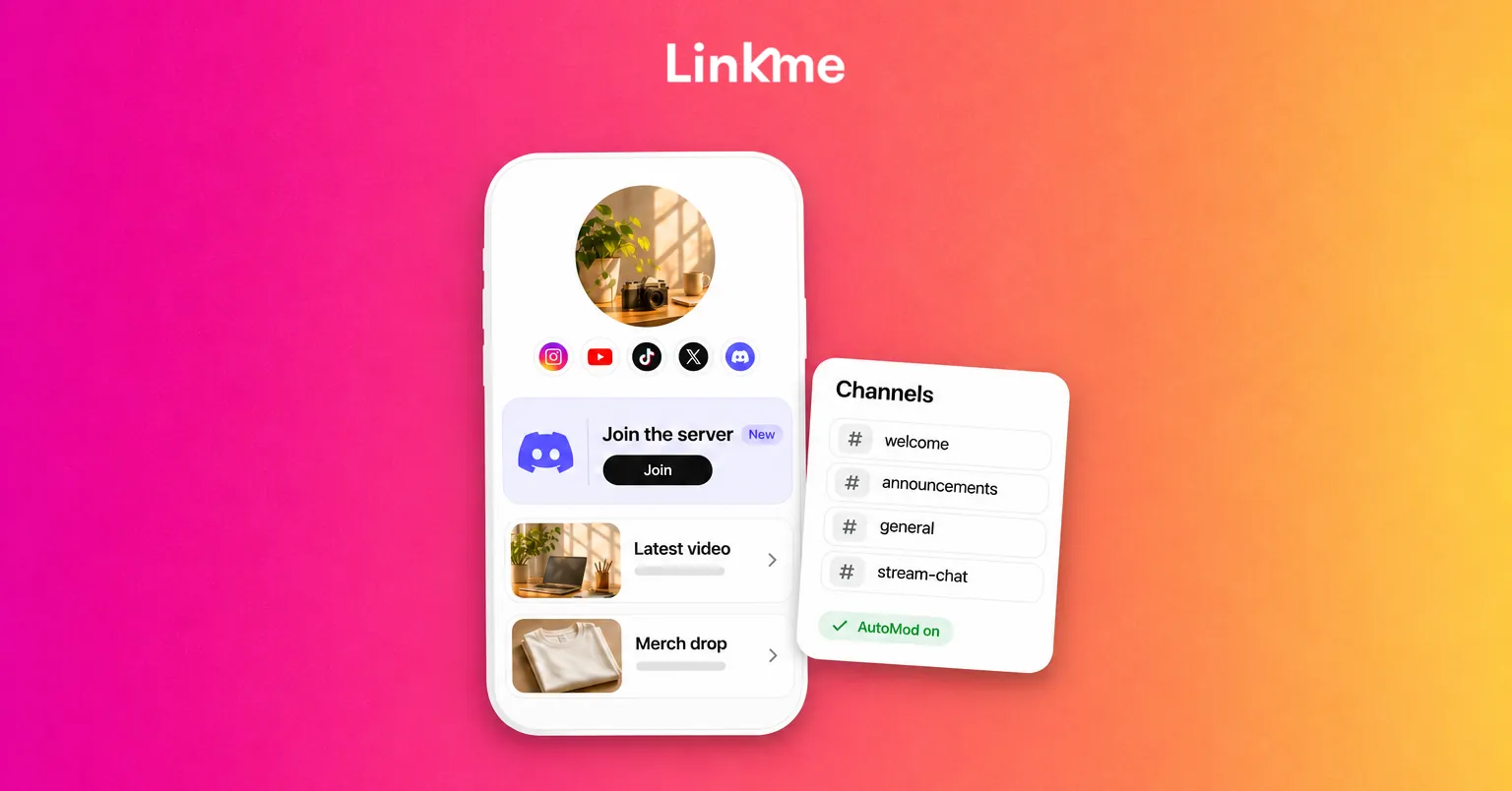
Empty channels make a new server feel abandoned. A good starting layout:
| Category | Channels | Purpose |
|---|---|---|
| Start here | welcome, rules, announcements | What the server is, how to behave, your news |
| Community | general, introductions | Everyday chat |
| Your topic | one or two topic channels, such as clips or feedback | The reason people joined |
| Live | one voice or stage channel | Streams, Q&As and hangouts |
Add a channel only when one conversation keeps crowding out another in general chat.
Use roles to reward people
Roles control who sees and does what, and they also signal status. Start with:
- Moderators, with permission to delete messages and time out members.
- Regulars or supporters, given to active members or paying supporters, with access to a members-only channel.
- Opt-in notification roles, such as “stream alerts” or “drop alerts,” so only interested members get pinged.
Turn on Community features
Discord’s Community settings unlock features built for larger servers, including member onboarding, where new members answer a few questions and get matching roles and channels, and announcement channels that other servers can follow. Enabling Community requires a few safety settings first, including a verification level for new members, an explicit media content filter that scans media from all members, and a rules channel. Discord’s guide to enabling your Community server lists the current requirements.
Plan moderation before you launch
Moderation is the real ongoing cost of a Discord community. A launch announcement can bring a wave of new members at once, including spammers. Set things up in advance:
- Write short rules. Five or six plain sentences are enough. Cover harassment, spam, self-promotion and spoilers if they matter to your niche.
- Set up AutoMod. Discord’s AutoMod is in Server Settings and can block messages with keywords you choose, catch mention spam and flag common spam content. Server admins with Manage Server permission can configure it.
- Raise the verification level so brand-new accounts have to wait or verify before they can post.
- Recruit two or three moderators from people you already trust, across different time zones if possible. Agree on what gets a warning, a timeout or a ban.
- Keep a private mod channel where moderators log decisions and ask each other questions.
Be wary of anyone who DMs members pretending to be you or your team. Pin a message in announcements saying you will never ask for passwords, codes or payment by DM.
Give the server a rhythm
Communities stay active when something happens on a schedule. Use Discord’s scheduled events so members see what is coming and can mark their interest.
Ideas that work for creators:
- A weekly hangout in the voice or stage channel after your main stream or upload.
- Monthly Q&As where members submit questions in advance.
- Watch parties or premieres for new videos.
- Community challenges with a weekly theme and a showcase channel for entries.
Show up in person regularly. Members join to be near you; if you vanish, the server gradually goes quiet.
Bring fans in from your socials
Put the invite on your page
Your link in bio is where most fans will find the server. Add the invite as a featured link on your Linkme page and move it near the top during launch week. If the server is built around a single event, such as a premiere or game night, Plus and Pro let you give a link a start and end time, so it goes live and comes off on its own.
Use a Discord invite link that does not expire for your page, since some invite settings expire after a set time. You can also create separate invites for different places, such as your page, your stream overlay and your video descriptions, and check in Discord’s invite settings which ones bring people in.
Send the invite by DM
When you announce the server on Instagram or Facebook, ask people to comment a keyword like DISCORD. A Linkme DM automation replies and sends the invite link by DM to everyone who comments it. DM automations are available on every Linkme plan, Free included.
Mention it where fans already are
Mention the server at the end of streams, in pinned comments and in video descriptions. Tell people what they get there, not just that it exists.
Announce drops in the server
An announcement channel is where members expect your news: new videos, merch, tickets and stream schedules. Keep it for real announcements only, so the alert keeps meaning something.
On Linkme’s creator plans, Post to All sends one post to YouTube, Instagram, TikTok, Facebook, X, Threads and LinkedIn at once, so you can share the drop in Discord right after. Publishing straight to Discord from the same composer is part of Linkme Business, which adds Pinterest, Reddit, Bluesky, Telegram, Discord and Google Business Profile for 13 networks in all. Teams that run talent or brand accounts can post the announcement to every network and the server in one go.
Linkme for creators covers the rest of the drop: your page, DM automations, selling and an email sign up, all from one link. See how creators and athletes run Linkme.
Frequently asked questions
How do I start a Discord community as a creator?
Decide what the server is for, create a short list of channels, set up roles for moderators and regulars, and turn on Community features and AutoMod. Then invite a small group of your most engaged fans before announcing it widely.
How many channels should a new Discord server have?
Fewer than you think. A welcome, rules and announcements channel, one general chat, one or two topic channels and a voice or stage channel are enough to start. Add more when one conversation keeps crowding out another.
How do I moderate a Discord server without doing it all myself?
Write short rules, turn on AutoMod for keywords and mention spam, raise the verification level and recruit two or three trusted moderators. A private mod channel helps them stay consistent.
Can I post to Discord from Linkme?
Yes, on Linkme Business. Post to All publishes to 13 networks there, including Discord. On creator plans, Post to All covers seven networks, and you can share the drop in your server yourself.
A Discord server works best as the inner circle of your audience, with your socials and your page bringing new people in. Claim your Linkme page and put your server invite where every fan can find it.