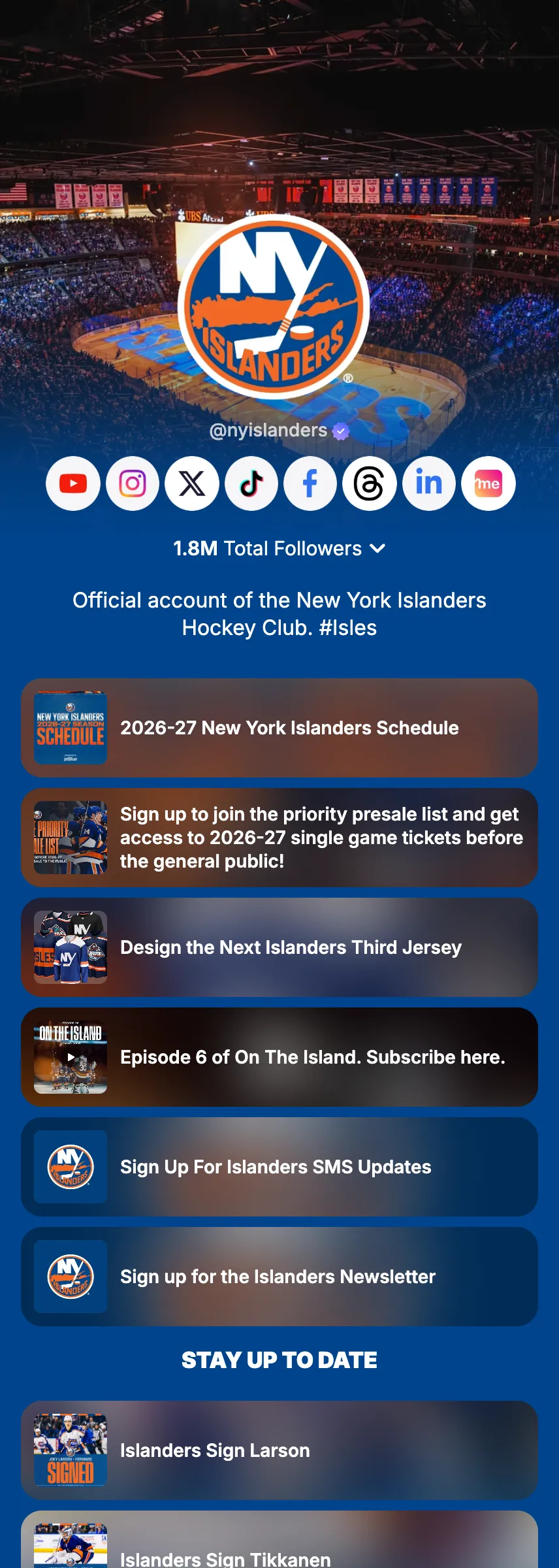
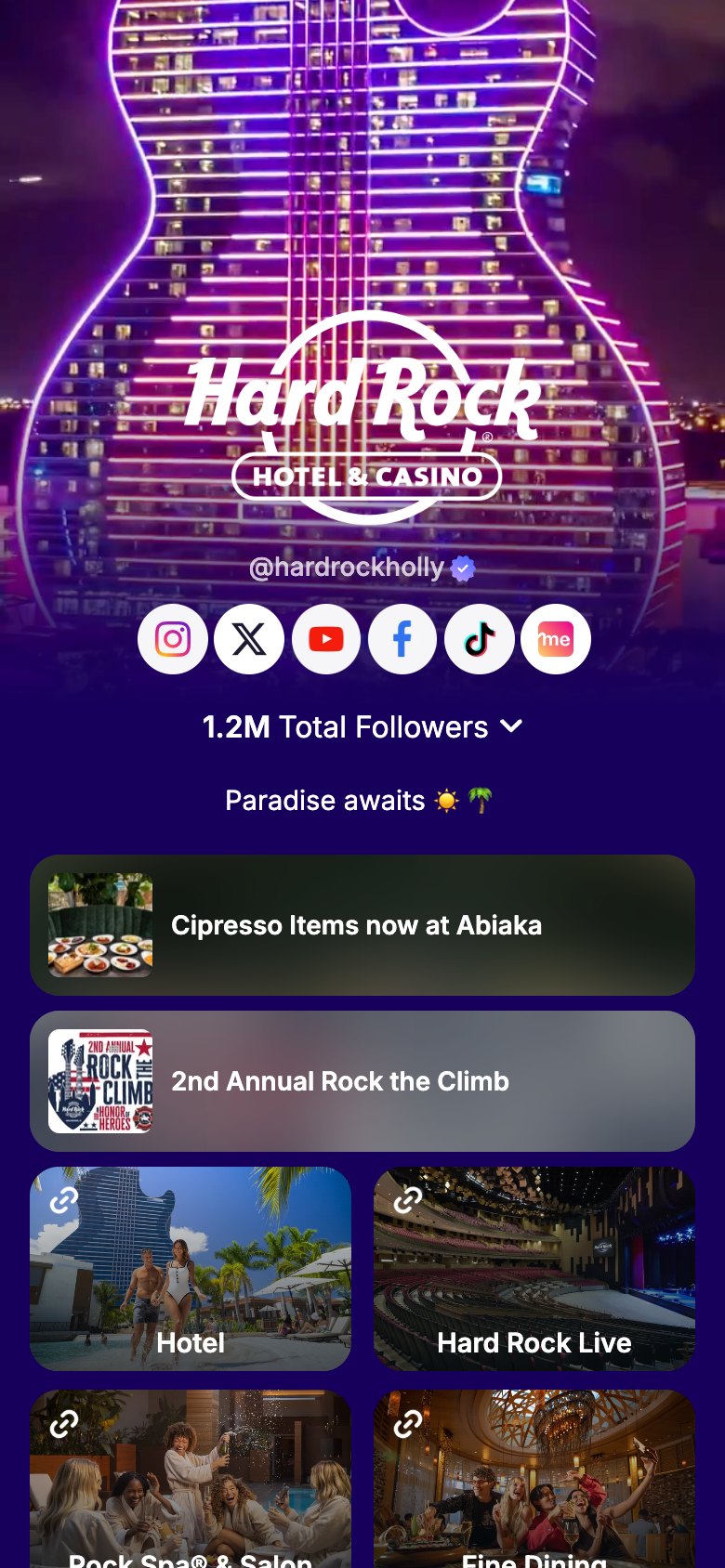
Set it once. Live exactly when you want.
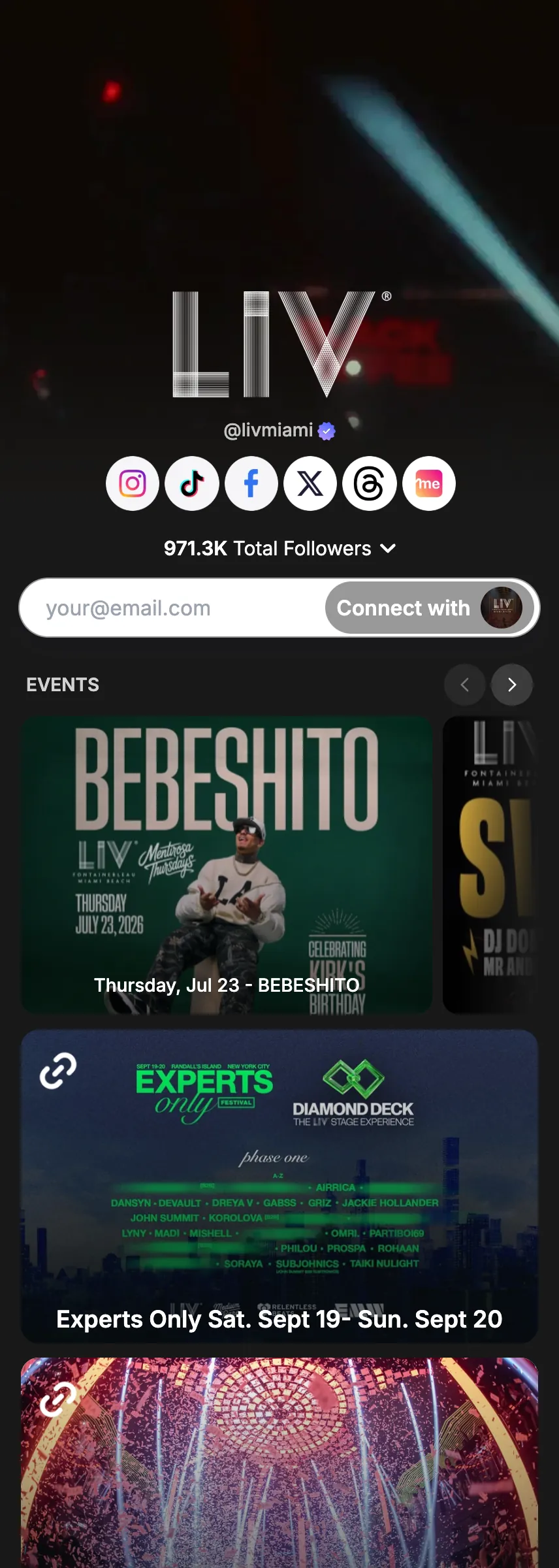
Put your links on a timer. Schedule any link to automatically go live and come off your profile at the date and time you choose. Plan drops, launches, and limited-time offers in advance and let your profile update itself, so the right link is always front and center at exactly the right moment.

- Auto go-live
- Auto take-down
- Great for drops
How to use it
7 steps, in the order you take them in your Linkme dashboard.
- 1
Navigate to Edit Profile on your Linkme dashboard → Link Scheduler and select any link
- 2
Open the link's scheduling options
- 3
Set a start date and time for the link to automatically go live on your profile
- 4
Set an end date and time for it to automatically come off your profile
- 5
Schedule as many links as you want, each with its own timing
- 6
Perfect for product drops, ticket on-sales, launches, and limited-time offers
- 7
Your profile stays current on its own, with no manual updates needed
Good to know.
What to have ready for Link scheduler, what you see after, and the fixes for the problems people hit.
Before you start
- The link, and when it should go live and come off your profile.
Which plans include it
- Plus and Pro.
What you will see after
- The link shows on your profile at the start time and comes off at the end time, with no manual updates.
If something goes wrong
- You cannot find the scheduler.
- The link scheduler is on Plus and Pro.
- You want to change or cancel your plan.
- Go to Settings, then Subscriptions. If you subscribed in the iOS or Android app, cancel through the App Store or Google Play.
More in Build your page


Try Link scheduler on your own page.
Claim your link.me in a minute. The free plan needs no card.