How to Schedule TikTok Posts: A Practical Guide
Learn how to schedule TikTok posts, check publishing settings, manage scheduled videos and troubleshoot timing, connection and publication issues.
On this page
- Key takeaways
- Choose a TikTok scheduling method
- Prepare the account, media and TikTok settings
- How to schedule TikTok posts with Linkme
- How to schedule a video through TikTok’s web route
- What about scheduling from a phone or TikTok Shop?
- Find, change or cancel scheduled content
- Troubleshoot missing options and TikTok publication problems
- A worked example and final publishing check
- Frequently asked questions
- Put your TikTok publishing plan to work
You can schedule TikTok content through a publishing workspace such as Linkme or an available native TikTok scheduler. Prepare the media and caption, select the account and publication time, confirm the scheduled entry, then check the result when it is due.
The details matter on TikTok. The audience you select, the interactions you allow and the audio you use can affect whether the post is ready to publish. A video and a photo carousel also need different checks.
This guide covers scheduling with Linkme and TikTok’s documented web-video workflow, followed by ways to handle changes and publication problems.
Choose a TikTok scheduling method
| Method | Useful situation | What to check |
|---|---|---|
| Linkme | Your team prepares, reviews and schedules TikTok alongside other business content | Connected account, supported media, available settings, workspace timezone and release permissions |
| TikTok’s web Video Scheduler | You want to prepare a video directly through an available TikTok web publishing route | Scheduler access, allowed dates, post settings and the saved scheduled entry |
Native scheduling can meet a straightforward publishing need. A shared workspace becomes useful when several people prepare content, someone needs to review it or the business manages a wider publishing schedule.
Automatic publication versus a publishing reminder
Automatic publishing sends supported content at the chosen time. A reminder instead asks someone to complete the post. Assign that person before treating a reminder-based campaign as ready.
Linkme supports automatic TikTok publication for supported content. If your post depends on a native feature, confirm that the publishing method supports it before scheduling. A planned date does not establish that every effect, sound or product feature will transfer between tools.
Prepare the account, media and TikTok settings
Check the correct account and content format
Start with the profile you intend to publish from. Confirm you have access and resolve any connection warning before preparing a campaign around that account.
A Linkme Business package and a TikTok Business Account are different things. Follow the connection requirements for the method you are using rather than assuming one account label establishes eligibility for another service.
Linkme supports TikTok images, carousels and video. The native walkthrough below covers video. For any format, inspect the preview and validation in the tool you selected. Do not assume a file accepted by TikTok’s own editor will meet every other tool’s upload rules.
Review audience, interactions, audio and disclosure
Choose the intended audience from the options available to the connected account. For videos, review the available comment, Duet and Stitch controls. Duet and Stitch do not apply to photo posts, so a carousel should not be checked as though it has the same interaction settings as a video.
Confirm the audio is suitable for your intended business use. A trending sound is not proof that you can use it in promotional content. If the post needs a particular sound or effect, check the selected publishing route before building the campaign around it.
Complete the relevant commercial-content disclosure. Promoting your own business and promoting another brand are distinct choices. Check the options and any related audience restrictions before confirming the post.
Keep this preparation tied to the actual content. A service demonstration, a paid partnership and a photo carousel may need different settings even when they share a campaign date.
How to schedule TikTok posts with Linkme
You can schedule TikTok content with Linkme through its publishing workflow, with preparation, review and status checks kept together.
1. Connect and select the intended TikTok account
Use the account connection control, authorize the intended TikTok profile and resolve any Reconnect warning.
Check the selected profile before continuing, particularly if your business manages several accounts. Your Business package determines the connected-account allowance; use the account you need for this post rather than assuming the last-used selection is correct.
2. Prepare supported media and the TikTok caption
Open the publishing composer, add supported media and prepare the TikTok caption. Review the video or carousel, including media order, and address any format-validation issue.
Confirm the facts in the content: service area, dates, prices if mentioned and what the viewer should do next. If that action depends on a website or booking link, check the account’s supported link placement. Do not assume a URL typed into a caption will give viewers a clickable route.
Choose the publishing method around the features the post needs. Do not assume a scheduling tool can attach TikTok Shop products or recreate every element of TikTok’s native editor.
3. Check the available TikTok settings
Review the audience, applicable interactions and relevant disclosure settings. Use the choices available for that account and format rather than carrying settings over from an unrelated post.
For example, a video may need a Duet decision, while a photo post will not. A promotion for the business should also receive a deliberate disclosure check instead of being treated as an ordinary personal update.
4. Set the date and time, then complete any required review
Choose the publication slot and verify the Business workspace timezone. Select a time that fits the audience and the action you want them to take, with room for the team to answer questions or fix an issue.
Linkme’s approval requirements depend on permissions. Confirm the schedule or submit the post for review, then check its saved status. A draft, a post waiting for approval and a scheduled post ready for release are different states.
Use the guide to review posts before publication when setting up that handoff. Reviewers should check the content and settings as well as the time.
Changes can require renewed approval. If the original publication time has passed, recheck the offer and timing before releasing the post so an expired promotion is not approved by mistake.
5. Check the saved entry and publication outcome
Find the post in Plan or the publishing calendar. Confirm the account, date, time and saved status.
After it is due, inspect the publishing result and the post on TikTok. Processing and moderation can delay visibility, so a post that is not immediately public is not automatically a failed publication. Check the selected audience too: restricted visibility may be intentional.
For an actual failure, follow the reported issue and retry only when appropriate after resolving it. Repeated attempts will not fix revoked access or an account restriction. Check for an already-live copy before posting manually.
How to schedule a video through TikTok’s web route
TikTok’s business Post Scheduler is included with Advanced Access and Verified Business access. Advanced Access comes from linking the TikTok account to TikTok for Business or an unverified Business Center. These are business-tool access rules, not a universal rule for every Studio feature.
For an account with access to TikTok’s web Video Scheduler, the documented sequence is:
- Sign in to the intended account on TikTok’s website and open video upload. If you are entering through Web Business Suite, open your profile picture menu and select Business Suite.
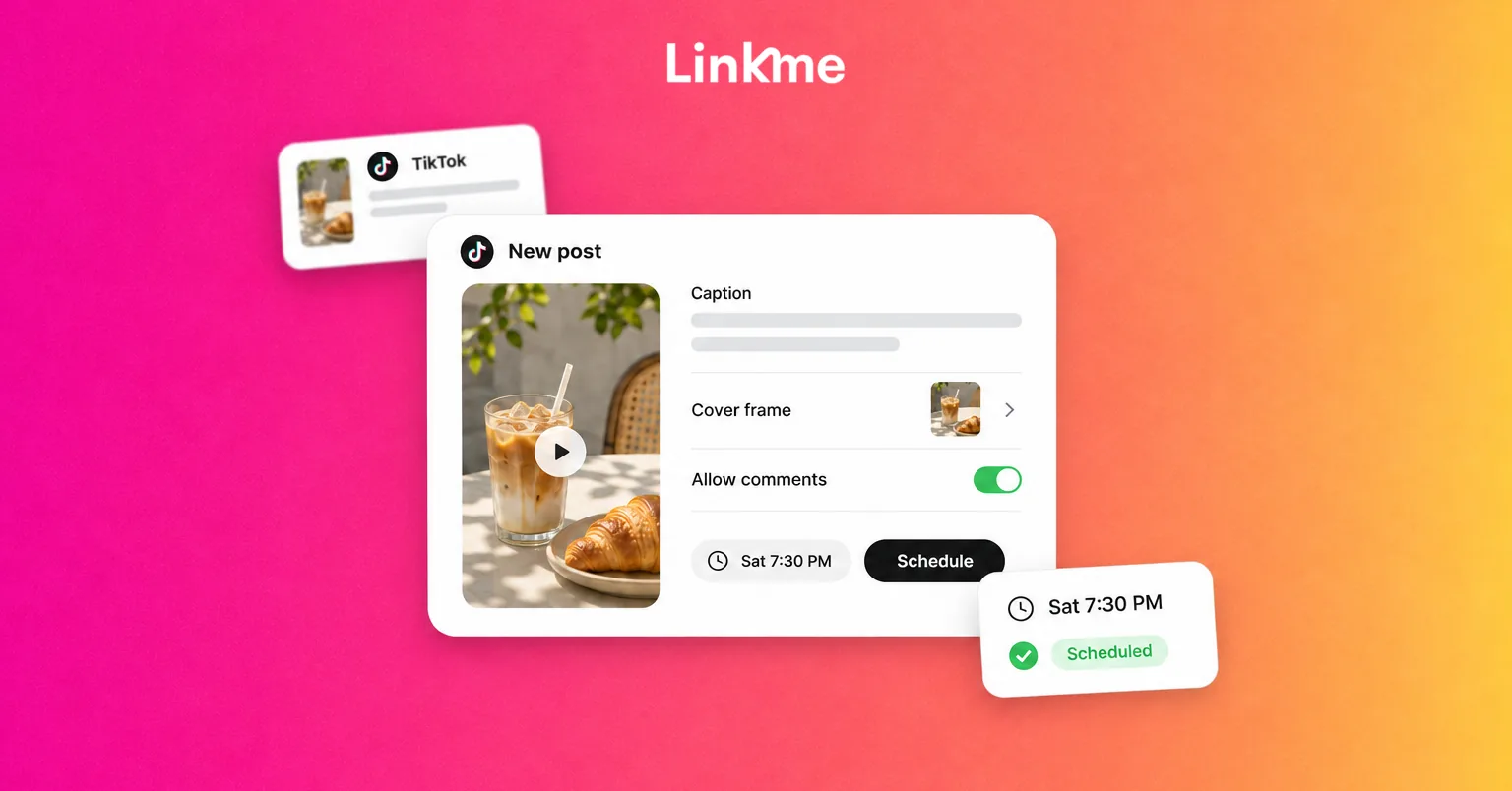
- Upload the video and prepare its caption, cover and available audience and interaction settings.
- Enable scheduling and choose the publication date and time.
- Check the timing, select Schedule, then verify the saved scheduled item.
Use a finished asset and review it before confirming. Check the selected account and the actual scheduling controls presented to you, including the permitted date range and timezone information.
Keep the original video and caption available while the campaign is active. That gives you a reliable starting point if a date, offer or service detail changes. The management section below explains how to handle those changes without assuming every scheduling route has the same editing options.
What about scheduling from a phone or TikTok Shop?
Check the method and account you intend to use. TikTok’s main app, TikTok Studio and a third-party mobile app are different products; a mobile workflow for one should not be assumed to work in another.
US TikTok Shop sellers have a separate scheduling feature for shoppable videos. Its settings and publication window apply to that seller workflow. It is not a general workaround for ordinary TikTok posts, and it does not establish that Linkme can attach Shop products.
If you are choosing a phone-based route, confirm that its scheduling controls support the content and account involved. For a business campaign, decide who will finish publishing if the chosen workflow sends a reminder instead of posting automatically.
Find, change or cancel scheduled content
Return to the tool where you scheduled the post, using the correct profile. Check the saved entry and its state before creating a replacement elsewhere.
In Linkme, use the post entry to make supported changes, then check the revised time and review status. If a change returns the post for approval, complete that review before treating the new schedule as ready.
For native TikTok content, inspect the actions available for that scheduled item. Use an editing or rescheduling control where your route provides it. If the required change needs a replacement, follow this sequence:
- Keep the original media and caption available.
- Confirm the original scheduled item is canceled or deleted.
- Prepare the corrected content and settings.
- Complete any required review and confirm the replacement schedule.
- Check that only the intended version remains queued.
Do not assume all tools share a synchronized queue or that every scheduled field can be changed. Check the saved result after making an edit.
A live post needs a separate decision. Correcting a future schedule cannot undo something already published; assess whether the existing post or its destination needs a correction or removal.
Troubleshoot missing options and TikTok publication problems
| Problem | What to check | Next action |
|---|---|---|
| Scheduling controls are missing | Selected route, account access and available controls | Check that route’s requirements; changing account type is not a guaranteed fix |
| TikTok is unavailable in Linkme | Correct profile, authorization and connection warning | Resolve the access or reconnect issue before scheduling |
| Media or a feature is rejected | Validation, content format and the feature needed | Adjust the content or choose a route that supports it |
| Audience or interaction options are unavailable | Account settings and video versus photo format | Use compatible options; photo posts do not have Duet/Stitch controls |
| A post is waiting for approval | Reviewer, latest changes and intended publication time | Complete review and recheck timing before release |
| The time is wrong | Whether the item is queued or live, stored time and method-specific timezone | Correct a queued item or future settings; assess any live correction separately |
| A post is not visible to the intended audience | Selected audience, processing/review state and reported failure | Check visibility first, avoid duplicate uploads during processing and investigate actual errors |
| A queued item seems missing | Original tool, correct profile and status filter | Locate the original before creating a replacement |
The next action should follow the actual problem. A post undergoing processing needs a different response from a media rejection, and an authorization issue needs a different response from missing approval.
A worked example and final publishing check
Imagine a home-service business preparing a short demonstration of its work. The team wants viewers to understand the service and find the appropriate inquiry route. This hypothetical workflow shows how the steps fit together.
| Stage | Example action | Responsible person and check |
|---|---|---|
| Prepare | Create an original demonstration clip and caption describing the actual service | Marketer checks media, audio and the next action |
| Review | Confirm offer and location details, audience, interactions and disclosure | Business owner checks facts; permissions determine review |
| Schedule | Choose a suitable time before customers make the relevant decision | Person scheduling checks the account, method timezone and saved status |
| Change | An offer or service detail changes before publication | Responsible person edits and reviews, or replaces the item as the selected route requires |
| Verify | Check publication and handle relevant questions | Marketer checks intended visibility and distinguishes processing from failure |
One person can fill several roles. What matters is that each task has an owner and the schedule reflects what is actually ready.
Before release, check:
- The intended TikTok account is selected.
- The media and required features are supported.
- The audio is suitable for the intended use.
- The caption and next action are accurate.
- Audience, applicable interactions and disclosure have been reviewed.
- Date, time and timezone are correct for the chosen method.
- Required review is complete and the saved status is correct.
- Someone will check publication and handle any changes.
Frequently asked questions
Do I need a paid third-party TikTok scheduler?
No. Eligible accounts can use TikTok’s native Post Scheduler instead of a separate third-party service. TikTok offers free Business Accounts, but access to its business Scheduler still depends on the account entitlements described above. Choose a separate publishing workspace when its preparation, review and coordination features fit your business needs.
Can I schedule TikTok posts from my phone?
It depends on the method, account and content. Check the phone-based tool you intend to use and whether it publishes automatically or requires completion. Eligible US TikTok Shop sellers have a separate shoppable-video scheduling route; that feature is not a universal mobile option for ordinary accounts.
How far in advance can I schedule a TikTok post?
Use the range available in the scheduler you are using. TikTok’s published Video Scheduler instructions describe a 15-minute to 10-day window, while its separate US Shop seller feature supports shoppable videos from 30 minutes to 30 days ahead. Those windows should not be applied to every Studio account or to Linkme.
Plan time-sensitive content around the period you can keep it accurate, even when a tool allows a longer schedule.
Can I edit a scheduled TikTok video?
In Linkme, use the supported post-editing workflow and complete renewed review where required. For native scheduling, check the actions available for that specific item. If the needed edit requires replacement, cancel the original before scheduling the corrected copy. Verify the saved result so both versions do not publish.
Can I schedule photo posts as well as videos?
Linkme supports TikTok images, photo carousels and video. Check the media preview and validation for your selected format. The native web walkthrough in this guide covers video; its steps do not establish support for every other TikTok post type.
Put your TikTok publishing plan to work
Choose the account and method, prepare suitable content, review the settings and confirm the schedule. Check the published result so the plan leads to an actual post.
If your team needs shared preparation, required reviews and a clear view of upcoming business content, explore Linkme for Business and book a demo.