How to Create a Social Media Calendar, With a Template
Create a social media calendar with a copyable template and filled example. Plan posts, assign owners, track approvals and keep your publishing schedule current.
On this page
- Key takeaways
- Start with a social media calendar template you can use
- Decide what belongs in your calendar
- Turn ideas into posts that are ready to publish
- See a filled weekly calendar example
- Move the plan through review, scheduling and publication
- Keep the calendar useful after the first week
- Frequently asked questions
A post has a date in the calendar, but the image is unfinished. Nobody owns the review, and the person responsible for publishing assumes somebody else has already scheduled it.
A useful social media calendar makes those gaps visible before publication. It shows what you plan to post, which account it belongs to, who is preparing it and what still needs to happen.
It is more specific than a general marketing content plan. The wider plan might include a launch, email campaign and website update; the social calendar turns the relevant work into individual posts with formats, deadlines and publishing details.
Use the template below to build that working schedule. Entering a date gives the team a plan. The post still needs to be prepared, reviewed where required, scheduled in a publishing system and checked after it goes live.
Start with a social media calendar template you can use
Give each planned placement its own record
Use one row for one post on one specific account and network. If a customer question becomes a LinkedIn post and an Instagram carousel, give each version its own row. Their copy, format, timing and publication results may differ.
Copy this table into your planning document or spreadsheet, replace the placeholders and add rows as needed. State the calendar’s timezone above the table; record any exceptions explicitly. Make linked copy and assets accessible to the people preparing and reviewing them.
| Post ID + topic | Publish date/time/timezone | Network + account + format | Copy/asset/destination reference | Owner | Ready-by deadline | Review state | Delivery state |
|---|---|---|---|---|---|---|---|
| [ID and topic] | [Date, time, timezone] | [Network, account, format] | [Working record or reference] | [Person] | [Date and time] | Not ready | Not scheduled |
| [ID and topic] | [Date, time, timezone] | [Network, account, format] | [Working record or reference] | [Person] | [Date and time] | Not ready | Not scheduled |
| [ID and topic] | [Date, time, timezone] | [Network, account, format] | [Working record or reference] | [Person] | [Date and time] | Not ready | Not scheduled |
The columns have distinct jobs:
| Field | What to enter |
|---|---|
| Post ID + topic | A unique reference, such as P101, plus a short description. Related versions can share a campaign label but should have different post IDs. |
| Publish date/time/timezone | The intended publication slot. Specify the timezone rather than assuming everybody uses the same clock. |
| Network + account + format | The exact company, brand or location account, plus the network and post format. |
| Copy/asset/destination reference | Where to find the current caption, media, call to action and destination. A reference to one working brief keeps long text out of the calendar. |
| Owner | The person responsible for moving this post forward. |
| Ready-by deadline | When copy, media and destination details must be complete and ready for any required review. |
| Review state | Whether preparation or sign-off still needs attention. |
| Delivery state | Whether the publishing system has scheduled the post and whether it actually published. |
When sign-off is needed, add the reviewer and approval deadline to the working record. That deadline comes after preparation and before publication, with time for corrections.
Add other fields only when they help: a campaign label, separate video-production deadline, expiry note, scheduler reference, published-post URL or short learning note. A solo marketer may hold several responsibilities without needing separate people for each one.
Separate readiness from publication
Keep these two questions separate: Is the content ready? Has it been scheduled or published?
Suggested review states are Not ready, In review, Changes needed, Approved, and Ready (review not required). Use Not ready until the content checks are complete, even when nobody else needs to approve it.
Suggested delivery states are Not scheduled, Scheduled, Published, Failed, On hold, and Canceled. These are labels for your planning record; use the publishing tool’s actual controls to manage delivery.
An approved post may still be unscheduled. Depending on the publishing system, a queued post may still await required approval. Check both states instead of marking the row “Done.”
Mark Scheduled only after the publishing system confirms it. Mark Published after checking the actual result, with a live post URL or another verifiable publication reference where a URL is unavailable. Copying this template into a document does not automatically schedule, synchronize or approve posts.
Decide what belongs in your calendar
Start with the business goal and audience questions
Choose what the upcoming content should help accomplish. That might mean answering questions before a purchase, attracting workshop registrations or helping existing customers use a service.
Look at recent posts, available network analytics and questions from sales or support. Which topics attracted useful responses? Which customer questions keep returning? What does the business need people to understand next?
Turn those answers into a small set of repeatable themes. A useful calendar contains worthwhile content, rather than dates filled simply to meet a quota.
Choose channels, formats and a sustainable pace
Plan for the accounts your audience uses and the content your team can produce. A short written answer, a carousel and a filmed demonstration place different demands on the people involved.
Count the preparation and review work before filling the calendar. Leave time for customer replies after publication too.
Use audience behavior, previous results and response coverage to choose times worth testing. The times in someone else’s example are not automatically the best times for your accounts. Start with a schedule the team can maintain, then adjust it using what happens.
Add fixed dates, repeatable ideas and room for changes
Place real commitments first: launches, events, seasonal changes and offer deadlines. Work backward to allow time for supporting posts.
Then add educational material, customer questions and useful evergreen ideas. Leave space for timely updates instead of filling every available slot.
A monthly overview helps you see the content mix and conflicting campaigns. Weekly detail helps the team prepare the next posts. Plan farther ahead for work with long production lead times, while keeping upcoming details open to review.
Turn ideas into posts that are ready to publish
Work backward from publication
For each entry, name the person preparing it, its ready-by deadline and any reviewer. Identify who will publish and who covers an absence.
For example, a Thursday post might need finished copy and artwork on Monday, a review decision on Tuesday and time for corrections on Wednesday. Those are different deadlines serving different jobs.
One person should own the overall calendar, checking that entries have an owner and a next step. That person does not have to create every post.
Keep copy, assets and destinations together
During production, reference the current working copy and media. Before scheduling, confirm that the final versions are the ones attached to the post.
The working record should include:
- The caption or copy for that network.
- The media file or accessible asset reference, or “not needed” for a text-only post.
- The action you want the reader to take and the appropriate destination or link placement.
- Any account-specific facts, permissions, accessible text or video-caption checks that apply.
A post can be useful without a destination link. State that deliberately rather than leaving the field unclear.
When adapting an idea for another account or network, create a new post ID and check its copy, format, link placement and timing. Updating one version should not silently change the plan for every other version.
Choose which system holds the current publishing schedule
A planning sheet and a publishing tool can work together if the team knows which record to trust for each task.
Use the planning record for the brief and preparation deadlines. Once a post is scheduled, use the publishing system to confirm its actual queued time and delivery result. Assign someone to reflect changes in the planning record so the two do not disagree.
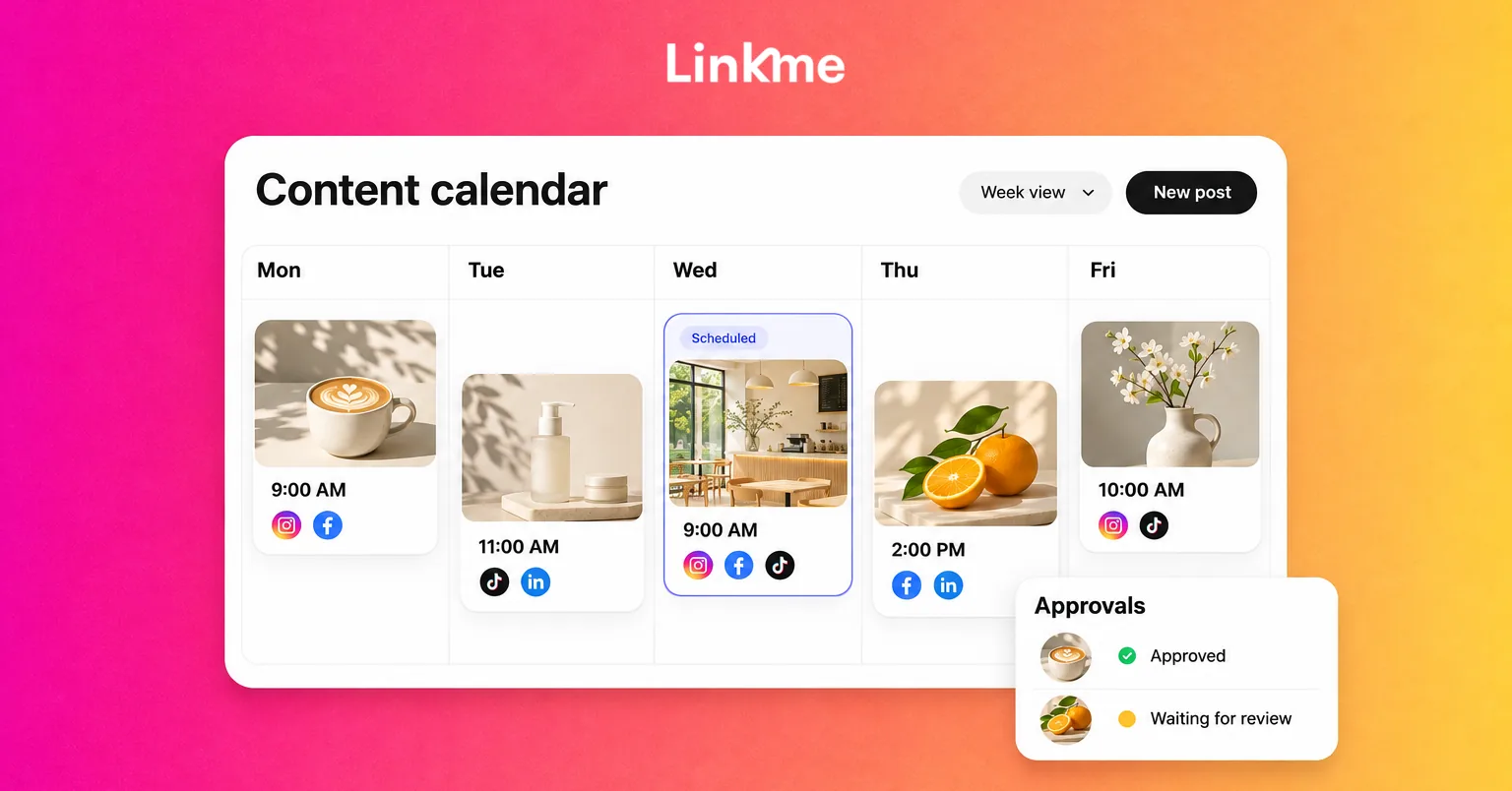
Linkme’s publishing calendar and scheduling tools connect shared drafts, scheduled content and publication status. For a team coordinating several contributors, Linkme for Business provides a workspace for preparing posts and managing review where required.
See a filled weekly calendar example
Consider a hypothetical business running an online customer workshop on Wednesday, May 12, 2027, at noon Eastern Time. Its team plans four posts for the preceding week, combining useful customer advice with the invitation.
This is the planning snapshot at 9 a.m. on Monday, May 3, 2027. All times use America/New_York, Eastern Time. The times demonstrate the record structure rather than recommended posting windows. The fictional account labels are Example Business for its LinkedIn company page and Example Business Studio for its Instagram account. Replace them with your own exact account names or references. Assets and statuses are illustrative.
| Post ID + topic | Publish date/time/timezone | Network + account + format | Copy/asset/destination reference | Owner | Ready-by deadline | Review state | Delivery state |
|---|---|---|---|---|---|---|---|
| P101: Customer checklist question | Tue May 4, 10 a.m. ET | LinkedIn, Example Business, text | P101 record below | Social lead | Fri Apr 30, 4 p.m. ET | In review | Not scheduled |
| P102: Same question, visual version | Wed May 5, 1 p.m. ET | Instagram, Example Business Studio, carousel | P102 record below | Designer | Tue May 4, noon ET | Not ready | Not scheduled |
| P103: Workshop invitation | Thu May 6, 10 a.m. ET | LinkedIn, Example Business, image + text | Expanded P103 record below | Social lead | Fri Apr 30, 4 p.m. ET | Approved | Not scheduled |
| P104: Workshop reminder | Fri May 7, noon ET | Instagram, Example Business Studio, image | P104 record below | Social lead | Fri Apr 30, 4 p.m. ET | Approved | Scheduled |
The example leaves Monday and the weekend empty. Its purpose is to show manageable work with clear ownership, not to prescribe daily posting.
Here is what those content references contain. Sample filenames are descriptive placeholders; they are not downloadable assets.
P101, customer-question post: A text-only post on the Example Business LinkedIn page, with the topic label Customer preparation, answering “What should we prepare before a customer workshop?” Its caption could read: “Bring one question, a recent example and the outcome you want to improve. Those three details give you something concrete to work through during the session. Which would be hardest for your team to gather?” Media and destination: not needed. The reviewer is the marketing lead, with sign-off due Monday, May 3, at 2 p.m. ET.
P102, visual adaptation: A carousel on the Example Business Studio Instagram account using the same topic label, Customer preparation, with three cards: Your question, Your example, Your goal. Sample asset reference: P102-workshop-checklist-carousel. Caption: “One question. One example. One goal. Save this checklist for your next customer workshop.” Destination: not needed. The design is still being prepared; the marketing lead’s review is due Tuesday, May 4, at 4 p.m. ET.
P103, expanded working record:
| Detail | Example entry |
|---|---|
| Goal and campaign | Workshop registrations; Customer workshop |
| Account | Example Business, LinkedIn company page |
| Caption | “Bring one customer-workflow question to our online workshop on Wednesday, May 12, at noon Eastern Time. We will work through how to turn a question, a recent example and a goal into a useful next step. Register through the workshop link below.” |
| Media reference | P103-workshop-invitation-image, a sample filename |
| CTA and destination | Register; [replace with your real workshop-registration URL] |
| Preparation owner / ready-by | Social lead; Friday, April 30, 4 p.m. ET |
| Reviewer / review deadline | Marketing lead; Friday, April 30, 5 p.m. ET |
| Publication | Thursday, May 6, 10 a.m. ET |
| Final checks | Confirm the workshop date, timezone, image text, link and registration availability |
| Expiry note | Withdraw or update the invitation if registration closes or the workshop changes |
| Publishing responsibility | Social lead; marketing lead is the backup |
| Publication evidence / learning | Add after publication; no result is assumed in this planning snapshot |
P104, workshop reminder: An image on the Example Business Studio Instagram account with the caption “Join our online customer workshop on Wednesday, May 12, at noon Eastern Time. Bring your question, example and goal. Register through the workshop link in our bio.” Sample asset reference: P104-workshop-reminder-image. It uses the same registration destination recorded in P103, assigned to the workshop link in the bio. The hypothetical record shows marketing-lead approval completed by Friday, April 30, at 5 p.m. ET and scheduling confirmed before the snapshot. The registration destination has been checked; the publisher must confirm the intended bio-link placement remains correct before publication.
Now suppose the carousel artwork for P102 falls behind. Revise its publication to Thursday, May 6, at 1 p.m. ET, its ready-by deadline to Wednesday, May 5, at noon ET, and its review deadline to Wednesday at 4 p.m. ET. Keep its review state Not ready and delivery state Not scheduled while the artwork is unfinished. Update the working record and calendar together. If a delayed post was already queued, update the publishing system too. P101 can retain its original plan because it is a separate, text-only placement.
Move the plan through review, scheduling and publication
Confirm the final version and required approval
Check the caption, asset, account, destination and intended time before submitting the final version. The reviewer should know what they are approving, and the publisher should know which version received sign-off.
In Linkme’s post approval workflow, managers without publish-without-approval permission for the relevant account submit posts for owner or admin review. Owners and admins can publish directly.
Changes to an approved caption or scheduled time send the post back for approval. Update the planning record’s review state as well, so it does not display an outdated Approved label.
Check an overdue post’s relevance before giving late approval. In Linkme, approval can release an overdue post for publication; it should not revive an expired invitation or an offer that has ended.
Schedule in the publishing system and verify the result
Before confirming the schedule, check the exact account, format, link placement and timezone. Linkme Business scheduling follows the business timezone, so compare that setting with the intended audience’s local time when locations or regions differ.
Shared drafts carry responsibility and review information. Linkme’s month, week, day and list calendar views help teams see upcoming work, while publication status shows whether the planned posts went out.
At the intended time, check the actual result for each account. Distinguish a failed publication from a broken customer-facing destination. Read the reported error, reconnect an account where needed and retry the failed placement rather than blindly reposting versions that succeeded.
Then update the calendar’s delivery state and add the published URL or another verifiable publication reference. An elapsed scheduled time does not, on its own, prove publication.
Keep the calendar useful after the first week
Check readiness, changes and failed posts
Give the calendar owner a repeatable check of the next batch of work:
- Does every upcoming post have an owner and a clear next step?
- Are copy, media and destination details accessible and current?
- Are preparation and review deadlines still achievable?
- Does the plan match the actual publishing queue?
- Have changed offers, events or priorities made any scheduled content unsuitable?
- Are failed posts, customer replies and urgent changes assigned to somebody?
Name who can pause, reschedule or cancel affected posts. Changing a row in a planning document does not stop a post already queued in another system.
Use what happened to improve the next plan
Keep the publication reference and a short learning note. Review posts at comparable points after publication instead of comparing a brand-new post with one that has had weeks to gather attention.
Separate process problems from content outcomes. A post that never published needs a delivery fix; a published post that attracted the wrong questions may need a clearer topic or call to action.
Use the appropriate evidence for each question: native-network analytics for reach and engagement, destination analytics for page activity and clicks, and campaign-linked booking, CRM or sales records for completed customer actions. Clicks do not automatically equal registrations or sales.
Carry useful ideas into the next planning period, fix repeated delays and retire outdated material while retaining the publication record. The calendar should become easier to use as the team learns what it can produce and what its audience finds useful.
Frequently asked questions
What should a social media calendar include?
Include the topic, account and network, publication date and timezone, copy and asset references, owner, preparation deadline, review state and delivery state. Add reviewer details where sign-off is needed and a publication reference after the post goes live.
How far ahead should a business plan social posts?
Plan far enough ahead to prepare assets and complete review without rushing. Fixed events and complex production need more lead time; timely posts need flexibility. Keep upcoming details under review rather than treating the whole period as unchangeable.
Can a spreadsheet schedule social media posts?
A planning spreadsheet alone does not queue posts on social networks. Schedule in a publishing tool or the relevant platform, then keep the planning record aligned with the confirmed time and result. Do not assume a copied template imports or synchronizes automatically.
How often should a business post?
Use audience needs, available material, past results and production capacity to choose a sustainable pace. Increase or reduce it based on useful outcomes and the team’s ability to prepare, review and respond. A filled calendar is not a goal by itself.
A calendar earns its place when the team can act on it: the content is accessible, responsibility is clear, preparation has enough time and publication status is accurate.
See how Linkme can bring your team’s drafts, publishing calendar and approvals into one workflow. Book a demo.