How to Schedule YouTube Shorts
Learn how to schedule YouTube Shorts with Linkme or YouTube Studio, check video settings, change release times and troubleshoot publication issues.
On this page
- Key takeaways
- Choose how to schedule your YouTube Short
- Prepare a Short that is ready to publish
- How to prepare and schedule YouTube Shorts with Linkme
- How to schedule YouTube Shorts in YouTube Studio
- What if you are preparing your Short on a phone?
- Find, edit, reschedule or stop a scheduled Short
- Why your scheduled YouTube Short has not published
- A practical business scheduling example
- Frequently asked questions
- Keep your next video release organized
You can schedule a YouTube Short in YouTube Studio by uploading an eligible video, completing its details and audience settings, then choosing Schedule for a future date and time. The video stays private until its scheduled public release.
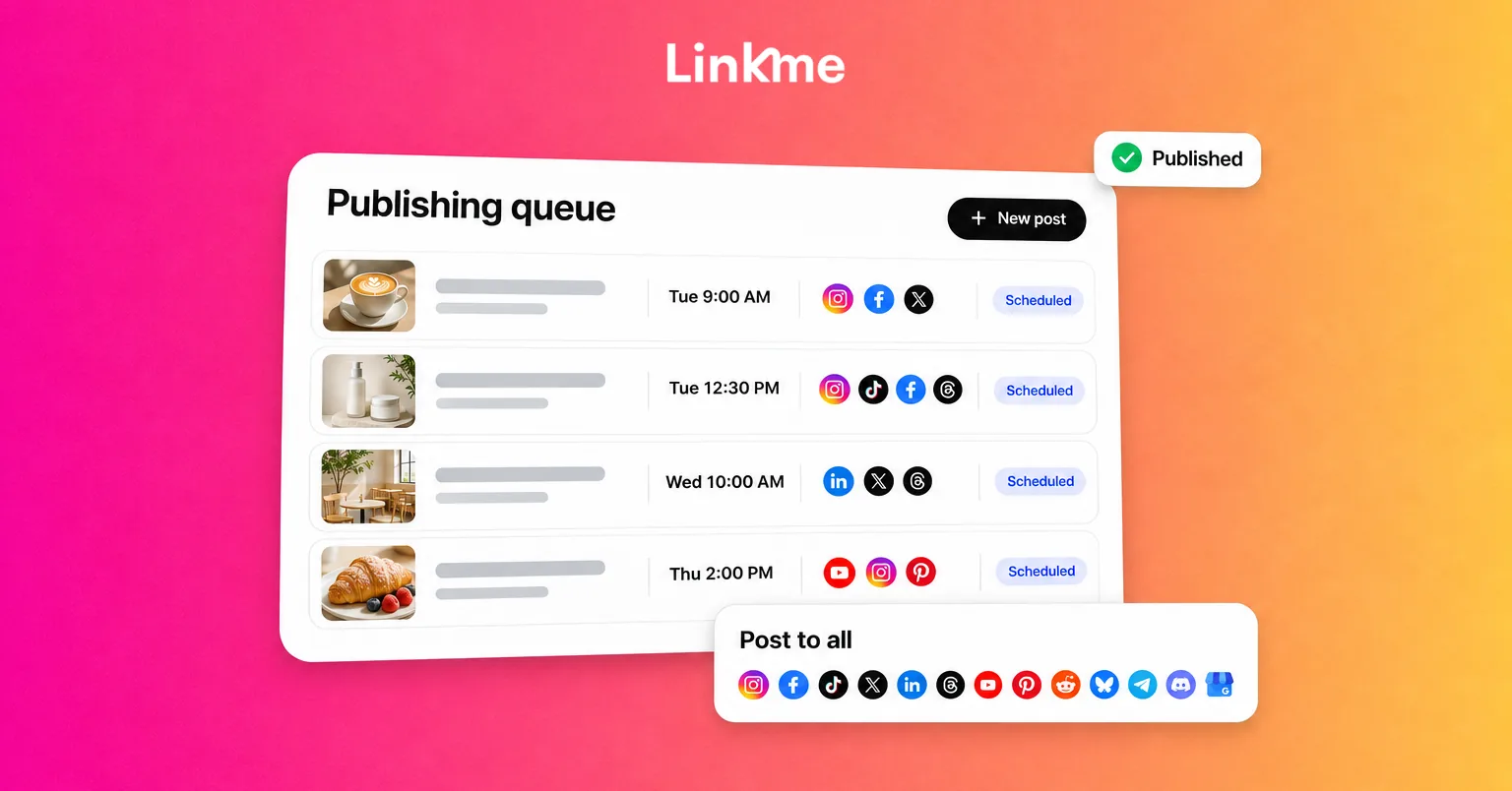
Linkme also supports YouTube short-form publishing alongside shared drafts, reviews and other connected social content. Choose the publishing route that can correctly apply your video’s required settings, then confirm the saved schedule and the actual public result.
Choose how to schedule your YouTube Short
| Route | When it fits | What to check |
|---|---|---|
| Linkme | Your team prepares, reviews and schedules videos alongside content for other connected networks. | Correct connected channel, required audience-setting handling, intended Public visibility and Business timezone. |
| YouTube Studio on desktop | You want to upload and schedule directly with YouTube’s native settings and checks. | Eligible video, accurate details and audience designation, then the saved date, time and timezone. |
YouTube Studio supports channel permissions for team access. Linkme’s value is bringing preparation, review deadlines and releases across connected networks into a shared workspace.
Choose Studio when you need a required setting or a pre-publication check that your other publishing route cannot provide or confirm. Schedule the original video in the route you select; do not rely on two queues automatically updating one another.
Prepare a Short that is ready to publish
Check the video format
For a new upload, prepare a square or vertical video up to three minutes long. A vertical 9:16 export is one practical option, but it is not the only qualifying aspect ratio.
Use the actual uploaded file’s dimensions and duration when checking eligibility. Adding a hashtag does not turn an otherwise ineligible video into a Short.
Confirm the channel and access
Check the channel name before uploading. Access to publish in Studio and permission to authorize a third-party connection are different: an invited channel delegate’s Studio access does not automatically establish access through a connector.
Resolve account or authorization problems before depending on a planned release.
Separate the title, description and audience setting
YouTube video titles allow up to 100 characters; descriptions allow up to 5,000. Give the Short a clear title rather than placing an entire cross-platform caption in the title field.
Set whether the video is made for kids accurately. This audience designation is separate from Public, Private or Unlisted visibility. Complete any other applicable settings through a route that supplies them.
Prepare audio and leave time for checks
Use audio permitted for this upload. A track selected inside another social app is not automatically cleared for a video exported and uploaded elsewhere.
Inspect available restriction notices and resolve issues that prevent release. If your publishing process requires YouTube’s checks before the video goes public, use Studio for the upload and scheduling.
Leave time for uploading, processing, checks and any required review. Processing duration varies, so avoid making the first upload attempt immediately before a time-sensitive release.
How to prepare and schedule YouTube Shorts with Linkme
You can schedule YouTube Shorts with Linkme for an eligible connected publishing setup, while coordinating preparation and reviews with your other social content.
Before scheduling a public release through Linkme, confirm how your connected channel’s made-for-kids audience designation will be applied to this upload. If you cannot confirm the correct setting, upload and schedule the original video directly in YouTube Studio using the method below. Checking a channel default alone does not establish how another publishing tool applies it.
Once that audience-setting check is complete and the route supplies the settings your video needs, follow these steps.
1. Connect and select your YouTube channel
Open Post to All or the Business Plan composer. Authorize the YouTube connection and select the intended channel from the destinations available to you.
Check the selected channel name and address any reconnect warning. The Google account open in another tab is not a substitute for checking the publishing destination in the composer.
2. Upload the eligible video and prepare its details
Add the prepared video, write its YouTube title and description, and review the preview and validation messages.
For an intended public release, choose Public visibility for that destination. A scheduled upload deliberately set to Private or Unlisted does not meet the same goal.
If the video needs a native-only option that your publishing setup cannot supply, use the Studio workflow with the original file. Do not assume a queued Linkme item is already available to finish editing in YouTube.
3. Set the publication time and review deadline
Choose the release date and time in the Business timezone. If your audience is elsewhere, compare the local time for the actual future date.
Set an internal review deadline before the release slot, with enough time to correct the video or copy. A saved draft is not a confirmed publication schedule.
4. Confirm scheduling or submit for required review
Confirm the schedule or submit the item for approval, depending on your permissions.
Owners and admins can publish directly. Managers need sign-off where they do not have direct publishing permission; trusted managers can receive publish-without-approval access. Reviewers approve or request changes.
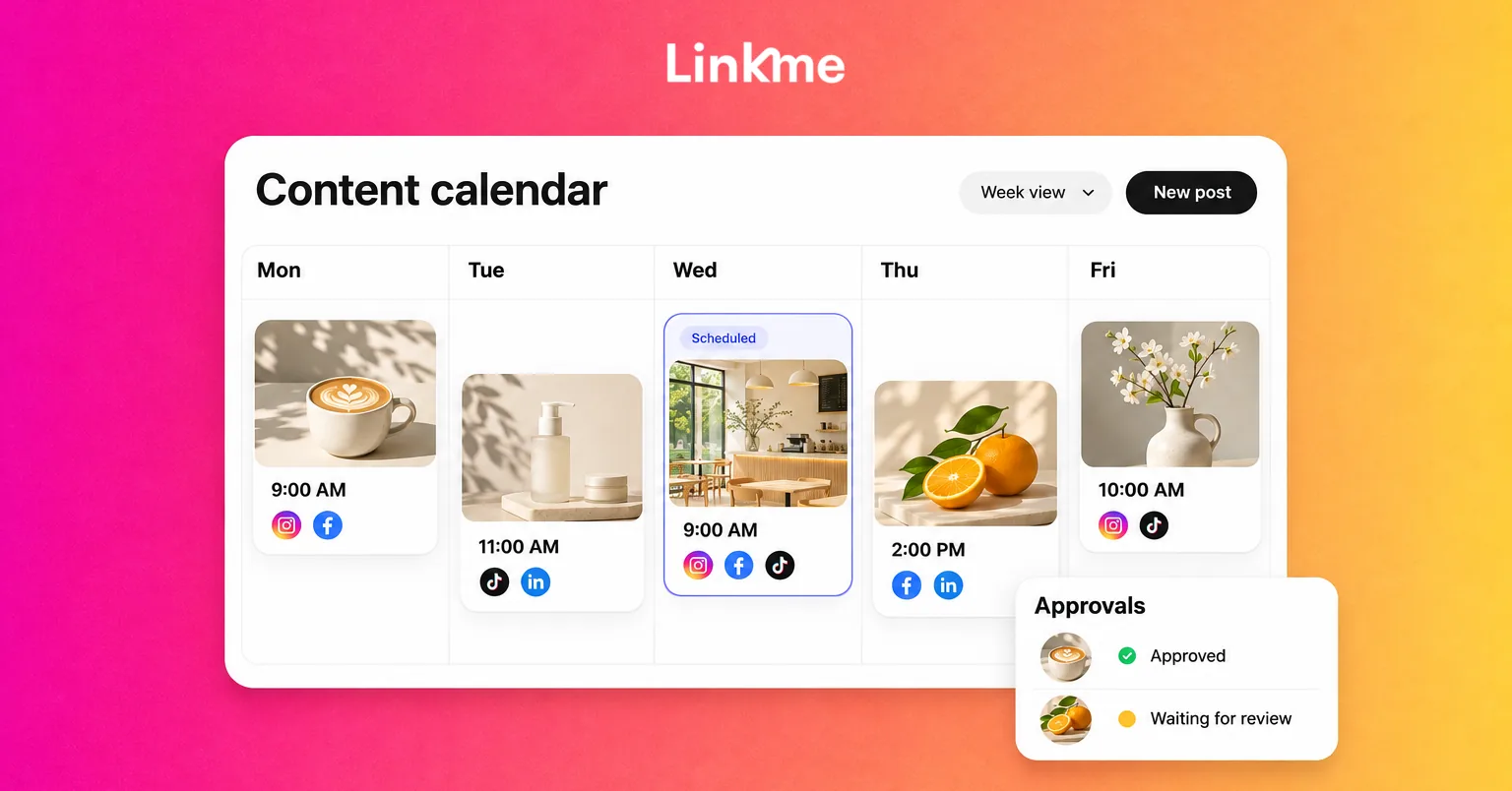
Use the workflow to review posts before publication, and check whether a caption or time change has renewed the review requirement.
An overdue item may publish after approval. Before approving a time-sensitive video whose slot has passed, check its relevance and intended release time.
5. Verify the saved item and the public result
Confirm the channel, date, time, review state and intended visibility in the saved item. After the slot, check the YouTube destination’s status and the actual public video, including its Shorts classification and any restriction.
If other networks publish but YouTube fails, read the specific error and resolve it. Check for an existing YouTube copy before retrying only the failed destination. Waiting for review, processing and failed publication require different actions.
How to schedule YouTube Shorts in YouTube Studio
This method schedules an uploaded private video to become public at the time you select.
1. Open the correct channel and upload the video
Sign in to YouTube Studio and confirm the channel. Select CREATE → Upload videos, then choose the eligible Short file.
You do not need to create a Premiere. Shorts do not support Premieres.
2. Complete the details and audience setting
Add the title and description, then accurately select whether the video is made for kids. Complete any other applicable native settings and move through the upload stages.
Check the actual video and copy before scheduling. An upload intended for a specific campaign should use the correct offer, names and release details.
3. Review processing and checks
Review the available checks and any restrictions. Resolve a release-blocking issue before relying on the planned slot.
Checks can run in the background, and their results are not permanent clearance against later claims. A video can also need further processing before it is ready for public playback. Check its actual state rather than assuming every upload finishes in a fixed number of minutes.
4. Select Schedule in Visibility
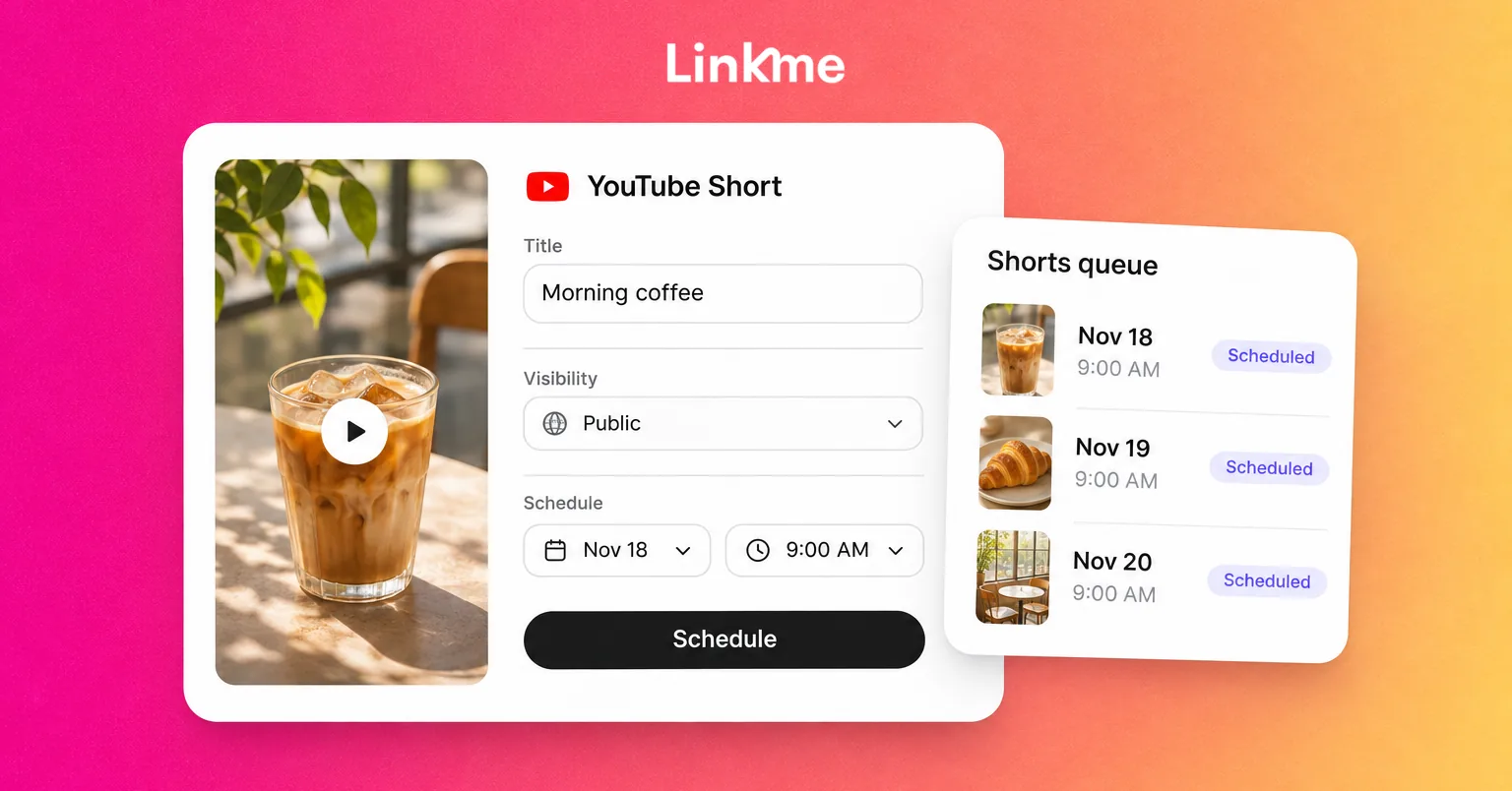
At Visibility, choose Schedule. Set the date, time and timezone, review them, then select Schedule to confirm.
YouTube’s scheduling instructions describe this private-to-public release. Saving the video merely as Private without a future publication time does not finish scheduling it.
5. Check the saved release
Return to Content, find the video and verify its scheduled state and publication time.
After the release slot, open the actual video and confirm that it is public and categorized as a Short. A successful upload or public release does not guarantee a particular number of views or distribution in the Shorts feed.
What if you are preparing your Short on a phone?
A phone draft is not the same as a scheduled upload. Drafts saved in the Shorts camera are stored on the device, so they are not automatically waiting in your channel’s publishing queue.
If your app provides a scheduling option, choose the future release and verify its saved state. If you are using an upload flow that only offers privacy and upload controls, use this phone-to-desktop route:
- Prepare the video in the app and complete its title, audience and other required details.
- Select Private visibility before uploading.
- Confirm that the upload completed for the correct channel.
- On desktop, open YouTube Studio Content and select that video.
- Open its visibility/scheduling controls, set the future date, time and timezone, and confirm the schedule.
- Reopen the item to verify the saved release.
This fallback finishes scheduling on desktop. Uploading publicly or saving a local draft alone does not schedule a later public release.
Find, edit, reschedule or stop a scheduled Short
Use the tool holding the schedule. Studio and a third-party publishing queue should not be treated as synchronized copies.
Manage the video in YouTube Studio
Open Content and select the video’s title or thumbnail. For supported title or description changes, make the edit and select Save. Recheck that the intended future release remains scheduled.
To change the release time:
- Open the video’s Visibility settings.
- Keep the video private until its intended release and reopen the scheduled date and time.
- Choose the revised date, time and timezone.
- Confirm or save the revised schedule using the controls shown.
- Reopen the item and check the saved time.
Do not select Public merely to save a future schedule. Public is the separate choice when you deliberately want to publish immediately.
To stop the future public release while retaining the upload, change from scheduled publication to Private, save, and verify that no future public release remains.
Manage the item in Linkme
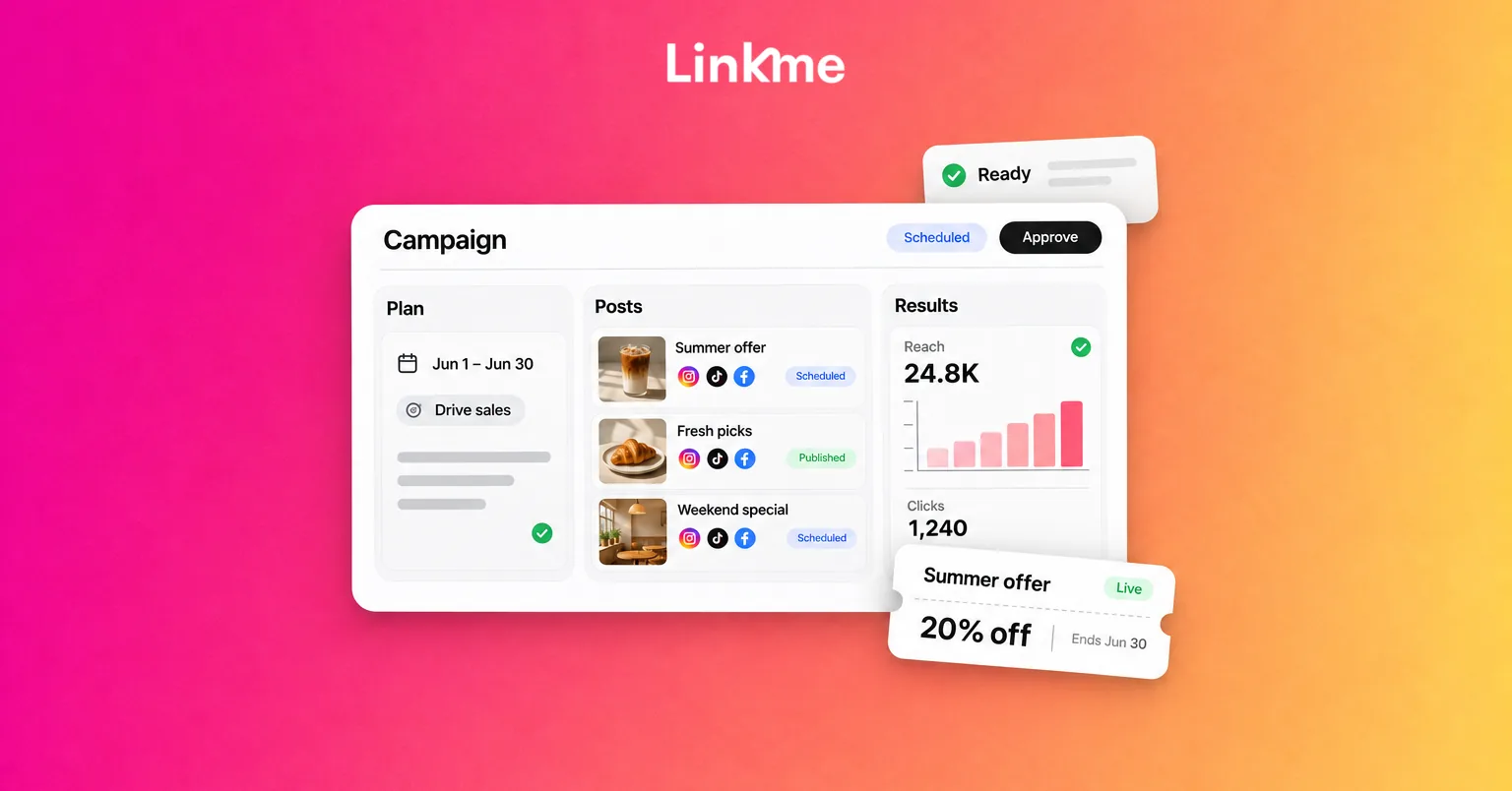
Open the scheduled item in Plan, the calendar or post history. Update supported text, time, review-deadline or campaign fields, check whether review has renewed, and save the resulting state. Use Cancel when the queued item should no longer publish.
Reopen the item to verify the change. Do not assume editing a native YouTube item updates the Linkme queue, or that a queued Linkme item already exists in Studio.
Changing metadata or time is different from replacing the source video. Keeping an unpublished upload private is also different from deleting a public Short.
Why your scheduled YouTube Short has not published
| Issue | What to check and do next |
|---|---|
| The video uploaded, but there is no scheduled release | Check the correct channel and confirmed future schedule. A private upload or local draft alone is insufficient. |
| The video is not categorized as a Short | Check the uploaded file’s square/vertical format and duration. An ordinary upload or hashtag alone does not establish eligibility. |
| The video is still processing | Check its processing state and saved schedule before retrying or creating another copy. |
| A copyright or other restriction appears | Inspect the actual notice and resolve any release-blocking issue. Do not assume every claim has the same outcome. |
| A Community Guidelines penalty affects the channel | Check the restriction. Scheduled content can remain private during the penalty, and YouTube requires rescheduling after the freeze ends. A Content ID claim is different from a channel strike. |
| The time or displayed date looks wrong | Compare the saved timezone and future date. YouTube’s watch-page date uses Pacific Standard Time, so it may differ from Studio’s display. Correct a queued release; assess any already-public correction separately. |
| A Linkme item is waiting or paused | Check review, requested changes, connection and paused state. Complete the required action and verify the saved result. |
| Other networks published but YouTube failed | Read the destination-specific error, correct it and check for an existing copy. Retry the failed destination rather than republishing successful ones. |
A practical business scheduling example
Suppose a professional-services firm prepares a 45-second vertical video explaining what a client should send before a project kickoff. It uses original narration and a simple demonstration.
The marketer chooses a publishing route that can apply the correct audience designation and other required settings. If that cannot be confirmed for the connected setup, the marketer uses Studio for the upload and release.
| Stage | Who does what |
|---|---|
| Prepare | The marketer checks the video, channel, title, description and required audience/settings route. |
| Review | A reviewer checks the factual claims and finished video before the deadline, where sign-off is required. |
| Schedule | The marketer confirms the future release in the selected route and checks its saved state. |
| Change | If the campaign moves, the marketer updates the release and completes any required renewed review with the reviewer. |
| Verify | The marketer checks the actual public Short, restrictions and intended viewer next step. |
This is a hypothetical workflow. Its business value comes from keeping the correct content, review and release aligned.
Make the video useful before asking the viewer to act. If it points viewers to a project-enquiry page, check the existing channel profile link and explain where viewers can find it. Ordinary URLs in Shorts descriptions and comments are not clickable.
A different native option is to add a related video in YouTube Studio after upload. That requires advanced-feature access and an eligible public or unlisted video from the same channel. It leads to YouTube content, not directly to an external booking page.
Before relying on a release, confirm:
- The correct channel is selected.
- The uploaded video meets Shorts requirements.
- The title and description are accurate.
- The audience designation and applicable settings are complete.
- The audio is suitable for this upload.
- Public release is the intended outcome.
- The date, time and timezone are correct.
- Any required review is complete.
- The saved item has a confirmed schedule.
- Someone will check the actual publication.
Frequently asked questions
Do I need a third-party scheduler for YouTube Shorts?
No. YouTube provides native scheduling in Studio. A separate workspace can be useful when shared preparation, required reviews and coordination across connected networks fit your team’s publishing process.
Is a saved Shorts draft the same as a scheduled Short?
No. A device-local draft has not been scheduled on your channel. A private upload is also different from a confirmed future public release. Open the publishing route and check the saved date, time and scheduled state.
Can I change the release time after scheduling?
Yes. Use the controls in the route holding the schedule, save the revised release and reopen it to check the result. In Linkme, changes may renew a review requirement. You do not need to delete and recreate an item simply to change its publication time.
Can I schedule a Short that uses music?
Yes, provided the audio is permitted for that upload and no restriction prevents publication. Inspect available notices; use native Studio when checks before release are essential to your process.
Native Shorts music options have track-specific allowances. Their availability does not establish that another publishing tool can attach the same audio or that an app-selected track can travel with an exported video.
Does scheduling affect Shorts views?
Scheduling helps you manage release timing; it does not guarantee more views. YouTube says publication time is not known to affect a video’s long-term performance, although publishing when viewers are active can help early viewing. Choose a workable schedule and useful content without treating a particular release time as a growth guarantee.
Keep your next video release organized
Prepare an eligible Short, choose a route that supplies its required settings, confirm the saved schedule and check the public result. Keep review deadlines ahead of publication so changes can be handled before the planned release.
For teams coordinating upcoming videos, reviews and content for other connected networks, Linkme for Business brings preparation and publishing work into a shared workspace. You can book a demo to explore how it fits your team’s workflow.