How to Promote Your Stream Before, During and After You Go Live
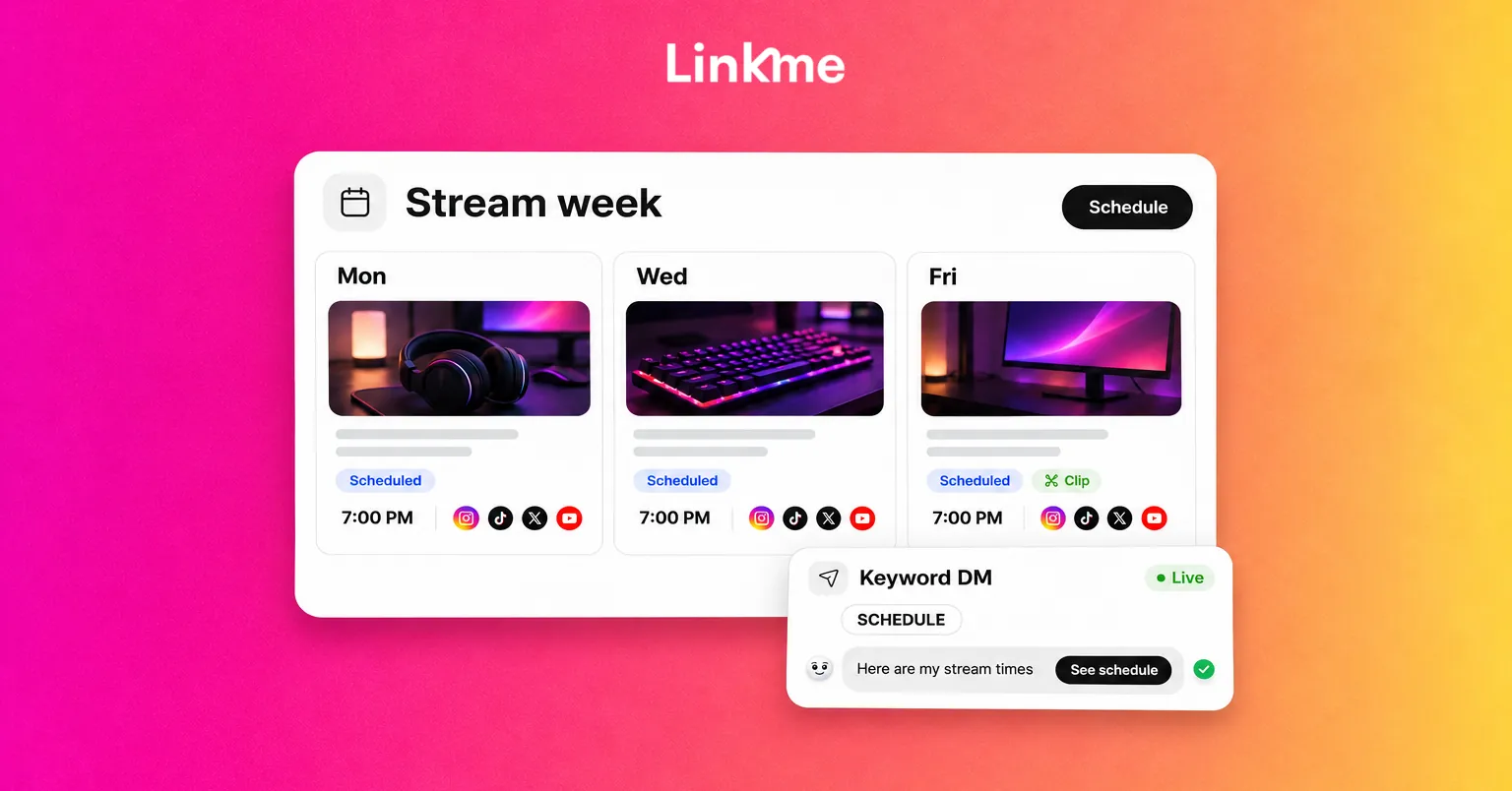
A weekly routine to promote your stream: announcements scheduled to every network, one going-live link, a DM keyword that sends your schedule, and clips that keep working after you log off.
On this page
The simplest way to promote your stream is to treat every broadcast as a small campaign with three parts: the announcement before you go live, the push while you are live, and the clips that keep working after you log off. The before and after matter most, because that is when people who were not watching decide to show up next time. This guide gives you a routine you can repeat every week, whether you stream on Twitch, Kick or YouTube.
Before the stream: announce it everywhere
Start with a schedule people can remember
People can plan around “Live Monday, Wednesday and Friday at 7 PM Eastern”. They cannot plan around “streaming soon”. Put the same schedule, with the timezone, in your channel’s About section, your social bios and your link in bio page.
When the schedule changes, say so before the usual start time. A short “No stream Friday, back Monday” costs far less trust than not showing up.
Write one stream announcement, then adapt it
A good stream announcement says in its first line what is happening, when, and why tonight is worth watching. “Ranked grind to Diamond tonight, 7 PM ET, and chat picks my loadout” beats “Going live later, come hang.”
Then fit the format to each network:
| Network | What to post | When |
|---|---|---|
| Instagram and TikTok | A short vertical teaser: a clip from last stream with tonight’s goal on screen | The day before or the morning of |
| X and Threads | One line with the time, the hook and the link | A few hours before, and again at start |
| YouTube | A Short from the last stream, or a scheduled live stream with its own watch page | When you set up the stream |
| Facebook and LinkedIn | A longer post for a charity stream or collaboration, if your audience is there | The day before |
Schedule the announcements in one sitting
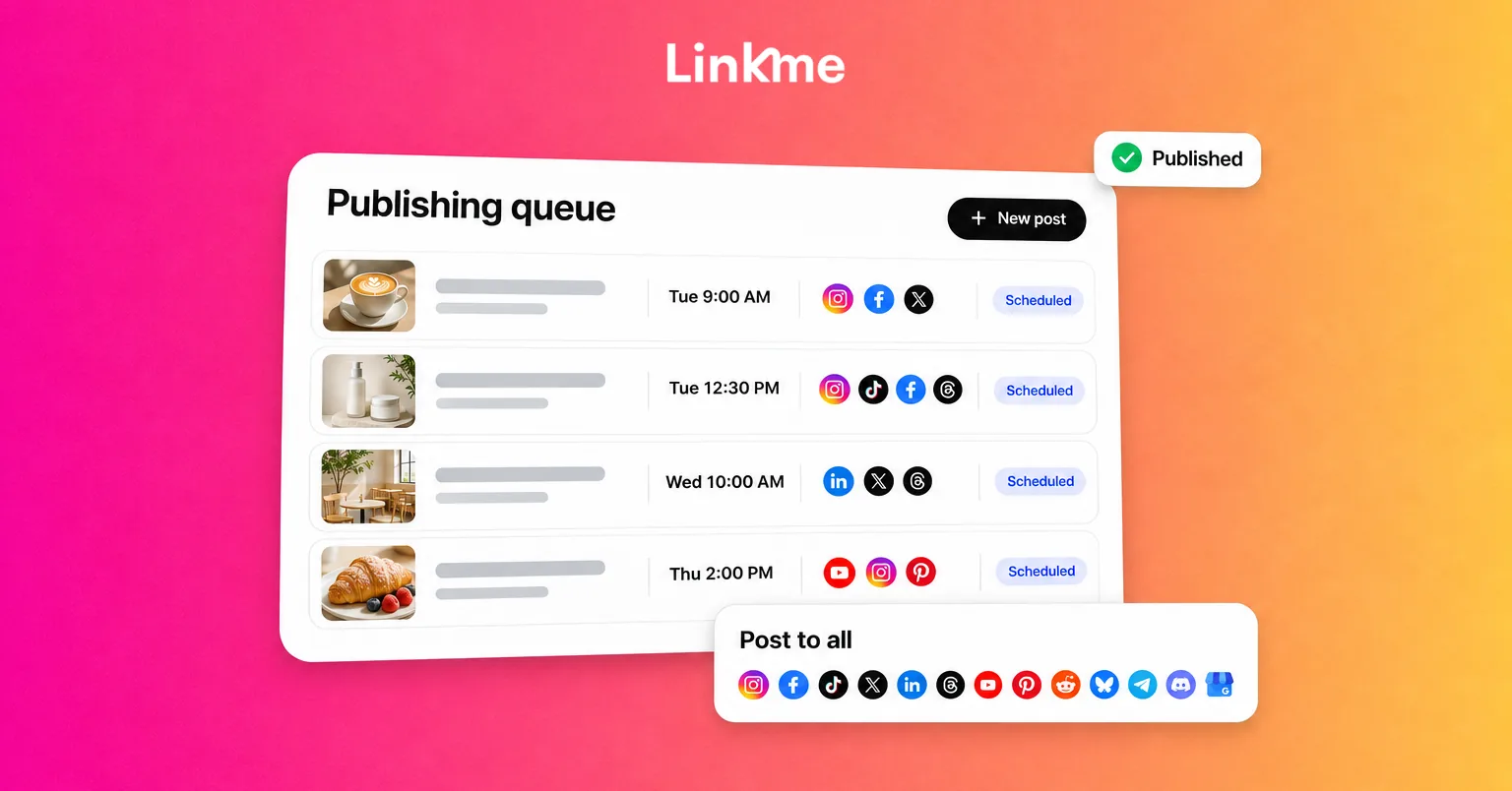
Scheduling the week’s announcements in one sitting beats remembering to post before every stream. With Post to All you upload the teaser once, write one caption or a separate one for each network, pick the accounts and set a date and time. It posts to YouTube, Instagram, TikTok, Facebook, X, Threads and LinkedIn, and each caption is checked against that network’s limit as you type, from 280 characters on X to 5,000 on YouTube. Linkme Business adds Discord and Telegram, among others, which is useful if your community lives in a Discord server.
Linkme does not post to Twitch or Kick, so these announcements send people to your channel. They do not replace the platform’s own go-live notifications.
Use the platform’s own reminders too
Every platform has a built-in way to reach people who already follow you. Set it up every time:
- Twitch: a custom go-live notification goes to followers who have notifications turned on. You write it in Stream Manager under Edit Stream Info. It can be up to 140 characters, and Twitch limits how often notifications go out, so get the text right before you go live (Twitch Help).
- YouTube: a scheduled live stream gets a watch page before it starts. Viewers can tap “Notify me” there, and the upcoming stream can appear in subscribers’ feeds (YouTube Help). Share that watch page link in your announcements.
- Kick and others: check the current notification options, because they change often.
Put one going-live link in your bio
Make every announcement point to one page rather than a different link on every network. A link in bio page with your schedule, your channels and a “Watch live” link at the top sends a viewer from TikTok and one from X to the same place.
On Linkme, the Link scheduler puts that link on a timer. It goes live on your page at the start time, shows a countdown while it waits, and comes off when the stream ends, so you never have to swap links at midnight. The scheduler is on the Plus and Pro plans. If you stream on more than one platform, list each channel and put the one you are live on today first.
During the stream: make it easy to join late
People arrive throughout a broadcast, not only at the start. Help them catch up and stay:
- Post a “we’re live” update at the start. Keep it to one line and a link. Publish it to every network at once rather than one app at a time.
- Recap the plan every 20 to 30 minutes. “Two wins from Diamond, chat picked the loadout” gives new arrivals a reason to stay.
- Pin the important links in chat. Ask your moderators to post the schedule, the Discord and anything you are promoting when people ask.
- Note timestamps of clip-worthy moments to save scrubbing through the VOD later.
Skip the hourly “still live” posts. One update at the start, plus one if something big happens (a raid, a milestone, a guest), is enough.
Let a DM keyword send your schedule
“When do you stream?” is the question every streamer gets in their DMs and comments. Answer it once and let automation handle the repeats.
With DM Automations on an Instagram business or creator account, or a Facebook Page, you can end your announcement with “Comment SCHEDULE and I’ll send you the times.” When someone comments the keyword, Linkme posts a public reply under the comment and sends a DM with your link. That can be your Linkme page, filled in with one tap on Use my bio link, or a page with just the schedule. A few details are worth knowing:
- An automation can watch specific posts, or any post or reel, which also covers the posts you publish later.
- Public replies rotate through up to five variations, so the thread does not read like a script.
- A DM automation can also answer messages people send you, with up to three links as buttons on Instagram. Set to any message, it reaches each person once every 24 hours at most.
- Each automation shows activations, clicks and click-through rate.
Every plan, including the free one, can run DM automations.
After the stream: turn the VOD into stream clips
Clips are how people who have never watched you discover you. A routine for each broadcast:
- Pick three to five moments that make sense to someone who has not seen the stream.
- Clip them on the platform first. On Twitch, a clip can be up to 60 seconds (Twitch Help). Export longer highlights from your VOD in your editor.
- Reformat for vertical. Crop to 9:16, hook in the first two seconds, captions for sound-off viewers.
- Schedule them over the next few days. One clip a day keeps you visible between broadcasts. Every caption ends with the next stream time.
- Send viewers to the full VOD. On a Linkme page you can show a YouTube video feed, so the latest upload appears on the page without anyone editing a link.
A weekly checklist to promote your stream
- Schedule posted and correct on every profile.
- Stream announcements scheduled for each network.
- Twitch go-live notification written, or YouTube stream scheduled with its watch page.
- Going-live link set with a start and end time.
- DM keyword automation running on the announcement post.
- Clips cut and scheduled after each broadcast.
Then measure. Compare your streaming platform’s analytics with your page’s link clicks and your DM automation clicks to see which part of the routine brings viewers in.
Linkme handles the promotion around the stream: Post to All for announcements and clips, a scheduled going-live link and a keyword DM that sends your schedule. The show itself stays on your streaming platform.
Frequently asked questions
How do I promote my Twitch stream with no viewers?
Start outside Twitch. Post short vertical clips on TikTok, Instagram and YouTube Shorts, each ending with your schedule, since those platforms show content to people who do not follow you yet. Keep a fixed schedule, write a custom go-live notification and point every post to one page with your channel link.
How far in advance should I announce a stream?
For regular streams, a teaser the day before and a short reminder a few hours before is enough. For special events like a charity stream, a collaboration or a launch, start a week ahead and set up a scheduled stream page where your platform supports one, so people can opt in to a reminder.
Can I post to Twitch or Kick from Linkme?
No. Post to All publishes to YouTube, Instagram, TikTok, Facebook, X, Threads and LinkedIn, and Linkme Business adds networks such as Discord and Telegram. Use it for announcements and clips that send people to your Twitch or Kick channel, and use each streaming platform’s own tools for go-live notifications.
How often should I post stream clips?
As often as you can keep the quality up. For most streamers that is about one clip a day between broadcasts, which beats ten weak clips the day after a stream and then a week of silence.